

Most Shopify Smart Collections are set-and-forget — you define the rule once and it runs forever. The New Releases collection is the exception. Because "new" changes every week, the rule needs a one-time tag update each week so the collection reflects this week's arrivals instead of last week's.
When to Do This
Either:
Right after you finish the weekly check-in, or
The night before street date, if you check in product a few days early.
What You Need to Know
You need the tag you used when checking in this week's items. If you don't remember:
In Shopify, go to Products.
Click Sort → Created (newest first).
Click one of the top items.
Look at the Tags section on the product page.
If you forgot to tag this week's items during check-in, see Shopify — Bulk Edit Product Info, Type, etc. to add the tag after the fact.
Update the Collection
In Shopify, click Products → Collections.
Type New Releases (or whatever you named your collection) into the search bar.
Click the collection to open it.
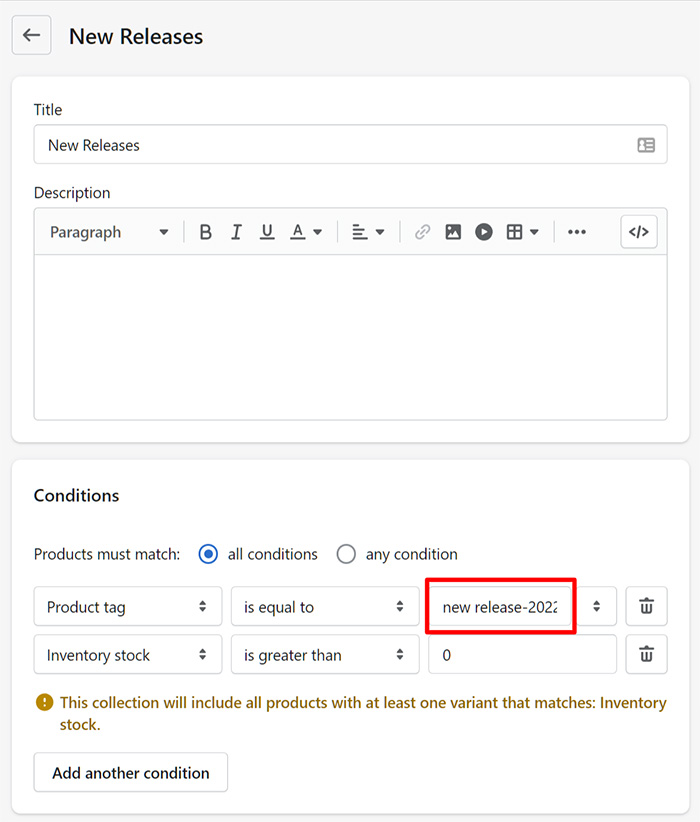
Find the Product Tag condition in the collection's conditions.
Update it to this week's tag (e.g.,
new release-2026-04-22).Click Save.
What Happens Next
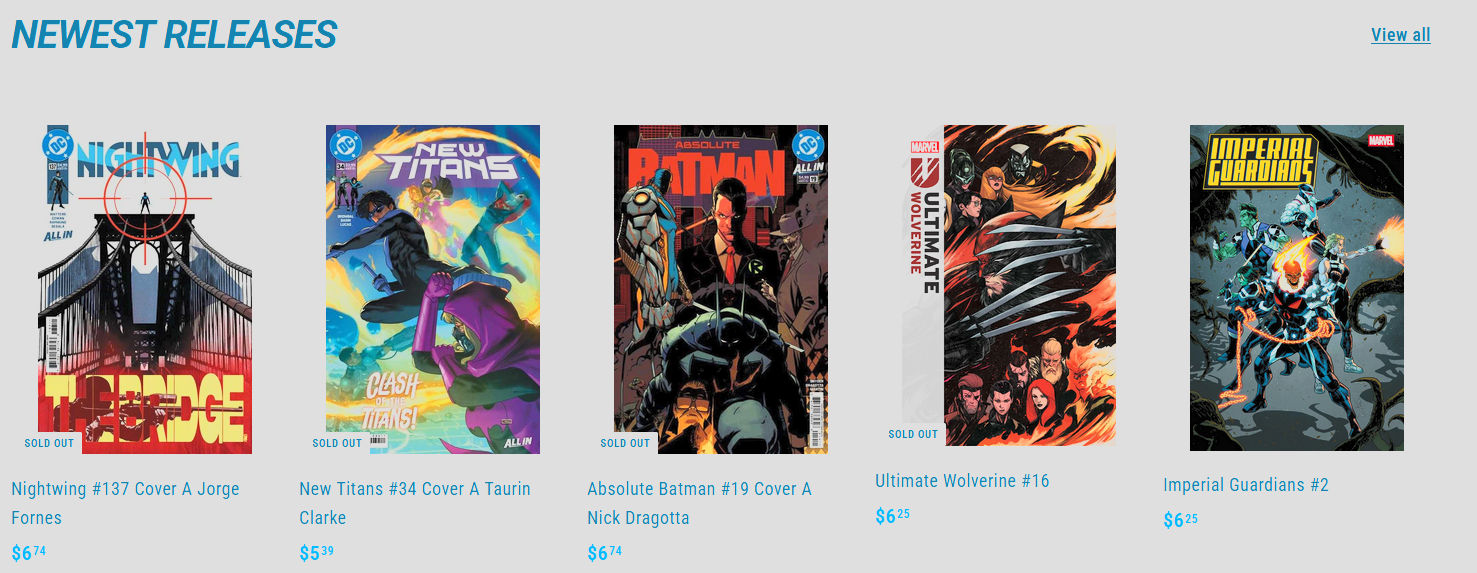
Shopify may take a few moments to re-populate the collection. Once it does, your New Releases page on the storefront shows this week's arrivals.
Pro Tip — Pre-Commit to a Tag Format
Adopt a consistent tag format — new release-YYYY-MM-DD is a good one — and use the upcoming street date as the date portion. This makes the whole step mechanical and reduces typos.