

Excel is convenient for reviewing CSVs, but its default handling can damage data in ways that matter for Manage Comics imports. This article covers how to open a CSV in Excel without breaking it.
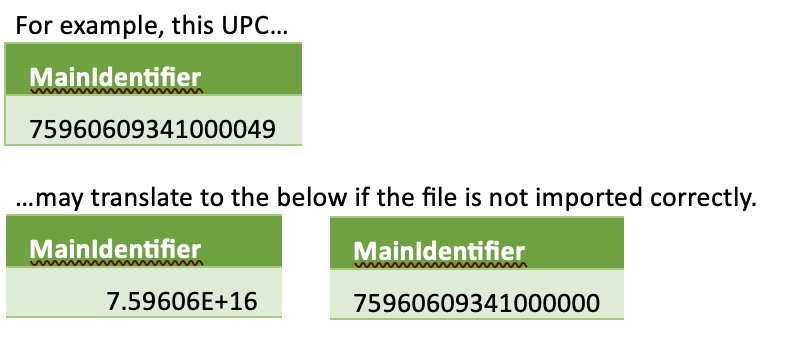
For example: Microsoft Excel cannot handle numbers with more than 15 digits per cell. When UPCs are entered as a number in a cell, Excel will store the first 15 digits but then replace any remaining digits with zeroes.
Common Issues
OrderRequirement looks like a timestamp 1:05:01
OrderRequirement looks like a decimal 0.111111111
OrderRequirementUPC looks like 7.59606E+16 or 75960609341000000
ISBN looks like 9.7813E+12
Description or ContributorBio contain strange symbols like: LINKÂ is a bestselling Japanese writer best known for the mangaÂ
And more…
In order to safely import CSVs into Excel, follow these steps:
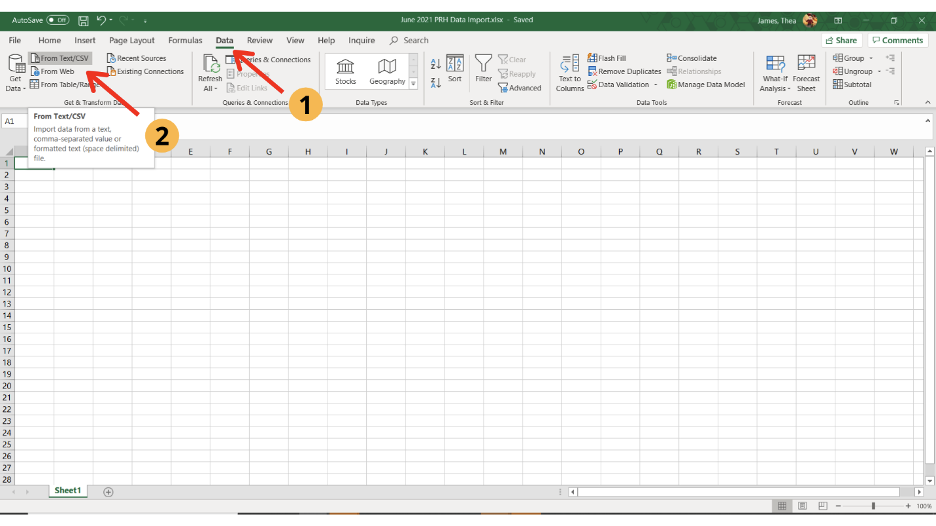
Open the Excel spreadsheet where you want to import the CSV data. (This can be a brand new spreadsheet in Excel, or an existing XLSX spreadsheet.) Click the Data tab.
In the “Get Data” section, select From Text/CSV.
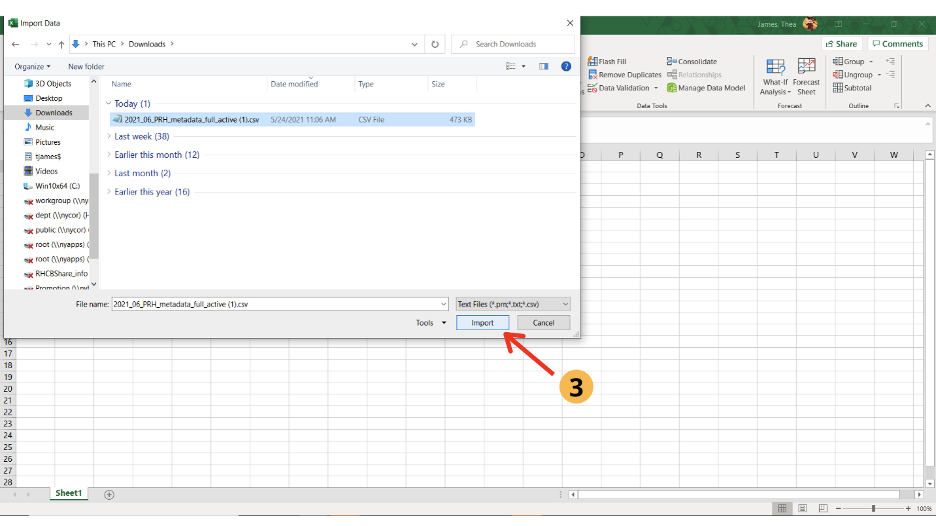
Select the CSV file you are trying to import, and click Import.
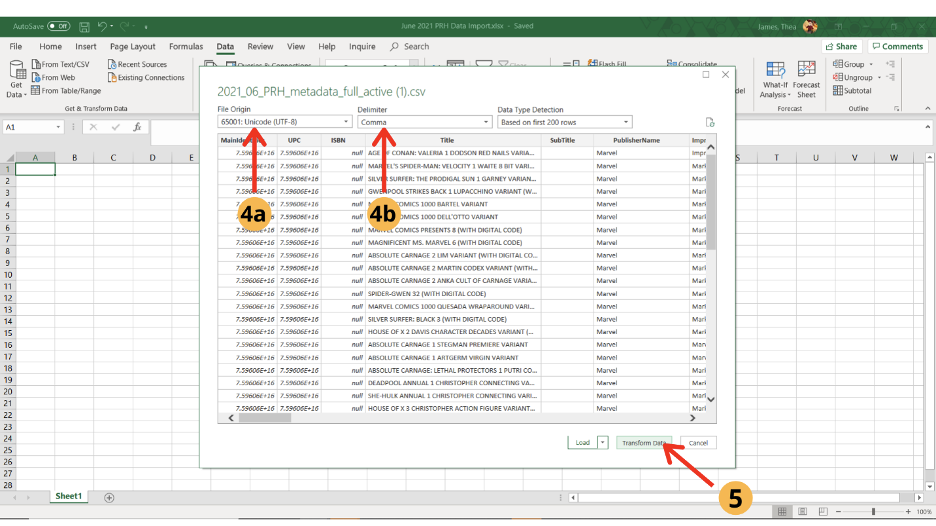
You’ll see a screen that previews the CSV data. Make sure to select the following items from each dropdown menu:
a. File Origin: Unicode (UTF-8)
b. Delimiter: Comma
c. Then, select Transform Data.
The following columns will need to be transformed: MainIdentifier, UPC, ISBN, OrderRequirement, OrderRequirementUPC.
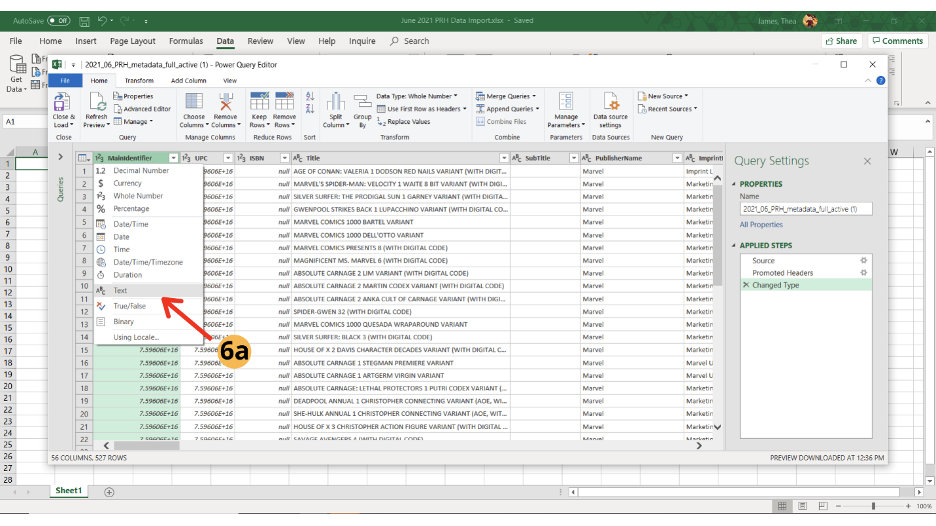
a. Starting with MainIdentifier, select Text from the formatting dropdown menu.
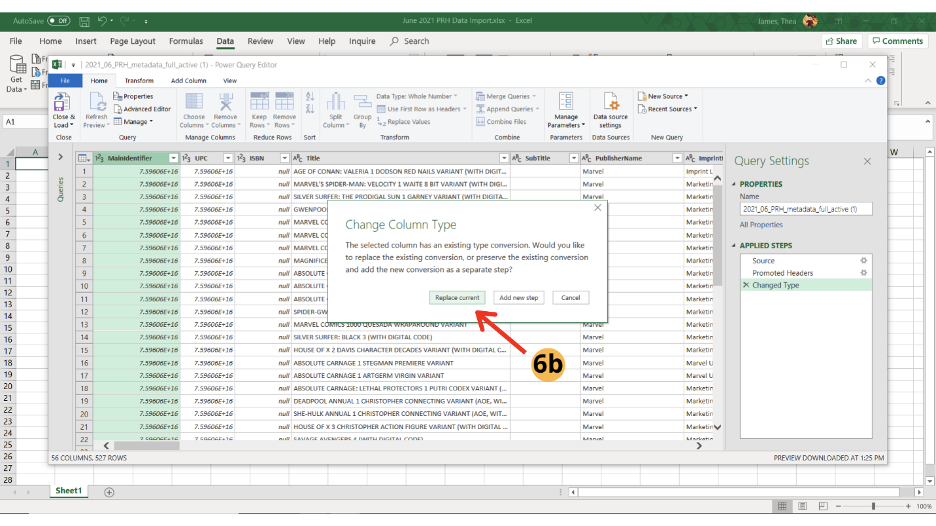
b. Then, select Replace Current. (You will see that all of your scientific notation UPCs now should have real UPC information on your preview.)
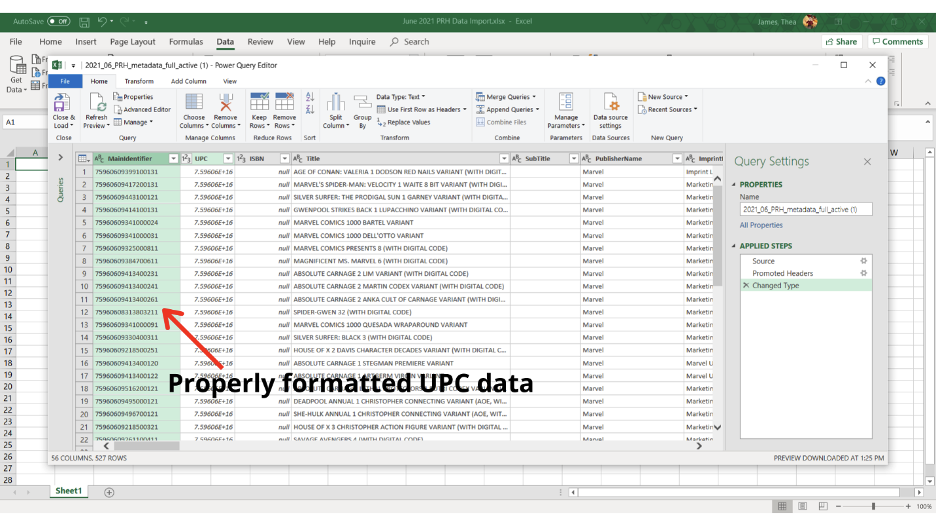
If you’ve tried these steps and still see that your MainIdentifier column contains UPCs that look like scientific notation (7.59606E+16) or end in a string of zeroes (75960609341000000), you’ll need to close out the import query and try again.
Repeat steps 6a and 6b for the following columns: UPC, ISBN, OrderRequirement, OrderRequirementUPC.
Under the File menu, click Close and Load.
Alternatives
Google Sheets — for simple edits, often preserves leading zeros better than Excel defaults.
Text editor — for very small edits, open the CSV in VS Code, Sublime, or Notepad++ to avoid Excel entirely.
LibreOffice Calc — has an import dialog with column type options by default.
If you have already broken the file
If you have edited a CSV in Excel and it is now failing to import, the fastest path is to re-export from the source system rather than repairing the damaged file.