

Use Shopify's bulk editor to change the same field across many products at once. The walkthrough below uses product type as the example, but the same method works for price, weight, vendor, and other fields.
How to bulk edit products
Click Products on the Shopify menu.
Use More filters to narrow the list, for example by Product Type, Vendor, or Tag. Adjust the sort order if it helps.
Check the boxes for the items you want to edit. To select every item that matches the filter, click the Select all 50+ products in your store link that appears.
Click Bulk Edit.
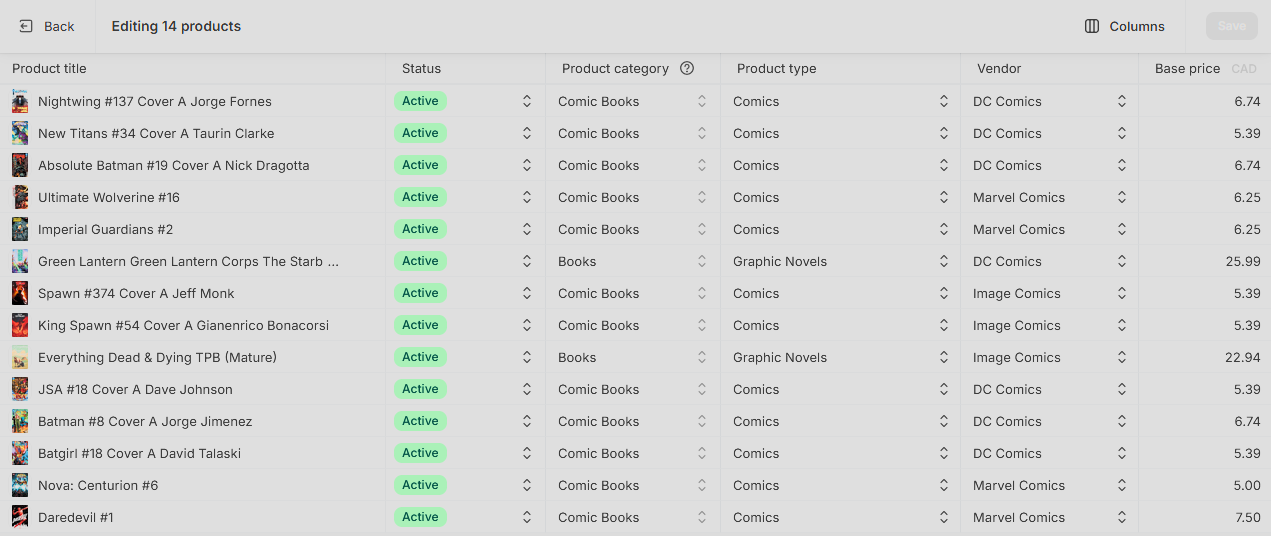
On the Edit Products screen, click Columns in the upper right and turn on the column you want to edit, for example Product Type (custom). You can turn on more than one column at a time.
Edit values cell by cell.
Click Save in the upper right. Changes do not persist until you save.
Multi-cell editing
If you are changing several products to the same value, click the top cell, hold Shift, click the bottom cell, then click the top cell again to start typing. Your input fills the whole selected range.
Things to keep in mind
Bulk edits are not easy to undo. Double-check the filtered list before saving large changes.
Manual inventory edits in Shopify can collide with check-in updates from Manage Comics. Change inventory through check-in when possible.
Large changes take time to apply. Shopify processes them in the background, so wait for the save to finish before navigating away.