

Invoicing is the step that turns a pulled order into money. After weekly check-in, Manage Comics knows exactly what each customer has waiting for them; invoicing converts that into a Shopify order with a payment link and emails the customer directly. For Ordo shops that collect payment online, this is typically the second thing you do every Pull day — check in, then invoice.
Step 1 — Open Customer Orders
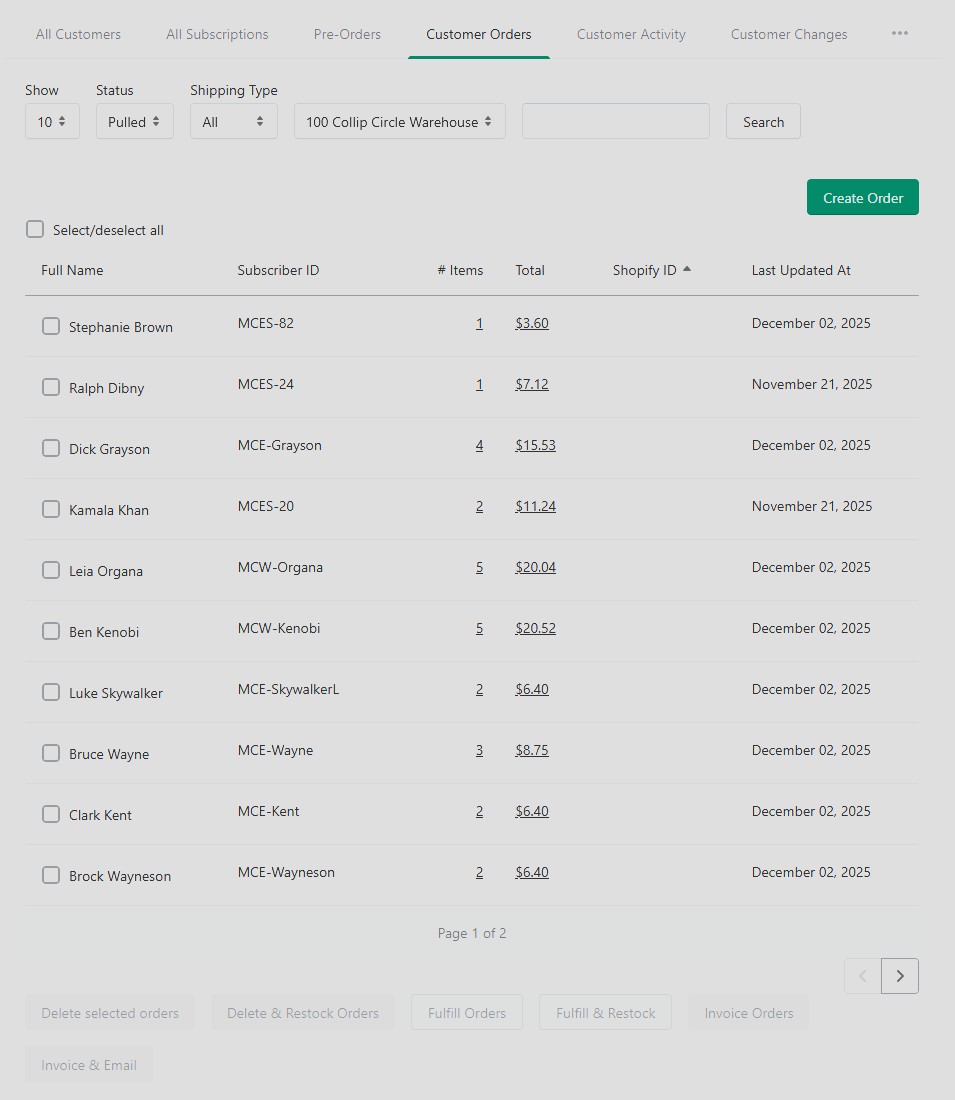
In Manage Comics, go to Customers → Customer Orders.
You have two paths from here:
Invoice a single customer's order — click the customer's order total to open it, then select specific items.
Bulk invoice multiple orders — use the checkboxes to the left of multiple orders, then scroll to the bottom of the page to use the mass invoicing actions.
Step 2 — Invoice the Selected Items
For a single order:
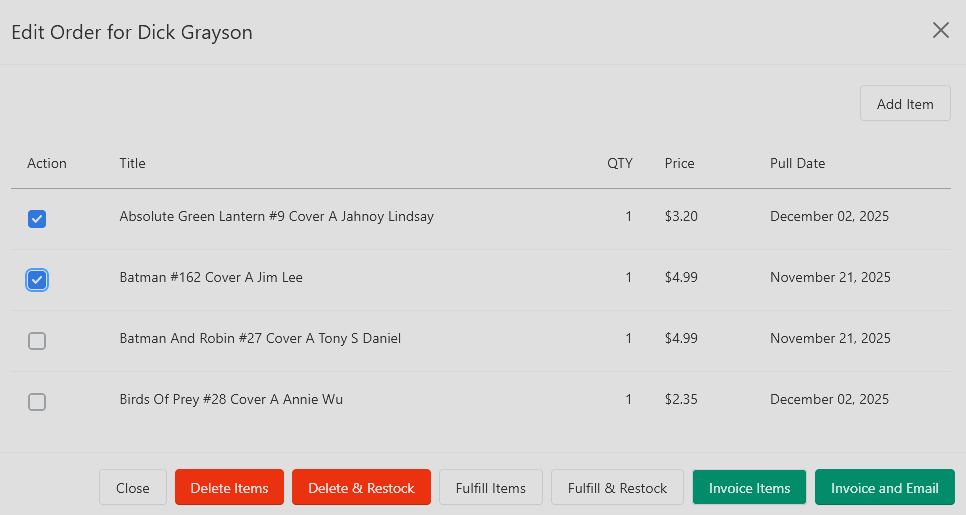
Open the order.
Check the items you want to include on this invoice.
Click Invoice Items or Invoice and Email
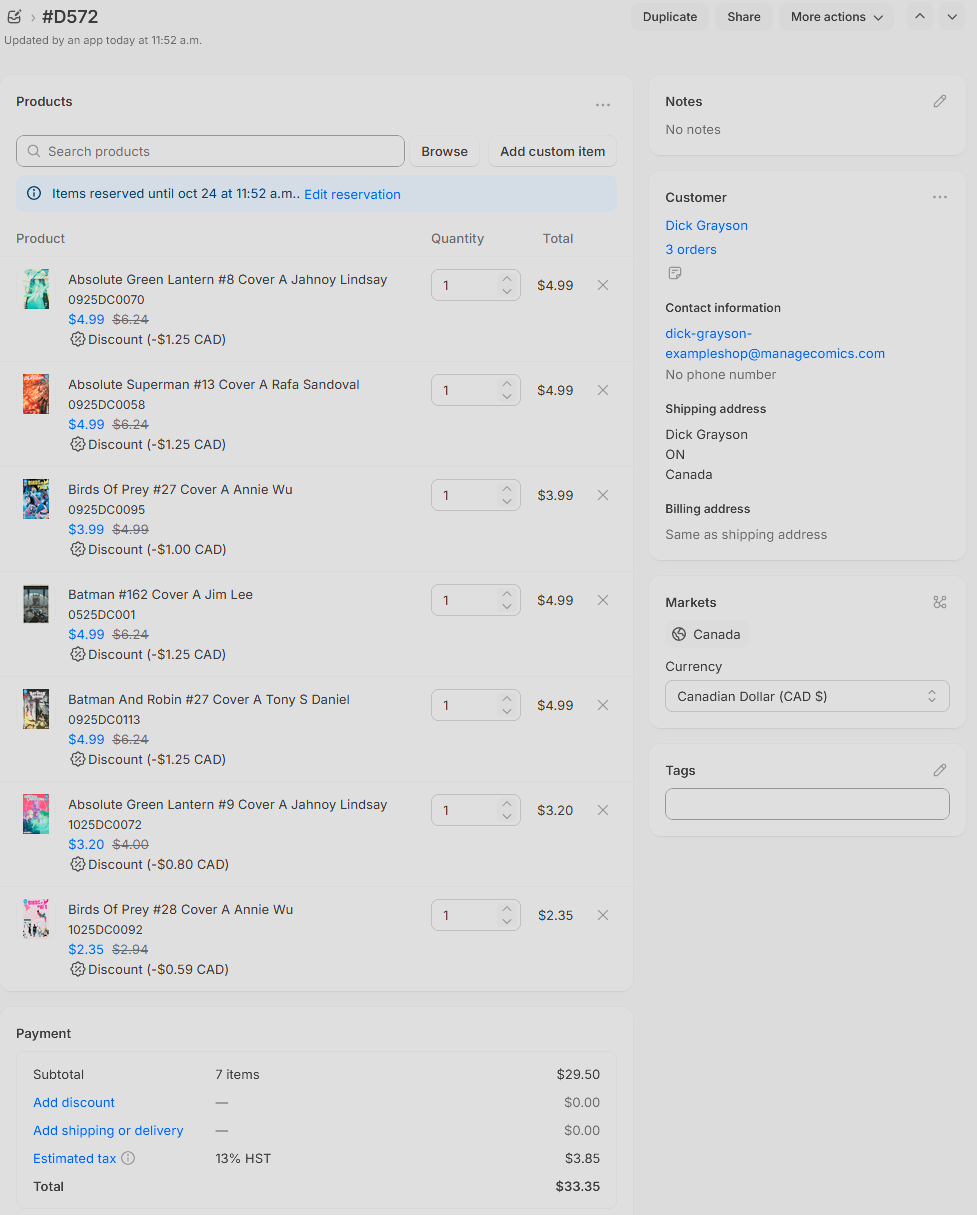
Invoicing Items creates a Draft Order in Shopify which you can edit and send out through the Shopify interface. This option allows you to change subject lines, add email body text and make any last minute adjustments.
Invoice and Email will create the Draft Order but send it out immediately as an invoice.
For bulk invoicing:
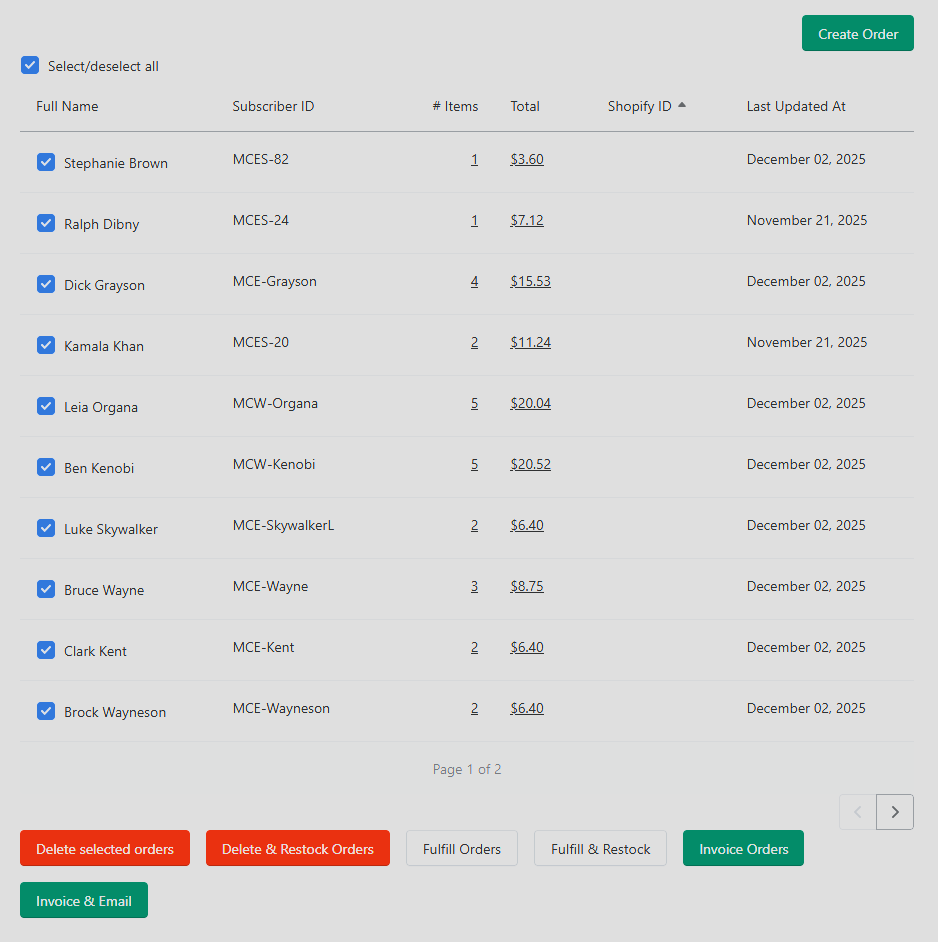
Check multiple customer rows.
Scroll to the bottom.
Click the bulk Invoice Selected Orders button.
Deleting, Restocking and Fulfilling
On both the individual order modal and the bulk selection page you have the option of Deleting, Deleting & Restocking, Fulfilling and Fulfilling & Restocking. Use these options as appropriate to keep your records clean. Restocking will adjust the available quantity in Shopify as if the product was put back on the shelf.
What Happens Behind the Scenes (Ordo)
Shopify creates a new Draft Order for the customer.
All selected items are added to that draft order.
If the customer already has an existing unpaid draft order, new items are appended to the existing draft order rather than creating a second one. This is deliberate — it keeps per-customer bookkeeping clean and reduces duplicate payment requests.
What the Customer Sees
An email with the order and a link to pay.
If they log in to the Manage Comics section of your Shopify storefront, the invoice is visible there as well.
Order Statuses
See Customer Orders for the full reference on statuses (Pulled → Billed → Shopify Order Created → Paid → Fulfilled, plus Errored).
Oryx — Invoice Equivalent
Oryx doesn't have a built-in online invoicing path today because Oryx shops use their own POS for payment. After you finish check-in in Oryx, your POS (RMH, Lightspeed, ComicSuite, etc.) has the product allocated and can ring the customer up directly. Invoicing happens in your POS, not in Oryx.