

Manage Comics is a web application. You don't install anything on your computer — you log in through a browser. This article covers browser requirements, login URLs for each product, and what to do if you can't get in.
Browser Requirements
Manage Comics supports the latest versions of:
Google Chrome (recommended)
Microsoft Edge
Mozilla Firefox
Safari (macOS and iPadOS)
We do not officially support Internet Explorer or browsers more than two major versions behind current.
Hardware
Manage Comics runs on any modern laptop, desktop, or tablet. For day-to-day shop use:
A desktop or laptop for check-ins and weekly shipment work (the UI is denser than mobile is comfortable with).
A tablet is fine for customer-facing tasks at the counter.
For Shopify POS (Ordo), see the Shopify POS hardware requirements on Shopify's support site.
Back-Office Barcode Scanners
Comic barcodes carry an extra 5 characters after the main UPC that identify the issue, cover, and printing; graphic novel ISBNs add 5 digits for pricing variants. A scanner used for check-in should be set to read those supplemental digits, or it can't tell variants apart.
Manage Comics has had good results with the Netum series of barcode scanners — inexpensive, available wired or wireless, with good support. The Netum NT-1228BC is one option (available directly from Netum and other online sellers). To make it read comic and graphic-novel barcodes correctly, scan the configuration codes that enable UPC+5 and ISBN+5 from the scanner's programming guide.
This is the back-office (check-in desk) scanner. For front-counter Shopify POS scanners, see Shopify POS: SocketScan S700 and S720 Reader Tips. If you find another scanner that works well with comics, let Manage Comics support know and they'll consider adding it to their recommendations.
Logging In — Ordo
Ordo is an embedded Shopify app. You log into Ordo through your Shopify admin.
Go to your Shopify admin at
yourstorename.myshopify.com/admin.Log in with your Shopify credentials.
Click Apps in the left sidebar.
Click Manage Comics (or Manage Comics Subscriptions, depending on your installation).
If Manage Comics doesn't appear under Apps, it hasn't been installed yet. See How to Install Manage Comics 2 Subscriptions.
For detailed Shopify-side login help, see Logging in to Manage Comics for Shopify.
Logging In — Oryx
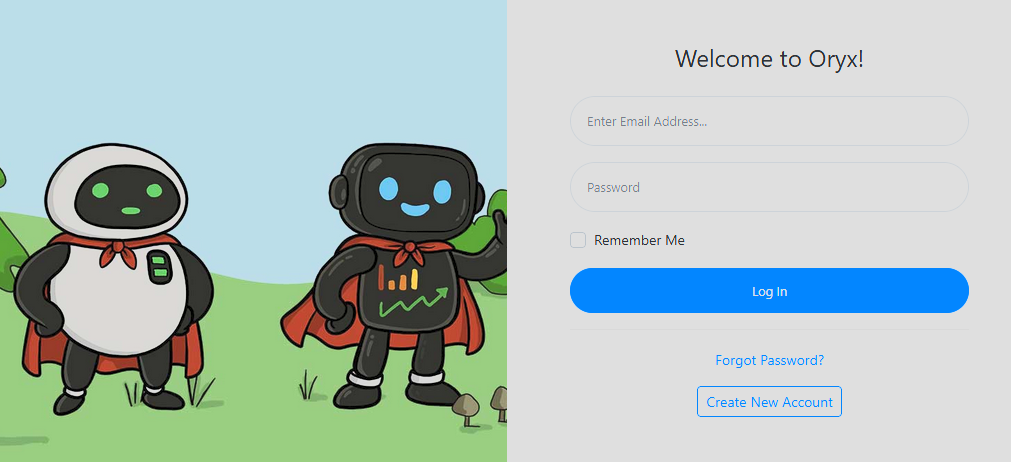
Oryx runs on its own domain, independent of any POS or e-commerce platform.
Enter the email and password you set up when your account was created.
Click Sign In.
If you don't have an account yet, sign up at oryx.managecomics.com/users/sign_up.
Forgot Your Password?
Ordo: Password reset happens through Shopify. Use the "Forgot password?" link on the Shopify admin login page.
Oryx: Click "Forgot password?" on the Oryx sign-in page. A reset link will be emailed to the address on file.
Can't Log In at All?
Ordo customer can't log in to their subscription page: See What to Do if a Customer Can't Log In.
Ordo shop staff can't log in: It's a Shopify admin permissions issue. The shop owner needs to grant the staff account access under Shopify's Settings → Users and permissions.
Oryx user can't log in: Confirm you're using the correct email; try a password reset; if that fails, email help@managecomics.com with the email address on the account.
Adding Additional Staff (Oryx)
Oryx supports multiple administrator accounts per shop. Each staff member should have their own login. This keeps your activity log meaningful and lets you revoke access cleanly when someone leaves. To add a new administrator, go to click Administrators from the left navigation menu and click Add Administrator.