

The Previews email is, for most shops, the single most effective retention tool in Manage Comics. Once a month, you send your subscribers a curated list of what's coming — new titles worth a look, variants you think they'd want, items you've highlighted for pre-order. Customers who see what's coming are significantly more likely to add titles to their pulls than customers who find out only when a book is already in store.
Customers who see what’s coming are much more likely to add titles to their pulls than customers who only find out once a book is already in store.
You can build your Previews email using your own storefront links, Manage Comics featured pages, and Comic Previews at ComicPreviews.com to help discover titles, creators, publishers, and upcoming FOC items.
Start a New Campaign
Go to Customers → Email Campaigns.
You'll see previously sent campaigns and any drafts in progress.
Click New Campaign.
Choose General as the type.
Write a brief, memorable subject line.
A good subject line is clear and timely. For example:
May Previews Picks Are Open
New Comics Coming Soon — Add Your Picks
Last Call and Previews Highlights for This Month
Plan What to Feature
Before writing the email, decide what you want customers to notice.
A strong Previews email usually includes a mix of:
New series launches
Major publisher highlights
Creator-driven books
Variants or special covers
Graphic novels or collections
Upcoming FOC / Last Call items
Staff picks or shop recommendations
You can use Comic Previews to help build this list.
Go to ComicPreviews.com and browse the current Previews catalogue, new releases, featured products, or Last Call items. Comic Previews is especially useful when you want to:
Find products by FOC date
Browse by publisher
Browse by category
Highlight popular or recognizable creators
Look for upcoming items customers may not have noticed yet
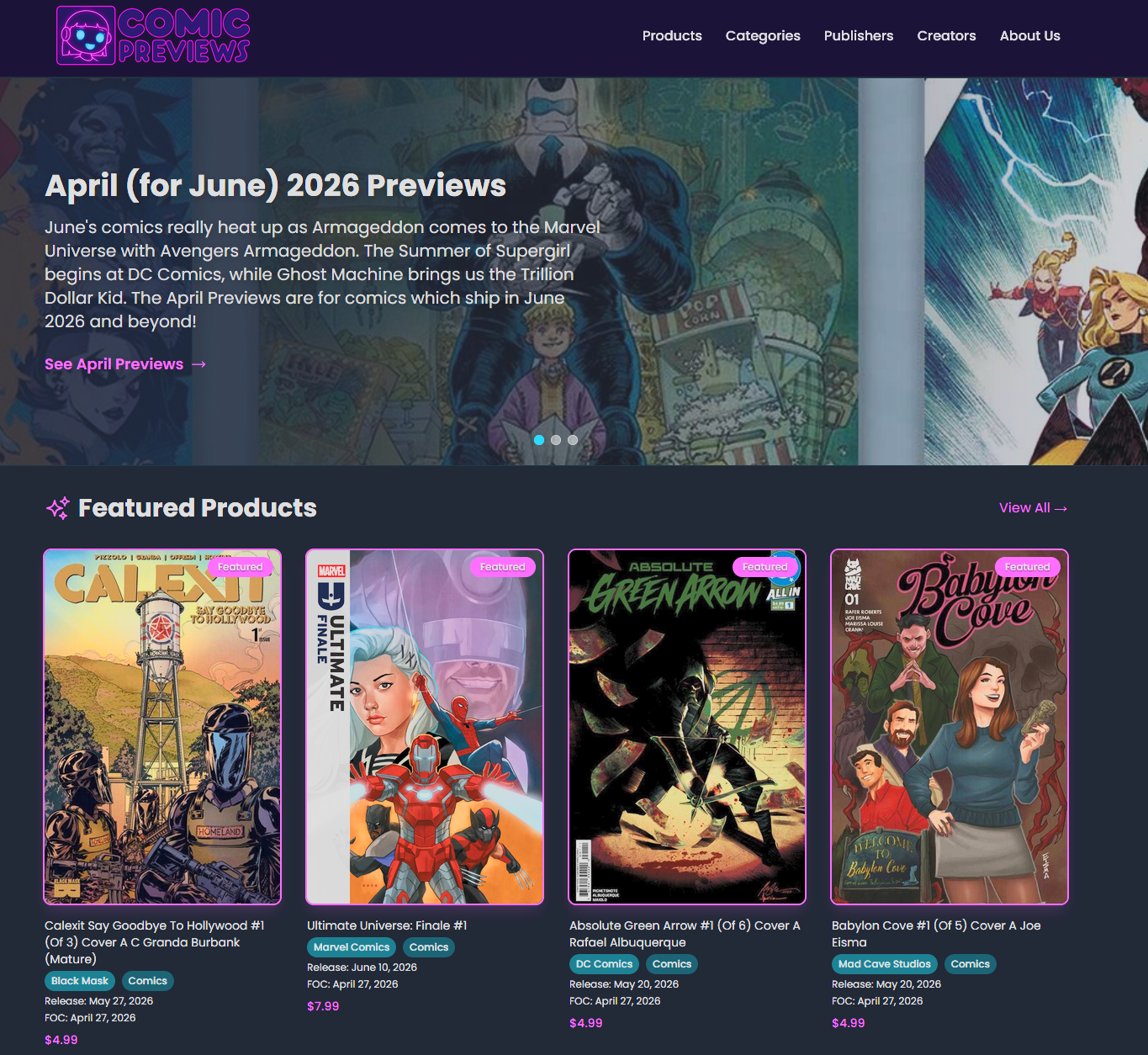
Use Comic Previews to Find FOC and Last Call Items
FOC items are a great fit for Previews emails because they create a clear reason for customers to act now.
In Comic Previews:
Go to Products.
Use the available filters to narrow by category or publisher.
Sort by FOC Date.
Look for items you want to feature before their order deadline.
Copy the product title, release date, FOC date, and any useful details for your email.
You can also use the Last Call section on the Comic Previews homepage to quickly find items with an approaching Final Order Cutoff.
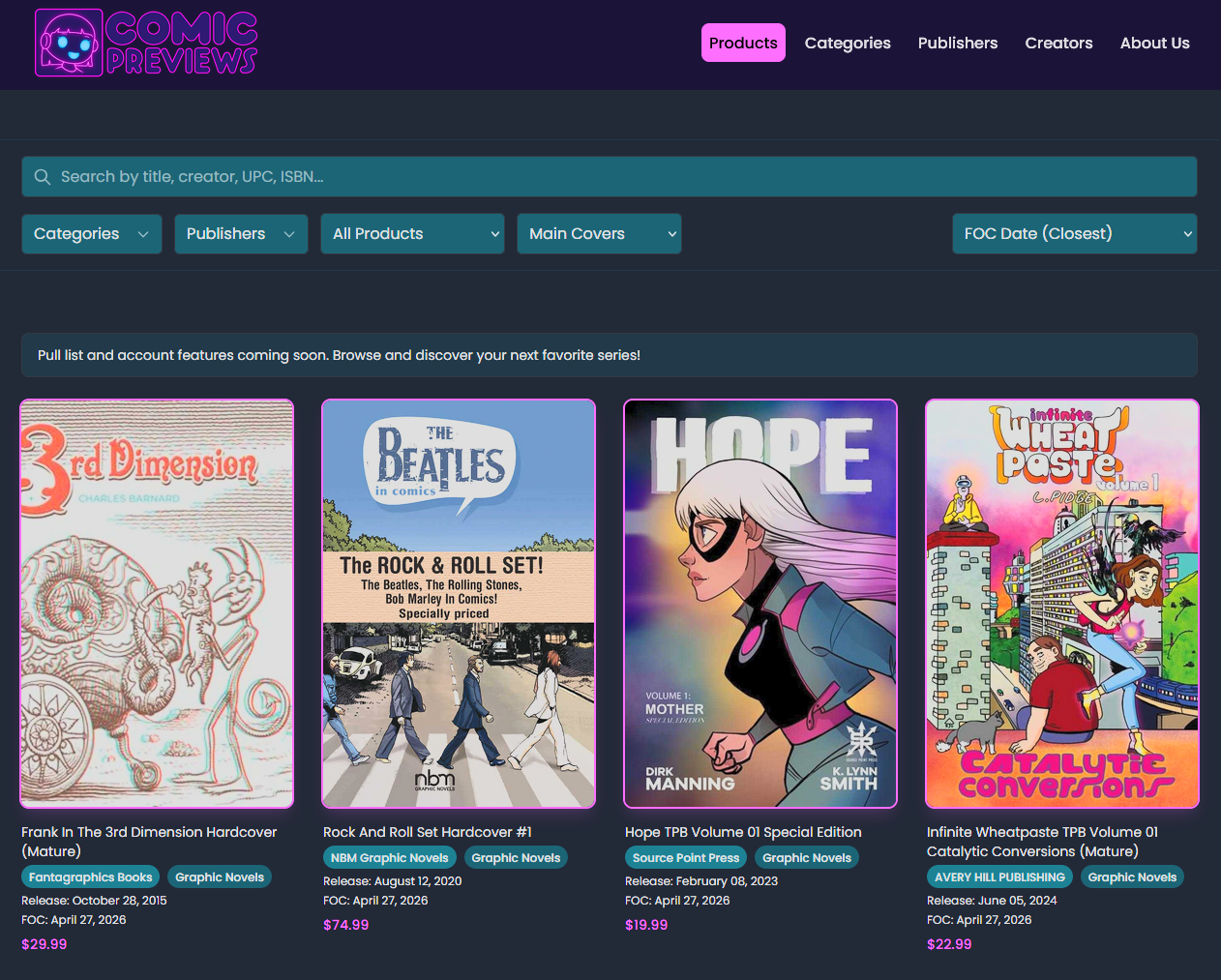
Highlight Creators
Creator-focused recommendations are often more useful to customers than publisher-focused lists alone. A customer may not know they want a new series yet, but they may recognize a writer, artist, or cover artist they already follow.
In Comic Previews:
Go to Creators.
Browse featured creators, writers, artists, and cover artists.
Click a creator to see related products.
Use those titles as feature picks in your Previews email.
Creator pages are automatically updated based on new metadata.
For example, instead of writing:
New Marvel, DC, Image, and indie titles are open for pre-order.
You could write:
If you follow writers like [Creator Name] or artists like [Creator Name], this month has several upcoming books worth adding before FOC.
This makes the email feel more curated and less like a generic catalog dump.
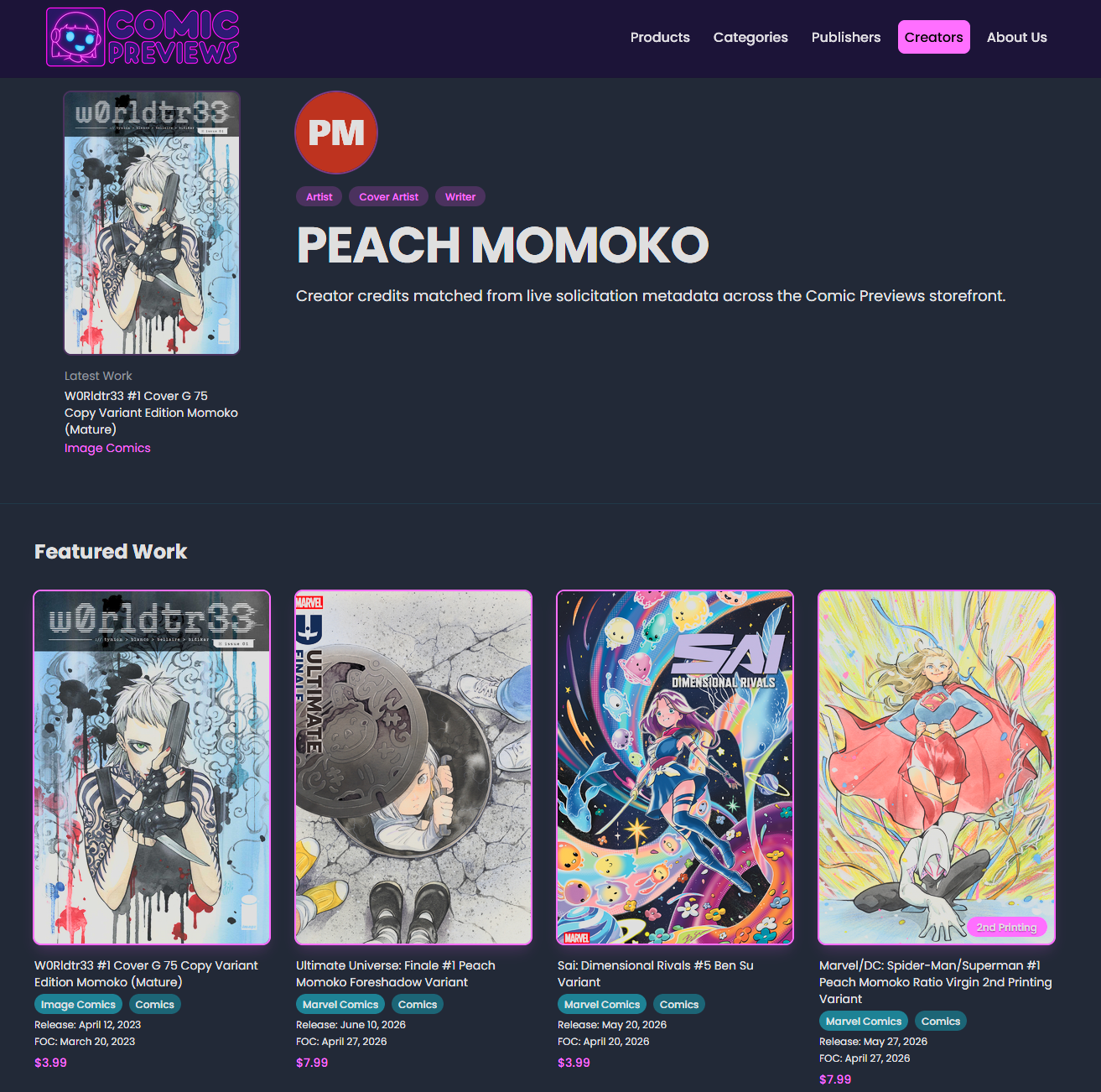
Write the Email
The editor is a standard WYSIWYG editor. You can add text, headings, bold, italics, underline, links, bullets, and remove formatting.
Keep the email scannable. A few strong recommendations with short blurbs usually works better than a long wall of product names.
A simple structure works well:
Email Template Example
Hi everyone,
This month’s Previews catalog is open, and we’ve picked out a few books we think are worth a look.
New Series to Watch
[Title Name]
Short description of why customers may want it.
[Title Name]
Short description of why customers may want it.
Creator Spotlight
Fans of [Creator Name] should check out [Title Name], now available for pre-order.
Last Call / FOC Picks
These items have upcoming FOC deadlines, so let us know soon if you want them added to your pull list.
[Title Name] — FOC: [Date]
[Title Name] — FOC: [Date]
You can add items by logging in to your subscription page or replying to this email.
To add a link: highlight the text you want linked, click the chain icon, and paste the URL.
Linking to Your Store
The highest-value links in a Previews email usually point back to your own Manage Comics pages. These links give customers the clearest path to log in, subscribe, or add products.
To find the right URLs:
Open your storefront.
Go to your Manage Comics area.
Find the featured page for the month you’re previewing.
The URL looks similar to:
https://yourstore.com/pages/managecomics/featured?d=2026-05-01
Copy the URL and paste it into your email.
For individual titles you want to highlight, navigate to each title's page on your site, copy the URL, and link a handful per email.
Ordo note: featured pages are part of the Ordo storefront. Oryx shops without a storefront can still send Previews emails — link out to distributor pages, your social channels or comicpreviews.com instead.
When to Link to Comic Previews
Use Comic Previews when you want customers to browse more broadly, discover creators, or explore the current catalogue.
Use your own storefront links when you want customers to take action.
A good approach is:
Link your main call-to-action to your Manage Comics subscription or featured page.
Link individual featured products to your own store whenever possible.
Link to Comic Previews when referencing broader browsing, creators, publishers, or FOC discovery.
For example:
Want to browse the full catalog? You can explore upcoming comics on Comic Previews, then log in to your subscription page or reply to this email with anything you’d like added.
This keeps Comic Previews useful without sending customers away from the ordering process entirely.
Oryx note: Oryx shops without a storefront can still send Previews emails. Use Comic Previews, distributor pages, or your social channels for discovery links, and ask customers to reply with the items they want added.
Customer managed lists are coming to Comic Previews soon.
Preview
The side panel shows a live preview of the email as it'll appear in customers' browsers. Review it carefully before sending.
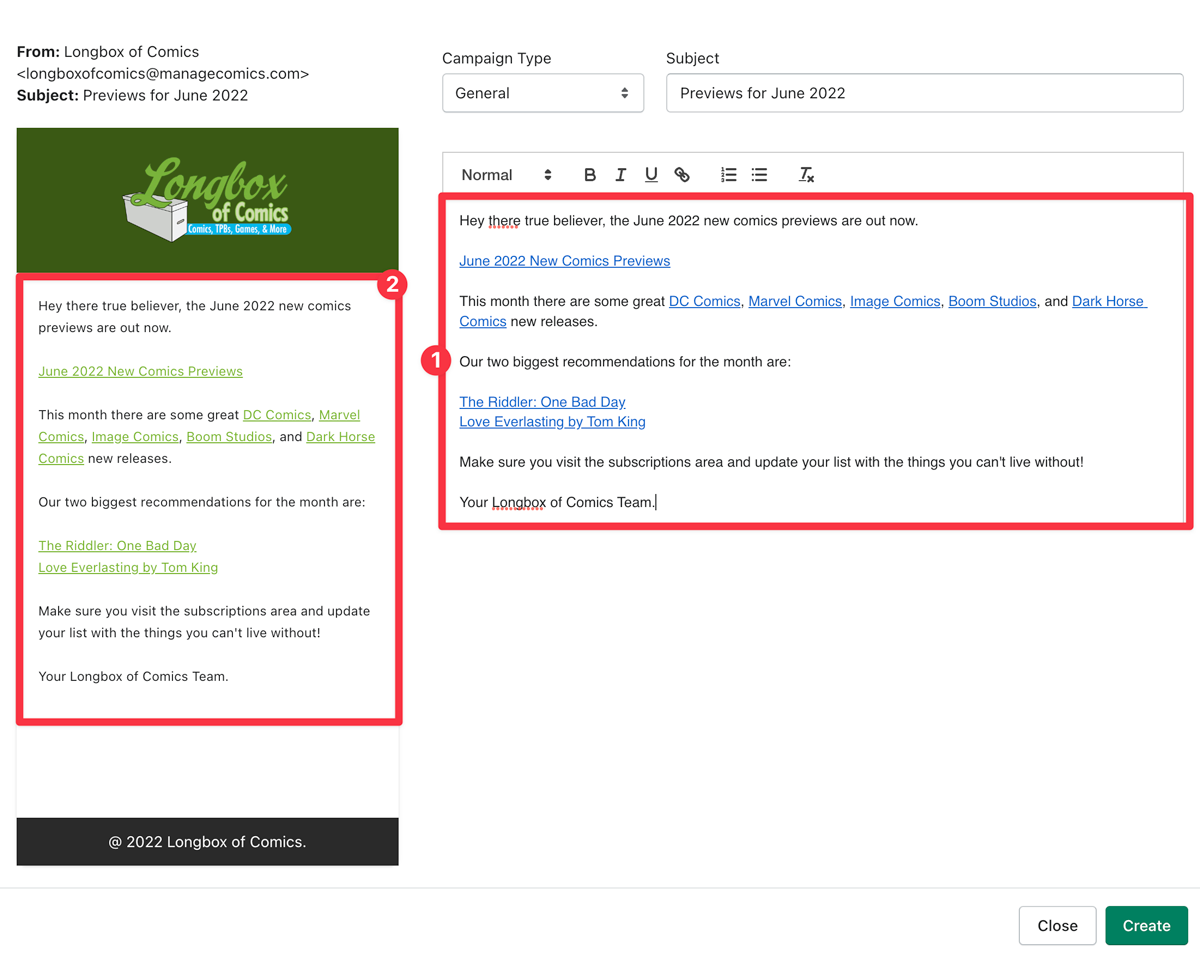
Create and Send
Click Create (bottom right).
You're returned to the Email Campaigns screen.
Click Send.
A popup confirms the number of active subscribers who will receive it.
Confirm.
After sending, you see the recipient count, the email type, and a Clone option. Cloning the email will give you an exact replica of the previous email which you can now edit the subject and body of.