

FOC — Final Order Cutoff — is your last chance to adjust quantities on a solicited title before the distributor locks the book. What makes FOC uniquely demanding is the combination of hard deadlines and the fact that you're simultaneously looking at three numbers (what you already ordered, what your customers demand, what you should order now). The purpose of this workflow is to make those three numbers visible and let you adjust the third one cleanly before the cutoff.
Universal Distribution has its own FOC flow — see Universal Distribution Final Order Cutoff (FOC).
Step 1 — Download FOC Files From Your Distributors
Before opening Manage Comics, grab the current FOC files.
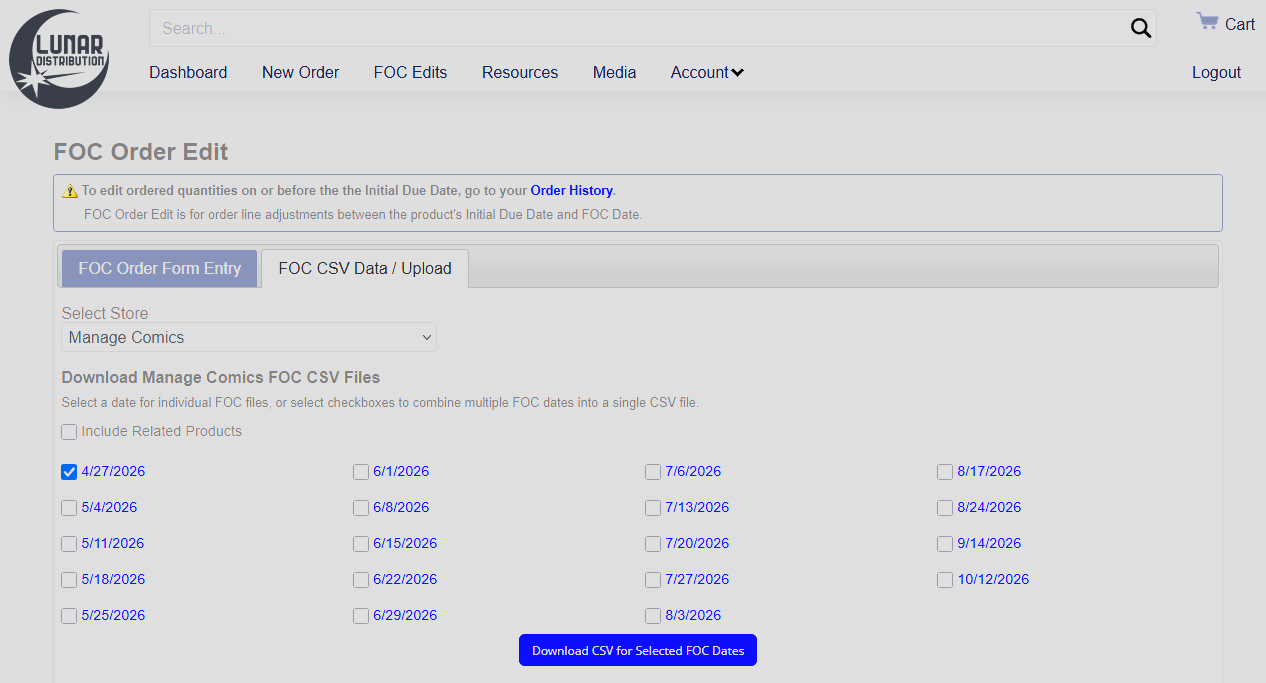
Lunar FOC
Log in to Lunar Distribution.
Click Account → FOC Edits.
Confirm the correct FOC is checked in the FOC Due Dates box.
Click Download CSV for Selected FOC Dates.
PRH FOC
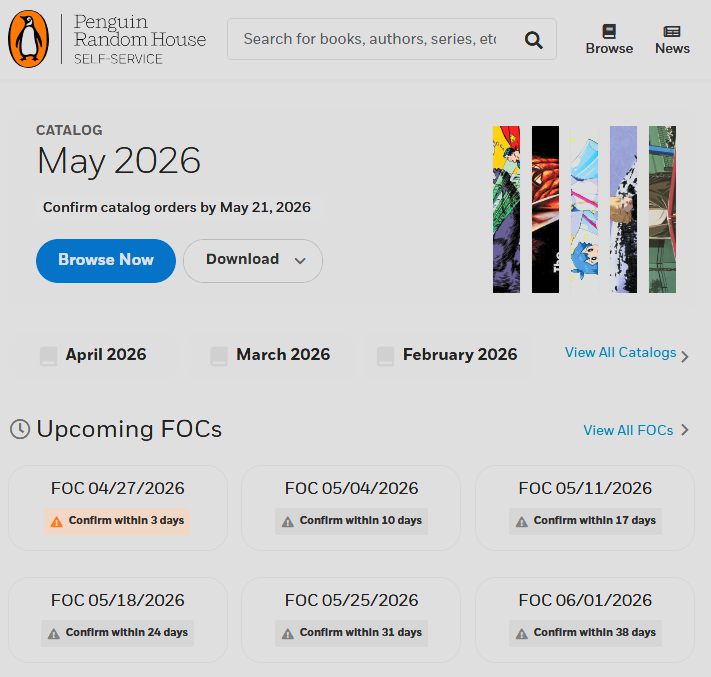
Log in to PRH Distribution.
Click Catalog and choose the correct catalog (typically the one before the current month).
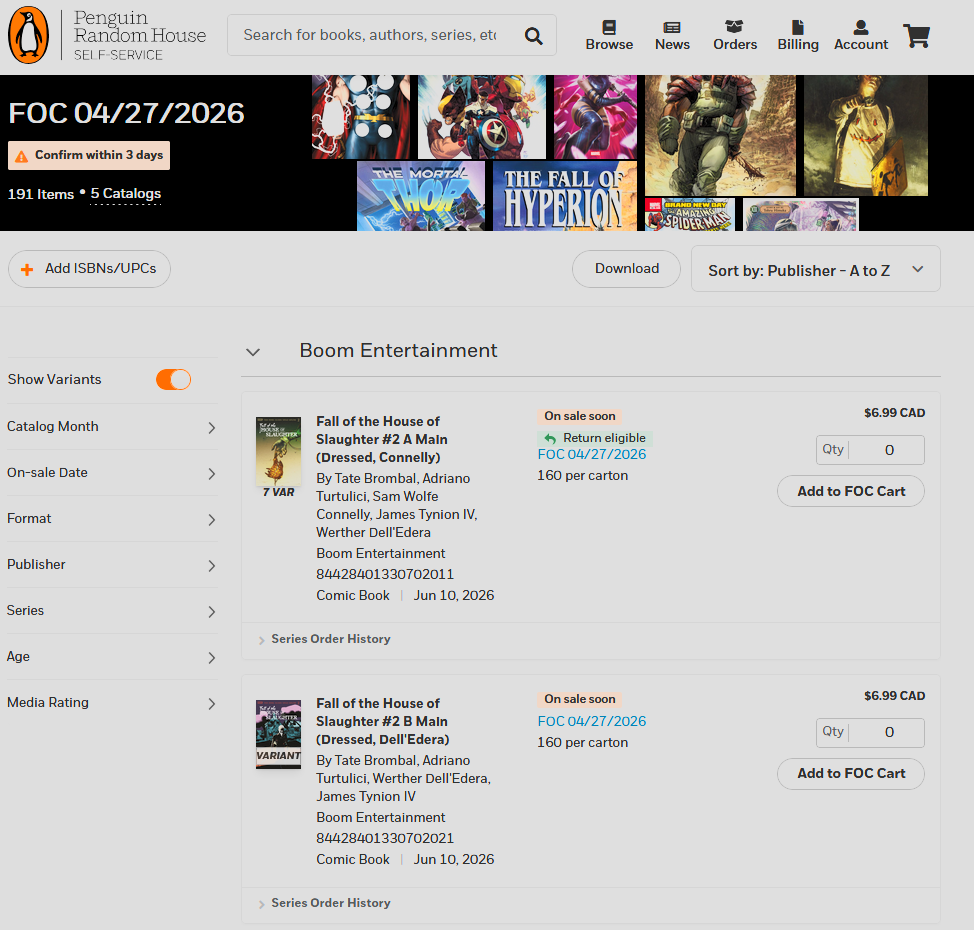
Under Upcoming FOCs, click the appropriate date.
You will be brought to a list of all titles on FOC that week. Click Download.
Diamond FOC (Diamond UK Only)
Log in to Diamond Retailer Services.
Click Orders → FOC Weekly.
Click Download Order.
Step 2 — Check Pending Pre-Orders First
Before you start editing FOC, check Customers → Customer Activity one last time for any pending pre-orders. Approving them here means they'll be reflected in your FOC quantities.
Step 3 — Open FOC in Manage Comics
In the Manage Comics app, click Ordering in the left nav.
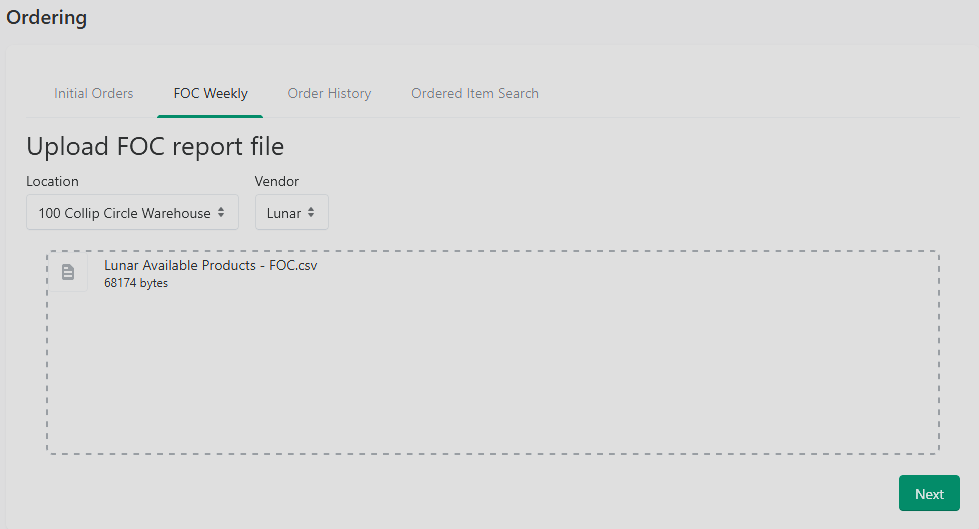
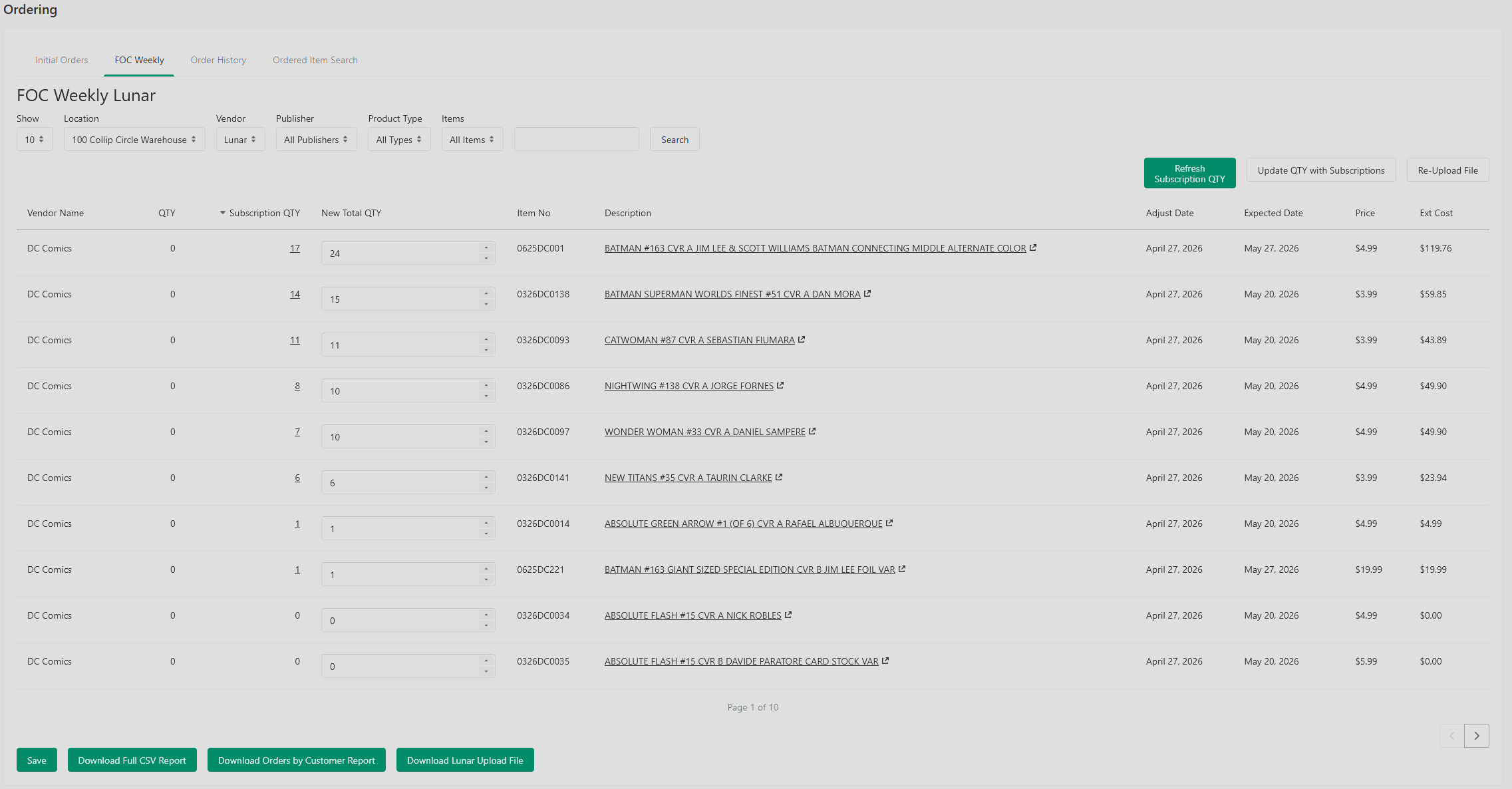
Click the FOC Weekly tab.
The page will be populated from the last time you were here, but you need to load the current FOC file so your data is fresh and your already-placed quantities are accurate.
Step 4 — Re-Upload the Distributor's FOC File
Choose the Vendor whose FOC you're processing (Diamond, Lunar, or PRH).
Click Re-Upload File and select the file you downloaded in Step 1.
Drag and drop or navigate to the file.
Click Next.
Step 5 — Review and Adjust Quantities
You now see three key columns:
QTY — what you've already ordered (from your monthly initial order, previous FOC adjustments, etc.).
Subscription QTY — how many customer pulls need to be fulfilled.
New Total QTY — pre-filled if you already had any quantity on the title.
Work through the list
Adjust New Total QTY for each title based on:
Customer demand (Subscription QTY).
Your shelf buffer.
Any late changes — hot books getting hotter, fading books getting faded.
When finished, click Save and then Download the Upload File to get the distributor-ready file.
Step 6 — Upload to the Distributor
Lunar
Go to Lunar Distribution → Account → FOC Edits.
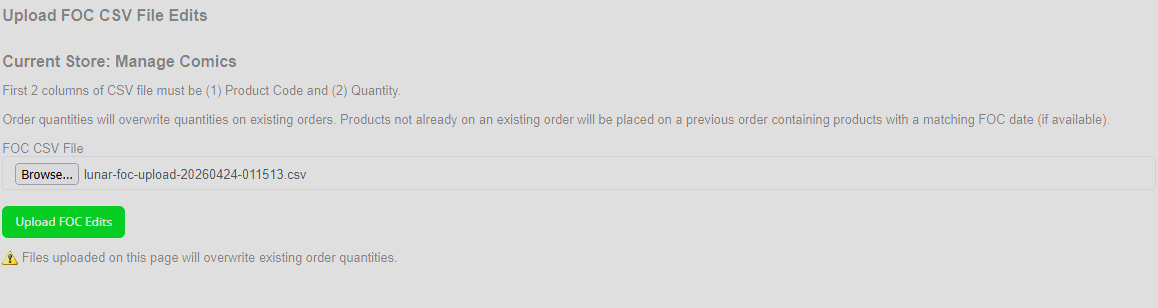
Click Upload FOC CSV File Edits and select your file.
Review. Click Update All to finalize.
PRH
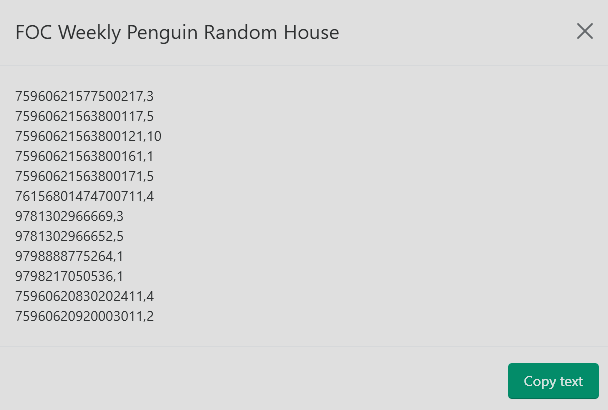
PRH uses a list of UPCs/ISBNs and quantity rather than uploading a file. Clicking Generate PRH Upload File will display a window with copy + paste ready text. Simply click Copy Text.
Go to PRH Distribution.
Click the Cart icon → +ADD UPCS/ISBNS.
Paste in your list (or upload the file, if your PRH flow supports it).
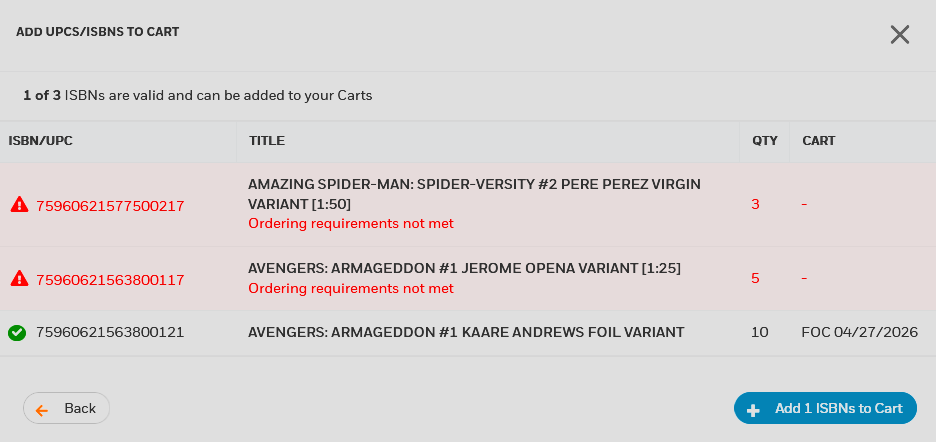
Click Check ISBNs. Make any last minute adjustments and confirm your cart before the deadline.
Diamond
Go to Diamond Retailer Services → Orders → FOC Weekly.
Click Upload Order and select the file from Manage Comics.
Review everything. Click Commit Adjustment to finalize.
Timing Pressure
FOC has hard cutoffs. Missing the cutoff by even an hour can mean you don't get a book at all. Don't wait until the last minute — if the export file has a validation error, you want time to fix it.