

Companion to Where to Get Invoices, this article tells you where each distributor publishes FOC files — the ones you download before running the weekly FOC workflow in Manage Comics.
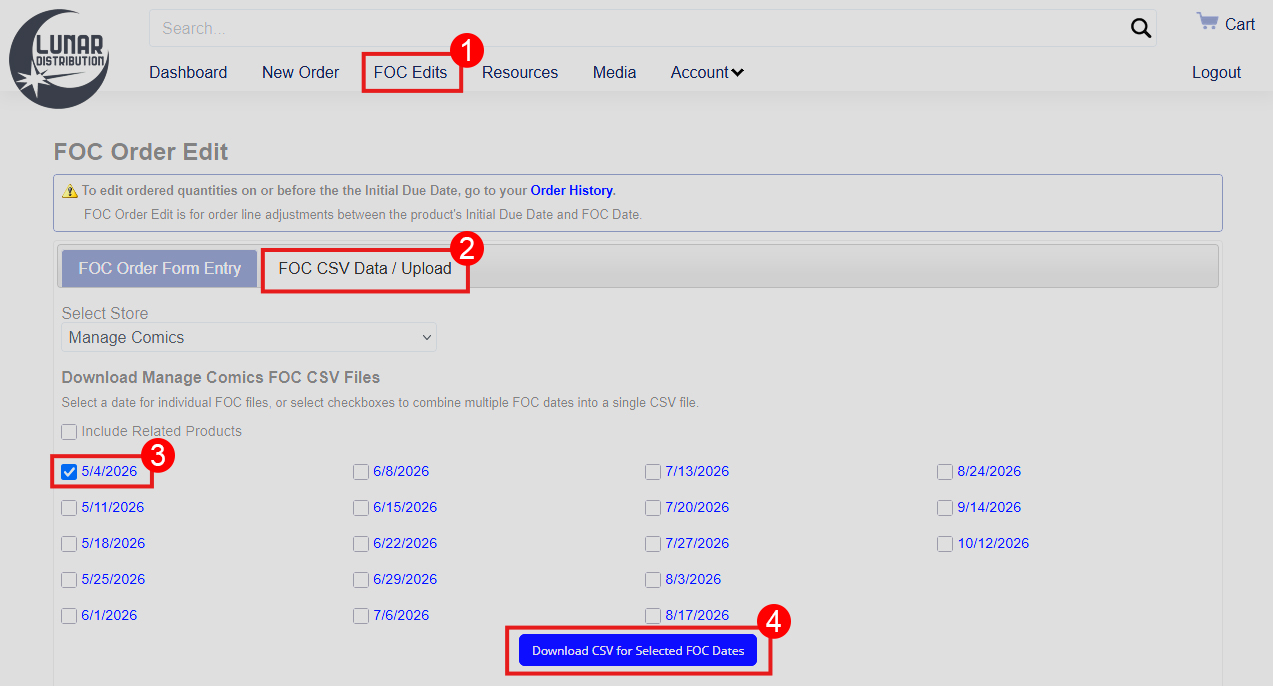
Lunar FOC
Log in to Lunar Distribution.
Click FOC Edits.
Click the FOC CSV Data/Upload tab.
Confirm the correct FOC is checked in the FOC Due Dates box.
Click Download CSV for Selected FOC Dates.
PRH FOC
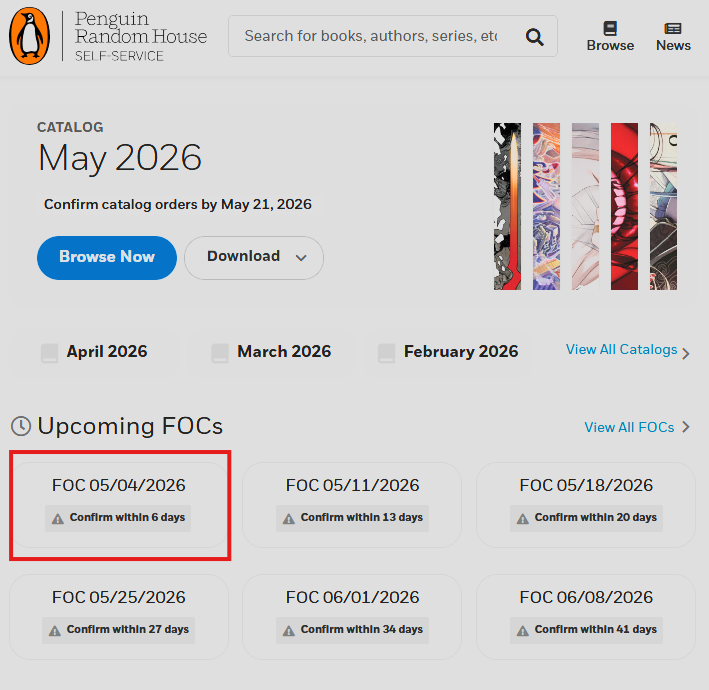
Log in to PRH self-service.
From the landing page click the Upcoming FOC.
Click Download.
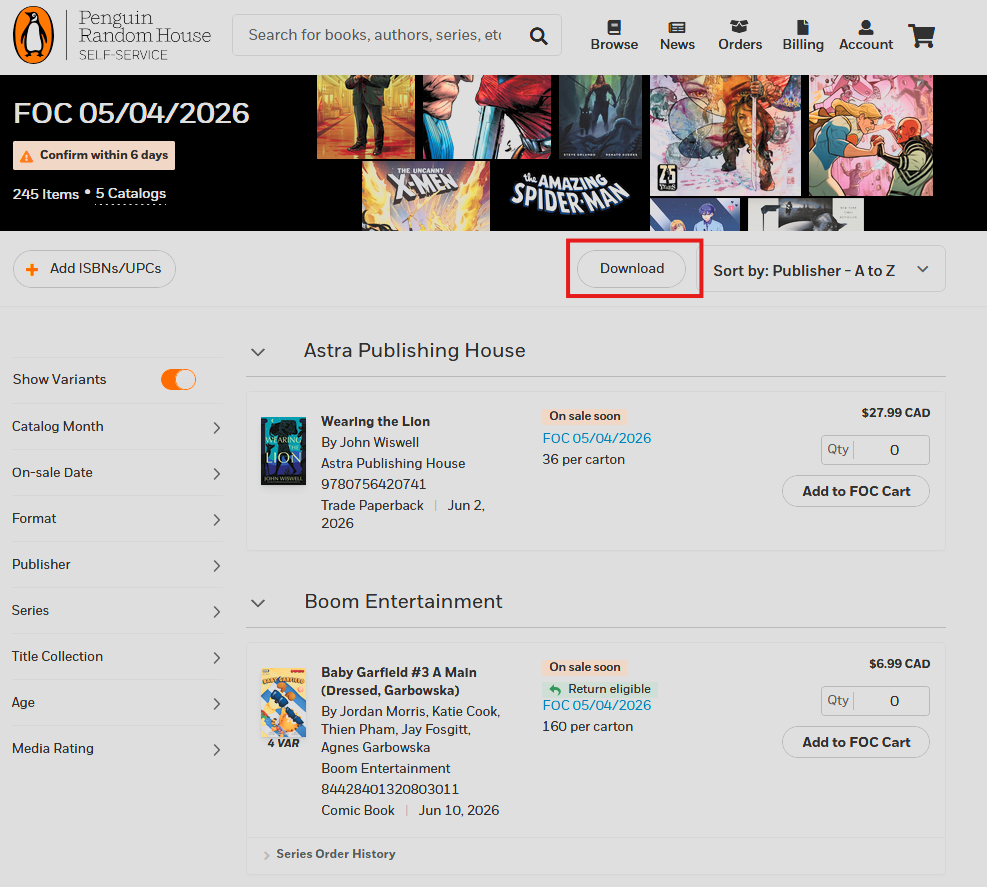
PRH files are ISBN-keyed rather than UPC-keyed; Manage Comics handles both.
Universal FOC
Log in to Universal's retailer portal.
Navigate to the FOC section.
Click Download FOC File.
See Universal Distribution FOC for Universal-specific handling.
Diamond FOC
Log in to Diamond Retailer Services.
Click Orders
Click FOC Weekly.
Click Download Order.
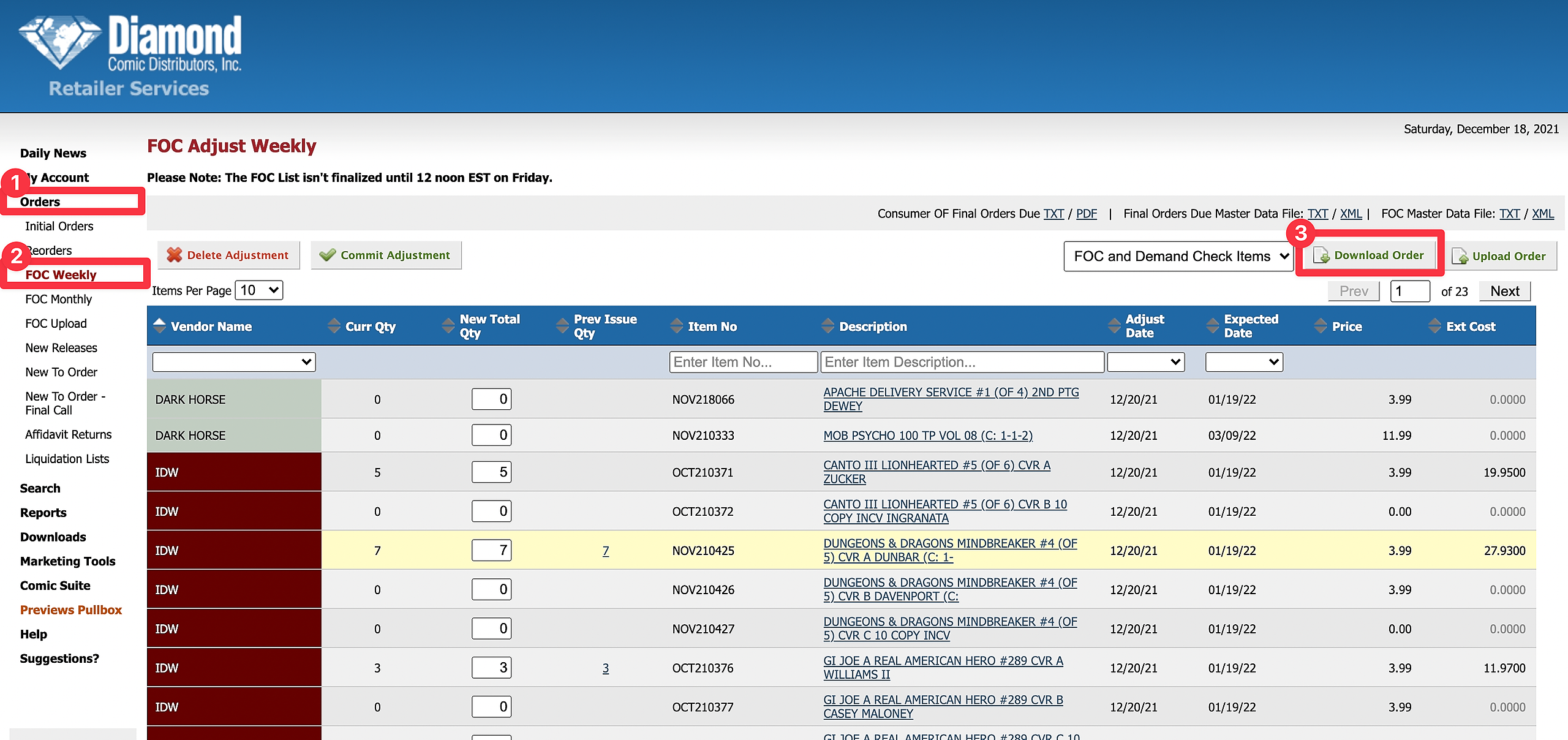
The file is a CSV of titles up for FOC this week, with your current ordered quantities pre-filled.
General Tips
Always download fresh. Don't re-use last week's FOC file for this week's adjustments — your pre-filled quantities will be stale.
One distributor at a time. When running your weekly FOC, it's cleaner to process Diamond, Lunar, PRH, and Universal sequentially rather than juggling all four files at once.
Verify the cutoff. Each distributor's FOC cutoff is different. Confirm you're working on the right week's file before you invest time in adjustments.