Once you've completed weekly check-in and your books are pulled, Customer Orders is where you manage what happens next — invoicing, fulfilling, restocking, or deleting. A customer order in Manage Comics is a container for everything a given customer has waiting for them at a given moment; the order progresses through a series of statuses as money moves and books leave the shop.
Where to Find It
Customers → Customer Orders.
The Filter Bar
Show — orders per page (paging).
Status — see the status reference below.
Shipping Type — Local Pickup, Monthly / Bi-Weekly / Weekly Shipping.
Location — Sort by location or show all locations orders.
Search — by customer name, Subscriber ID, or order number.
Sort by name, Subscriber ID, or last updated.
Order Statuses
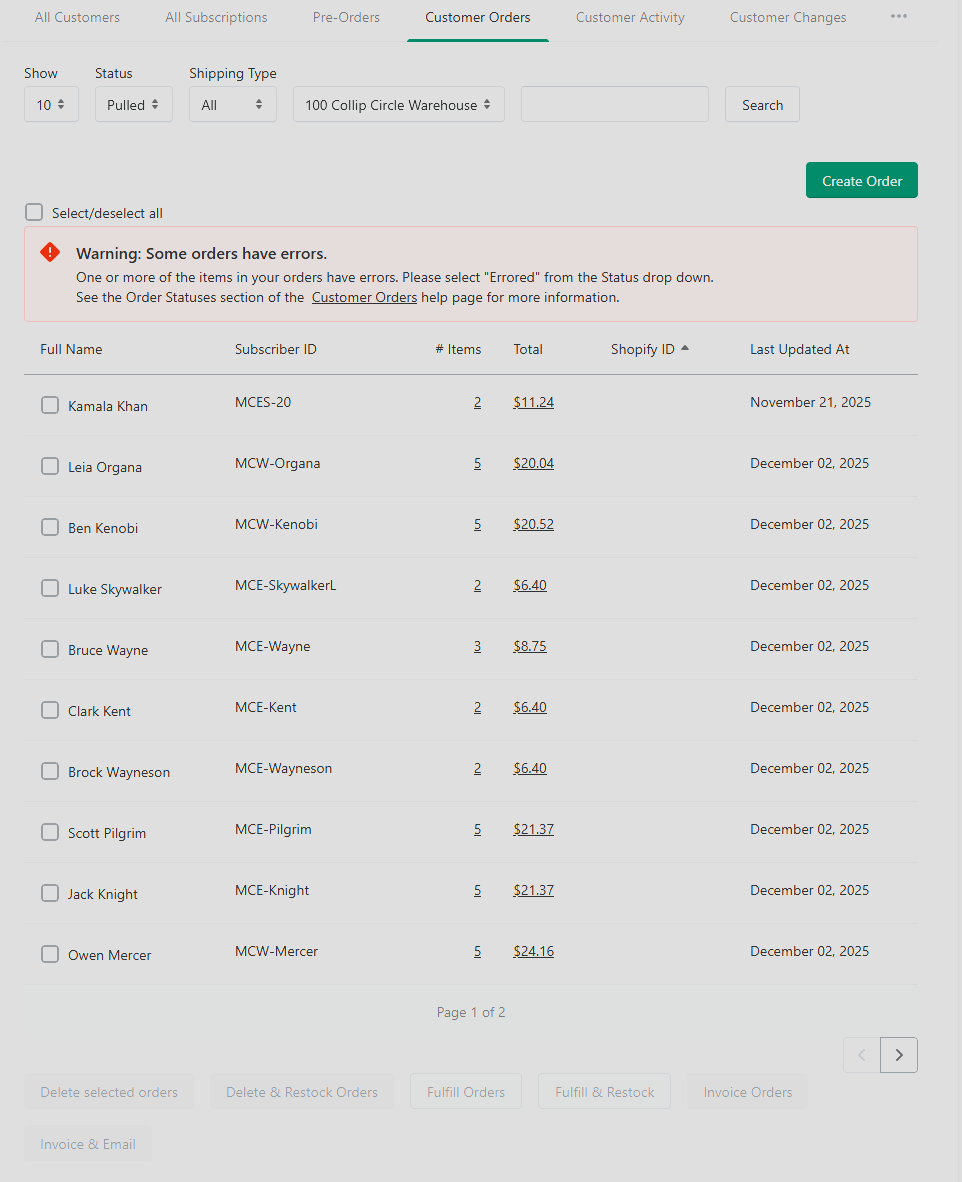
Pulled — order has been pulled for the customer (this is the starting state after weekly check-in).
Billed — order has been billed; a Shopify draft order has been created (Ordo only).
Shopify Order Created — Shopify has accepted the draft order.
Paid — the customer has paid through Shopify.
Fulfilled — order is paid and marked complete.
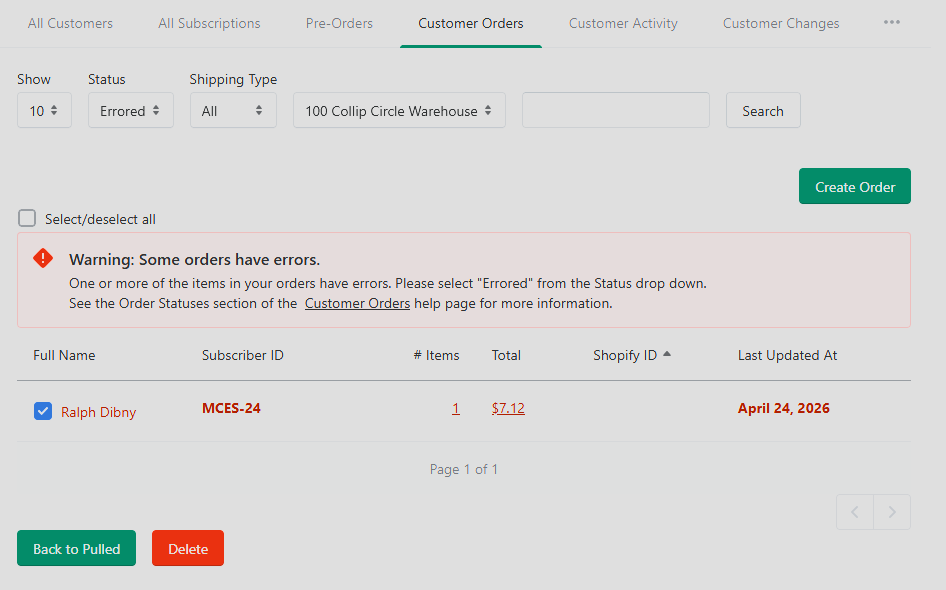
Errored — something failed during the pull or billing process.
Recovering from Errored: errored orders can be returned to Pulled status, where you can edit them and re-bill.
Shipping Types
Customers are segmented by how they want to get their books:
Local Pickup (default for all customers) — they pick up in store.
Monthly Shipping — ship once a month.
Bi-Weekly Shipping — every two weeks.
Weekly Shipping — every week.
Bulk Actions
At the bottom of the page, with one or more orders checked, you get five bulk actions.
These affect multiple orders and cannot be undone.
Delete Selected Orders — removes items from the customer account and subtracts the quantity from Reserved QTY in Shopify (or your POS). Reduces total QTY by 1 per item.
Delete & Restock Orders — same as delete, but moves the Reserved QTY to Available QTY. Use this when someone "puts something back on the shelf."
Fulfill Orders — marks items as picked up (for reporting) and subtracts Reserved QTY.
Fulfill & Restock — marks as picked up and moves Reserved QTY to Available. Useful when you check the customer out through a non-Shopify POS (common for Oryx shops, and also Ordo shops using Shopify POS hardware alongside a third-party register).
Invoice Orders — creates a Shopify draft invoice (Ordo only).
Invoice & Email — creates a Shopify invoice and emails the customer immediately (Ordo only).
Editing a Single Order
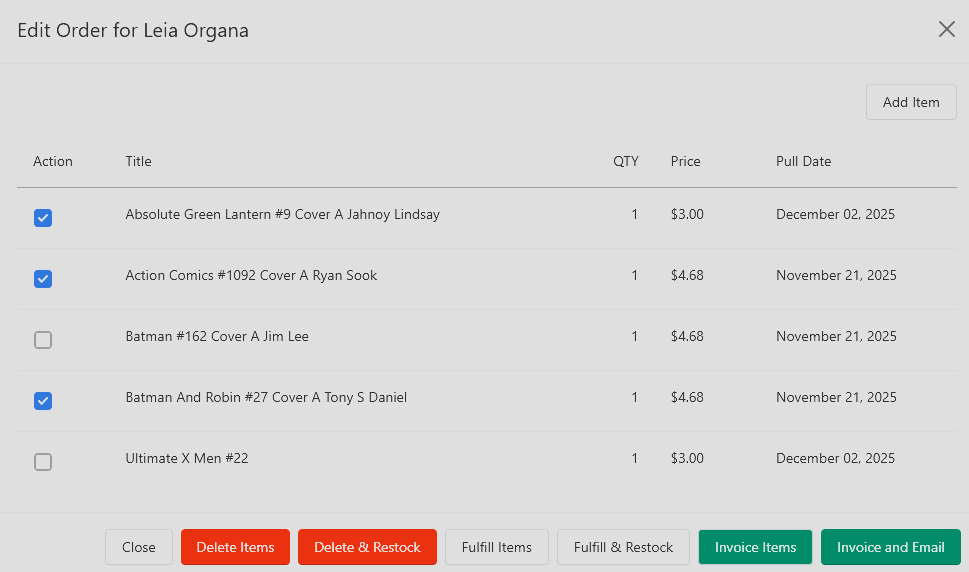
Click the order total to open a modal window. You see every item in that order with checkboxes. The same six actions are available on individual items within the modal.