

PRH's initial-order flow is different from Diamond and Lunar in one important way: instead of uploading a CSV, you paste a list of ISBNs into PRH's cart. The underlying idea is the same, but the mechanics change just enough to warrant its own walkthrough.
The details of building your initial order are covered in Initial Orders.
Step 1 — Prepare the Upload Text in Manage Comics
From the dropdown, select the appropriate month and Penguin Random House as distributor.
Click Generate PRH Upload File.
Click Copy Text — this puts the list of ISBNs on your clipboard.
Step 2 — Open PRH
Go to PRH self-service and click the Cart icon in the upper right.
Step 3 — Add the ISBNs
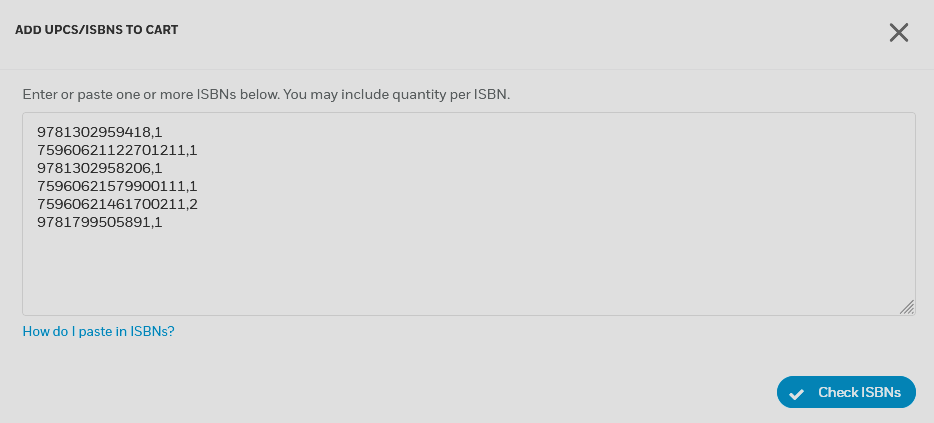
Click + Add UPCs/ISBNs. A popup appears.
Paste the ISBN list from your clipboard.
Click Check ISBNs.
Click + Add X ISBNs to Cart.
Step 4 — Review Each Cart
PRH may split your order into multiple carts, one per FOC cycle. For each cart:
Click View Cart.
Confirm the quantities look right.
Click Confirm Quantities → Submit Confirmation.
Repeat for each cart until all are confirmed.