

A simple walkthrough on how to upload your monthly Initial Order onto Lunar. Be aware that placing orders anywhere other than the FOC Edits page adds qty to whatever existing quantity is already on order.
The monthly initial-order upload is the point at which the work you did in Manage Comics — reviewing Previews, adjusting suggested quantities, committing to variants — becomes an actual order on Diamond's retailer site. Manage Comics generates the upload file; this article covers the Diamond-side steps to get that file loaded, reviewed, and confirmed.
Step 1 — Generate the File in Manage Comics
In the Manage Comics app, go to Ordering → Initial Orders. Export the Lunar initial-order file. (The details of building your initial order are covered in Initial Orders.)
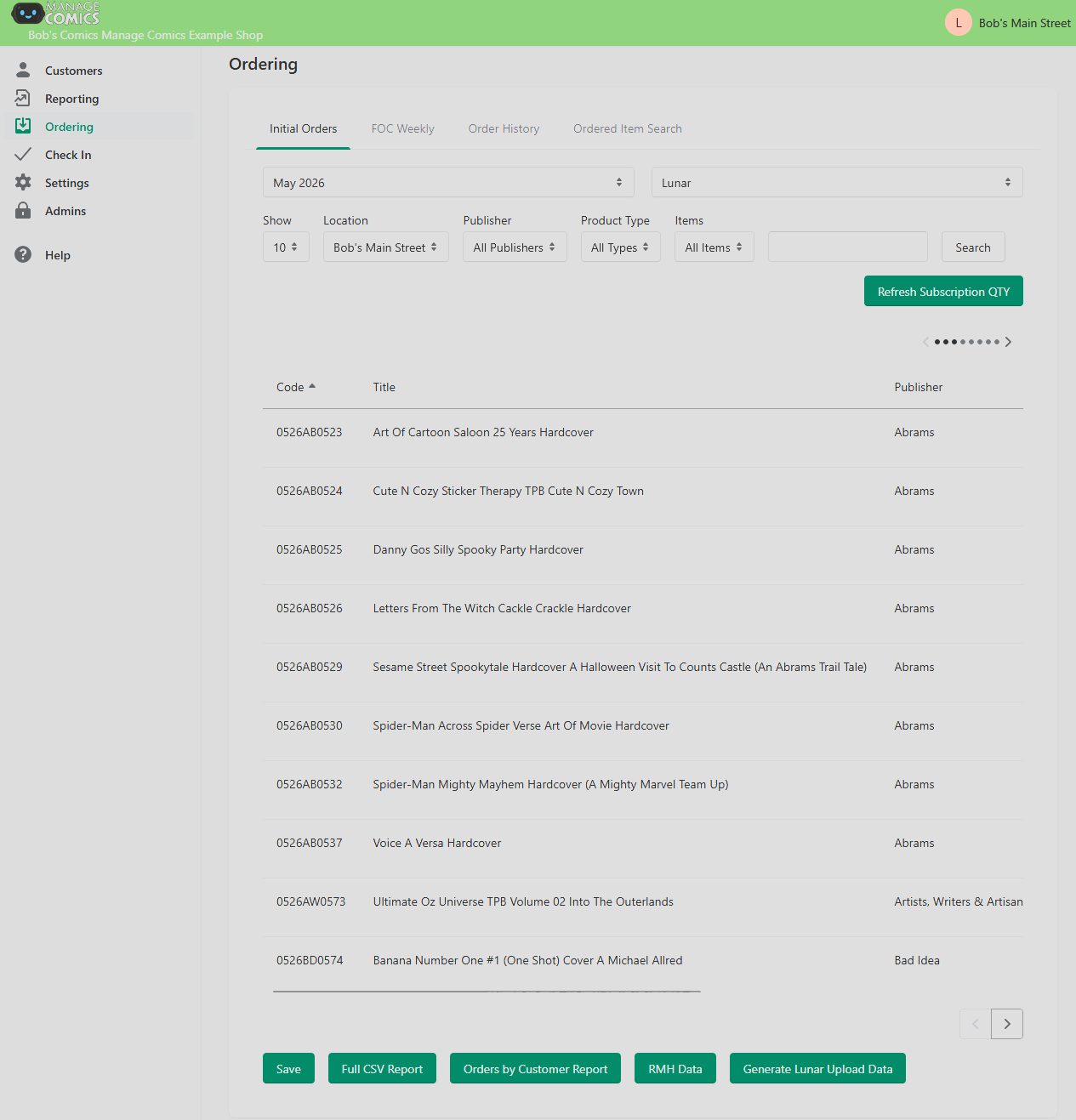
Step 2 — Open Lunar
Go to Lunar Distribution → New Order.
Step 3 — Upload Your File
Click CSV Upload.
Click Browse and select the Lunar initial-order file Manage Comics generated.
Click Continue to Review.

Step 4 — Review
Verify quantities look right, especially if you already had an order in progress before the upload.
Step 5 — Confirm
Finalize the order on Lunar's site.