

The monthly initial-order upload is the point at which the work you did in Manage Comics — reviewing Previews, adjusting suggested quantities, committing to variants — becomes an actual order on Diamond's retailer site. Manage Comics generates the upload file; this article covers the Diamond-side steps to get that file loaded, reviewed, and confirmed.
Step 1 — Generate the File in Manage Comics
In the Manage Comics app, go to Ordering → Initial Orders. Export the Diamond initial-order file. (The details of building your initial order are covered in Initial Orders.)
Step 2 — Open Diamond's Upload Page
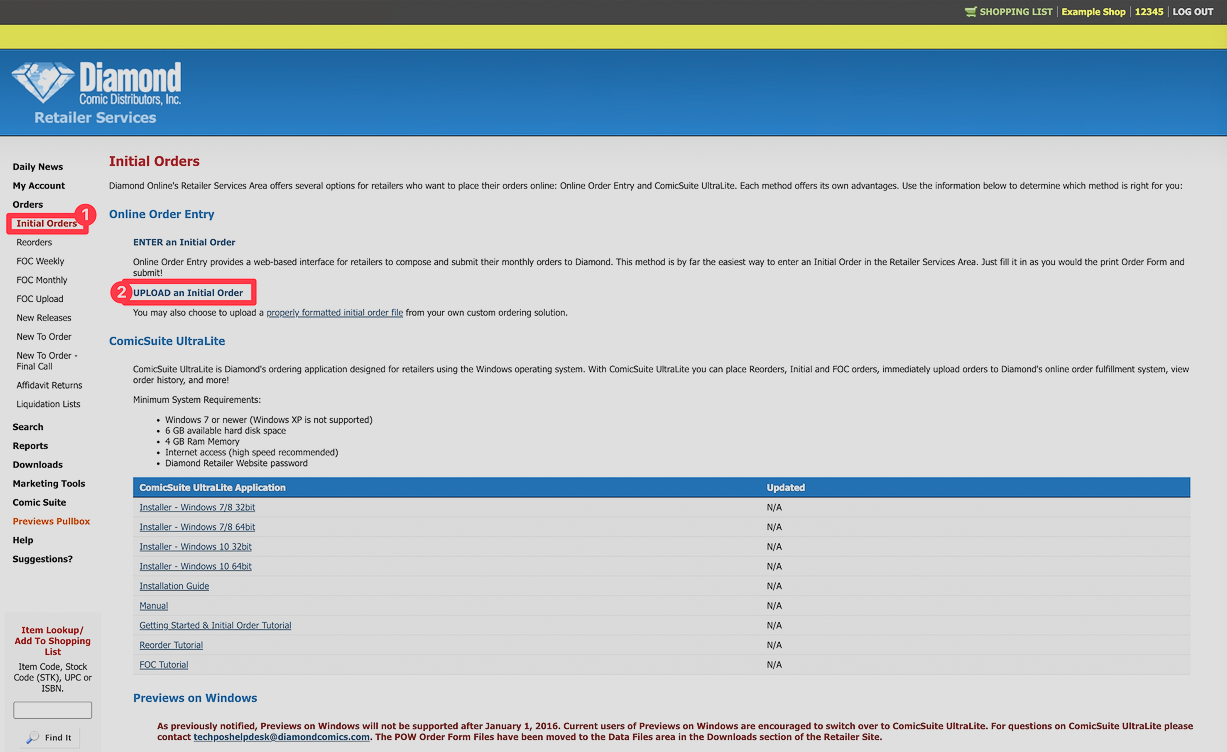
Go to Diamond's retailer services → Orders → Initial Orders.
Click Upload an Initial Order.
Step 3 — Important Checkbox Decisions
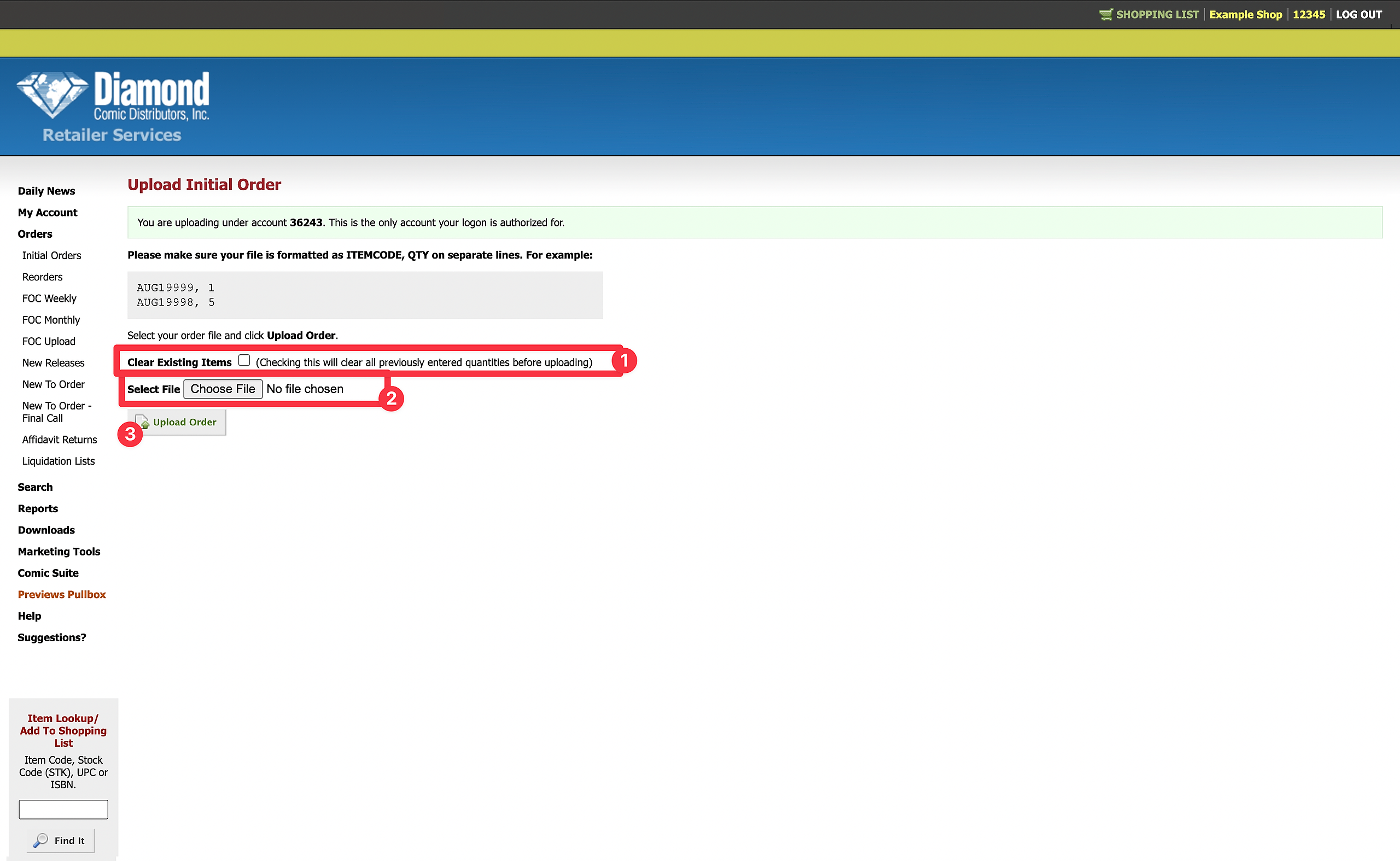
Clear Existing Items
If checked: Diamond will set quantities to zero for every item before loading your file. Use this only if you want a fresh slate.
If unchecked: Diamond adds your file to whatever is already in the cart. Use this when you're building your initial order up in multiple passes through the month.
The default should almost always be unchecked unless you explicitly want to reset.
Step 4 — Select and Upload
Click Select File and navigate to the Diamond file Manage Comics generated. If you exported both the upload file and a report, pick the upload file, not the report.
Click Upload Order.
Step 5 — Review
After uploading, Diamond gives you a chance to review the import. This is not optional.
Common issues to spot: quantity changes you didn't intend, titles that didn't make it in, variant codes that got mismatched.
Step 6 — Confirm
Don't skip this. An uploaded-but-unconfirmed order isn't actually placed.