

This page will walk you through reviewing, approving, declining, and adjusting customer pre-orders in Manage Comics Ordo/Shopify. Check the table of contents to jump to reviewing pre-orders, editing a pre-order, approving or declining orders, or bulk approving and declining.
Customer pre-orders should be reviewed regularly so you can approve items you can get, decline items you cannot, and make adjustments when needed.
This is a quick daily task that helps keep customer orders accurate and lets customers know if something has changed.
Overview
Use this page when you need to:
review new customer pre-orders
approve items that are available
decline items that cannot be supplied
adjust the quantity or price of a pre-order
send an edited order back to the customer for approval
quickly approve or decline multiple pre-orders at once
Before you start
Before reviewing pre-orders, make sure:
you are logged into Manage Comics Ordo
you have checked availability with the correct distributor if needed
you know whether you want to approve, decline, or adjust the order
you are ready to leave a note for the customer if something changes
Step 1: Open Customer Activity
Open Manage Comics.
Click Customers.
Click Customer Activity.
This is where you can see customer pre-orders that still need action.
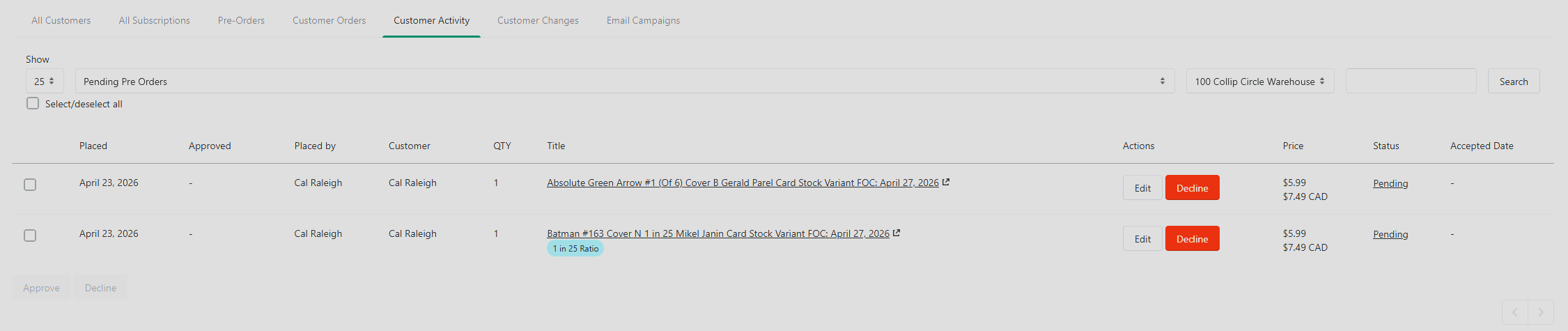
Step 2: Review the orders waiting for action
On the Customer Activity page, review the list of pre-orders that still need to be processed.
You may see one or more orders waiting to be:
approved
declined
adjusted
Take a moment to confirm whether each item is still available and whether the requested quantity and price are correct.
Step 3: Open a pre-order for editing
Find the customer's pre-order in the list.
Click Edit on the order you want to review.
This opens the pre-order so you can decide what to do next.
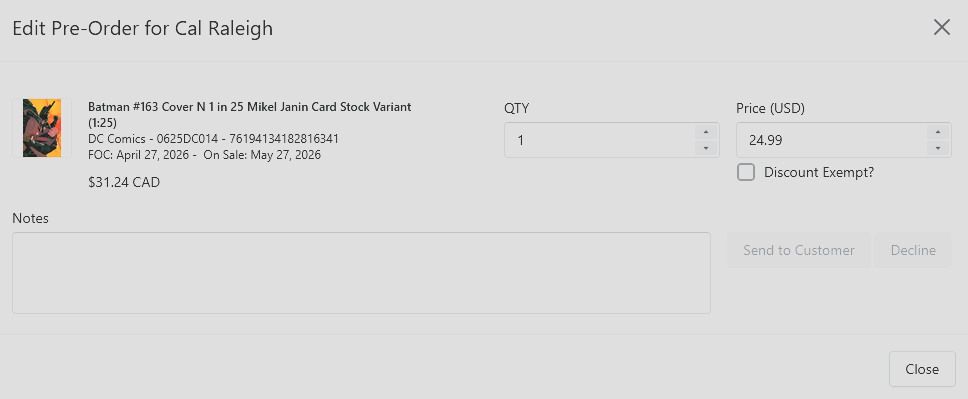
Step 4: Choose what to do with the pre-order
Once you open the pre-order, you have a few options.
Approve the pre-order
Approve the pre-order if the item is available and no changes are needed.
Use this when the customer's request can be filled exactly as submitted.
Decline the pre-order
Decline the pre-order if the item is unavailable or cannot be fulfilled.
When declining a pre-order, leave a note to explain why. This helps the customer understand what happened and cuts down on confusion later.
Examples of reasons to decline:
the item is no longer available
the item is sold out
the requested variant cannot be ordered
the order was submitted too late
Adjust the quantity or price
If the order needs to be changed, you can adjust:
the quantity
the price
After making the change, add a note explaining what changed and why.
This is especially useful when:
the customer requested a ratio cover
the price changed
only part of the requested quantity is available
Step 5: Send the updated order to the customer
If you make an edit to the order, click Send to Customer.
This sends the updated pre-order back to the customer so they can review the change and choose whether to accept or deny it.
If you change the quantity or price and send it to the customer, the customer must respond to the updated request.
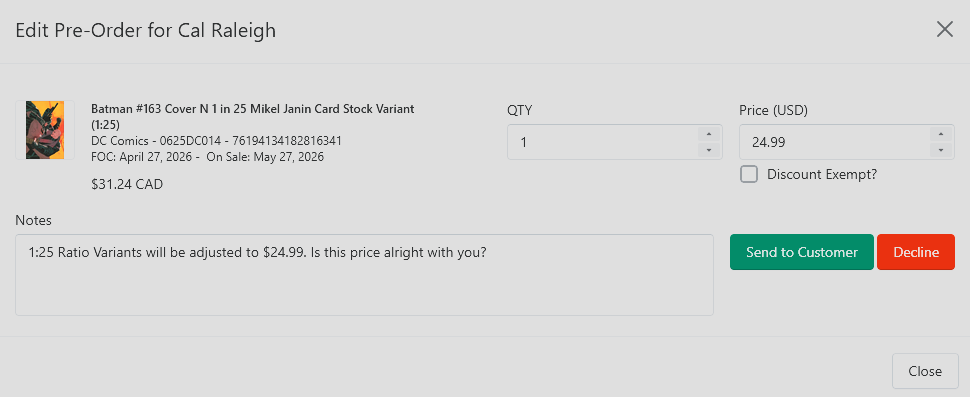
Step 6: Decline an unavailable pre-order
If the item cannot be filled, click the red Decline button and leave a note for the customer.
This is the best option when the item is truly unavailable and there is nothing to adjust.
What happens after you decline a pre-order?
If you open the customer's Subscriptions details page, the declined pre-order will still appear under Pre-Orders.
This is helpful in case the order was declined by mistake and needs to be approved later.
However, once a pre-order has been declined, it will no longer appear in the main Pre-Orders approval tab.
Bulk approve or decline pre-orders
If you want to process several orders quickly:
Go to the Pre-Orders tab.
Check the box to the left of one or more items.
Use the Approve or Decline buttons that appear.
This is the fastest way to process multiple straightforward orders at once.
Tips
Review pre-orders at least once a day.
Leave a note whenever you decline or adjust an order.
Double-check availability before approving ratio covers or harder-to-get variants.
If you change the order, use Send to Customer so they can confirm the update.
Use bulk actions for simple approvals and declines, but open the order if it needs explanation or edits.
Troubleshooting
I do not see any pre-orders to review
Check Customers > Customer Activity first, then confirm whether there are any pending orders waiting for action.
I declined a pre-order by mistake
Select Declined Pre-Orders from the dropdown menu under Customer Activity. Here you can return a declined pre-order to pending.
I changed the price or quantity, but the order is not final yet
If you edited the pre-order and clicked Send to Customer, the customer still needs to accept or deny the change.