

When a new customer signs up for a subscription account through your Ordo storefront, they land in a NEW status. Customers in this status don't count toward FOC numbers, initial orders, or check-in reserves until a store admin approves them. The purpose of the NEW status is simple: it prevents fake, duplicate, or mistaken signups from inflating your order calculations.
When to Do This
Every time a new subscriber registers through your storefront.
Before finalizing any FOC or initial order — so every legitimate new subscriber is counted.
Whenever you see a suspicious or duplicate signup.
Step-by-Step
Go to Customers → All Customers.
From the status filter dropdown, select NEW. (If you have unprocessed new customers, this status is the default when you land on the page.)
Review the list. You see each new subscriber's name, email, number of subscriptions, and any detail they provided during signup.
Before approving, you can adjust the customer's default discount, shipping type, or location. Click Save if you edit anything.
Select the customer(s) you want to process with the left-side checkbox.
Click Approve to activate the account, or Decline to reject the signup.
What the Customer Sees
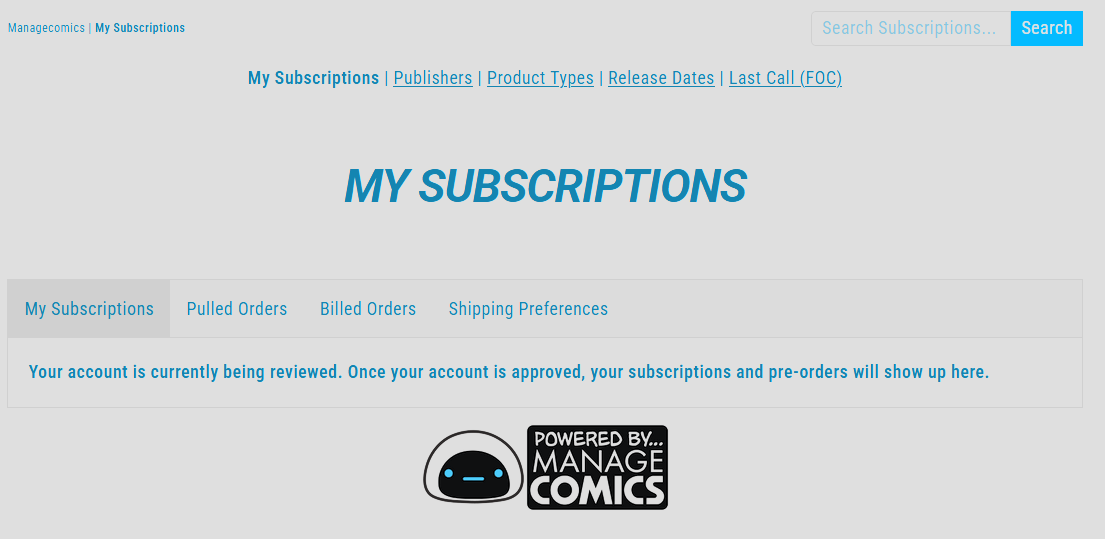
New customers can place pre-orders and add subscriptions, but they will be shown an account review page under their subscriptions until they are approved.
What Happens After
Approved customers leave the NEW list and become active subscribers. They now count toward FOC, initial orders, and check-in reserves.
Declined customers are removed from your subscription counts and won't appear in reports.
Tips
Process new subscribers regularly so your FOC numbers stay accurate.
If a customer looks like a duplicate, check their email address before declining — you don't want to remove an existing active subscriber by mistake.
Edit typos in a customer's info before approving. Once approved, some fields (like name) sync from Shopify and need to be edited there instead.
Troubleshooting
No NEW customers showing. If there are no unprocessed customers, the page defaults back to Subscribed. Switch the filter manually to confirm there are none pending.
Customer doesn't appear after approval. Make sure you clicked Approve and Save if you edited any details. Reload if the UI seems stuck.