

Editing a customer's subscriptions is the single most common action in Manage Comics. Every add, drop, cover switch, quantity change, and cancellation for a specific customer passes through the same screen — the customer's subscription page — and understanding that screen well is what makes the daily rhythm of running a subscription service feel routine instead of laborious.
The goal of this article is to make you fast at the whole cycle: finding the customer, adding or removing a title, switching covers, and — importantly — ending a subscription gracefully when an issue is already past FOC.
Finding the Customer
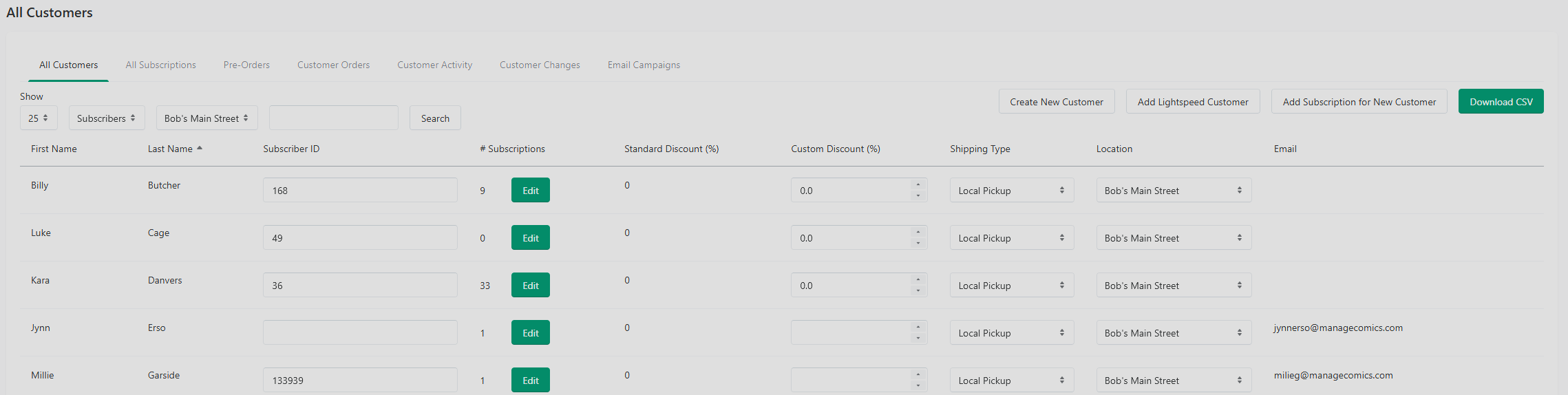
Click Customers, then open the All Customers tab.
Type the customer's name into the search bar, or filter by Subscribers, Non-Subscribers, De-Activated, or All Customers using the dropdown.
Click the green Edit button next to the customer.
Quick path for brand-new customers: if you know the customer has no existing subscriptions, click Add Subscription for New Customer at the top of the list. For Ordo, the customer must already have a Shopify account; for Oryx, they must already exist as an Oryx customer record.
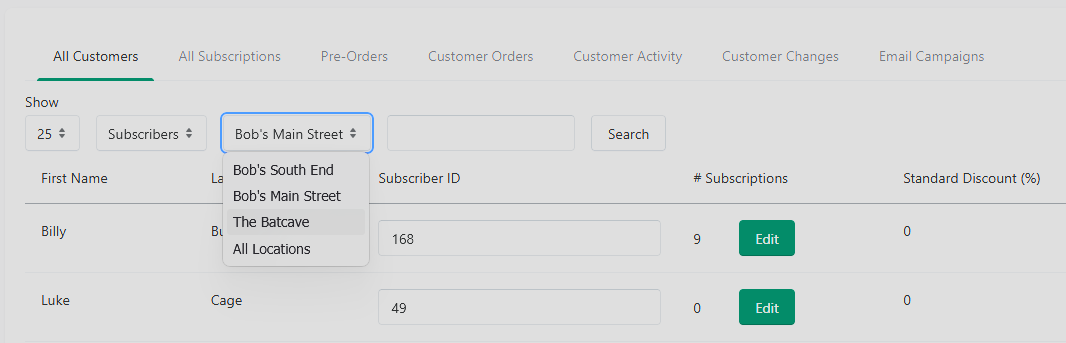
Filter by location
Use the location dropdown to control which customers you see.
Select a specific location to view only customers for that store.
Select All Locations if you want to view customers across all stores.
This is useful when you manage more than one location or need to check a customer account outside your primary store.
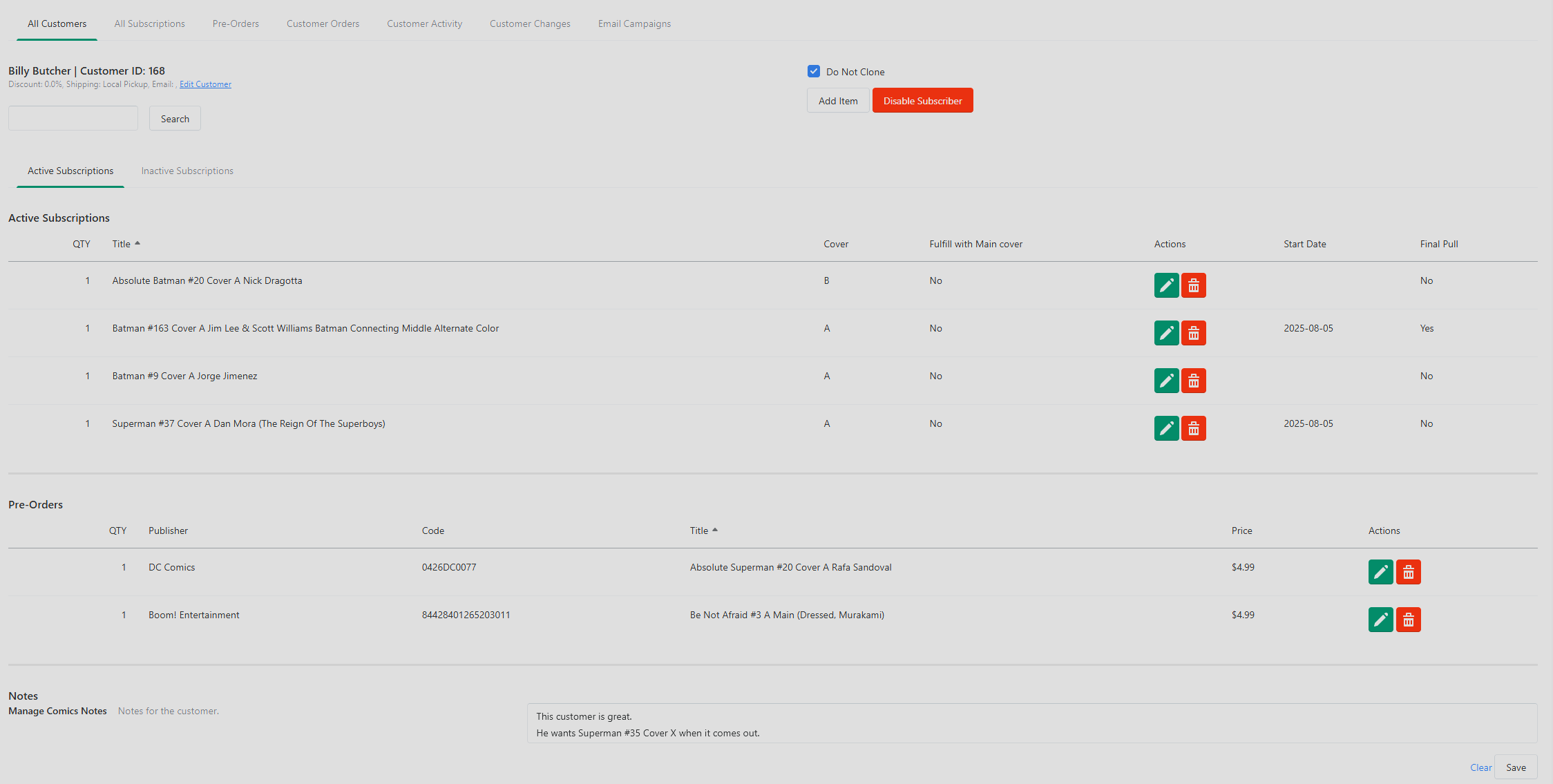
The Customer's Subscription Page
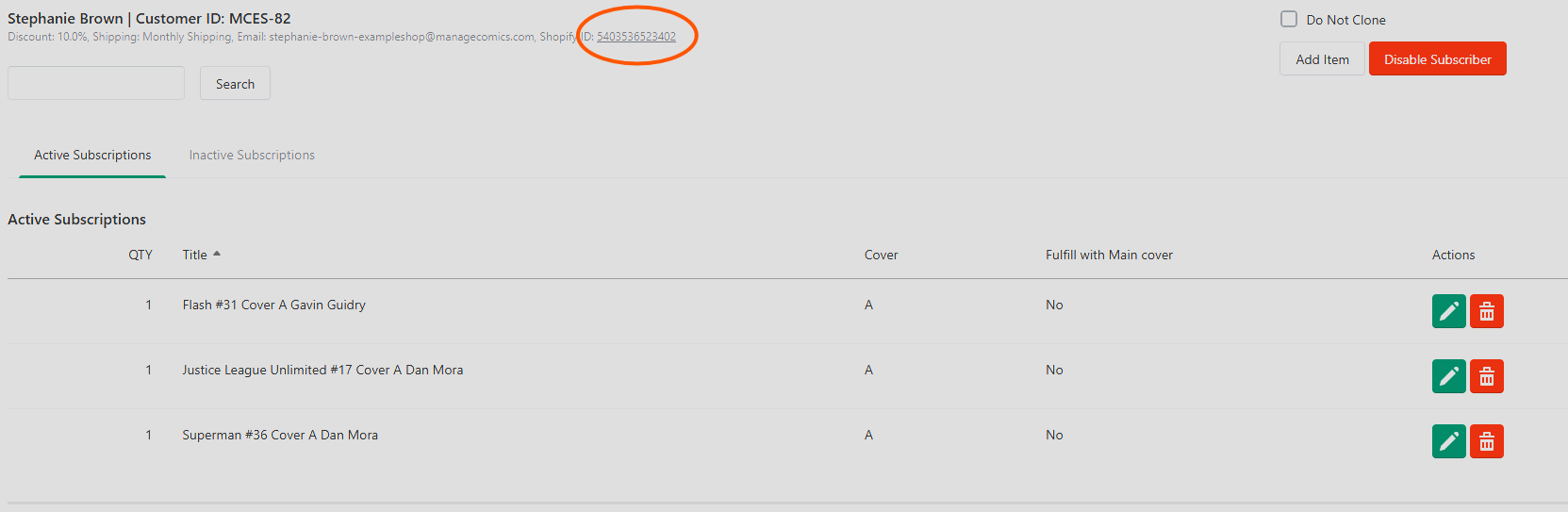
Once you click Edit, you see a list of the customer's Active Subscriptions, Pre-Orders, and Inactive Subscriptions. From here you can search within the customer's own list, add a new subscription, or deactivate the account.
Adding a Subscription or Pre-Order
Click Add Item.
Type the series name, or scan an issue's barcode. By default Manage Comics only shows active series and items available for pre-order — check Include Old Series if you need to find an older title.
Scroll the results to find the right item. Verify that the item is actually available from a distributor before committing to it.
For each item, choose one:
Pre-Order for one-shots or upcoming specific-issue orders.
Subscribe to Cover A or Subscribe to Cover B for ongoing series subscriptions.
Subscribe for graphic novels that are part of a series.
You can add as many items as you want from the same search popup before closing it.
Editing or Removing a Subscription
Delete — click the red trash icon next to the row.
Edit — click the edit icon to open the subscription's settings. From here you can:
Choose between Cover A and Cover B.
Set a custom start date (useful when a customer wants to start mid-arc).
Change quantity.
Mark the issue as the Final Pull — use this when the customer wants to cancel but an issue is already past FOC and locked in.
Edit customer details
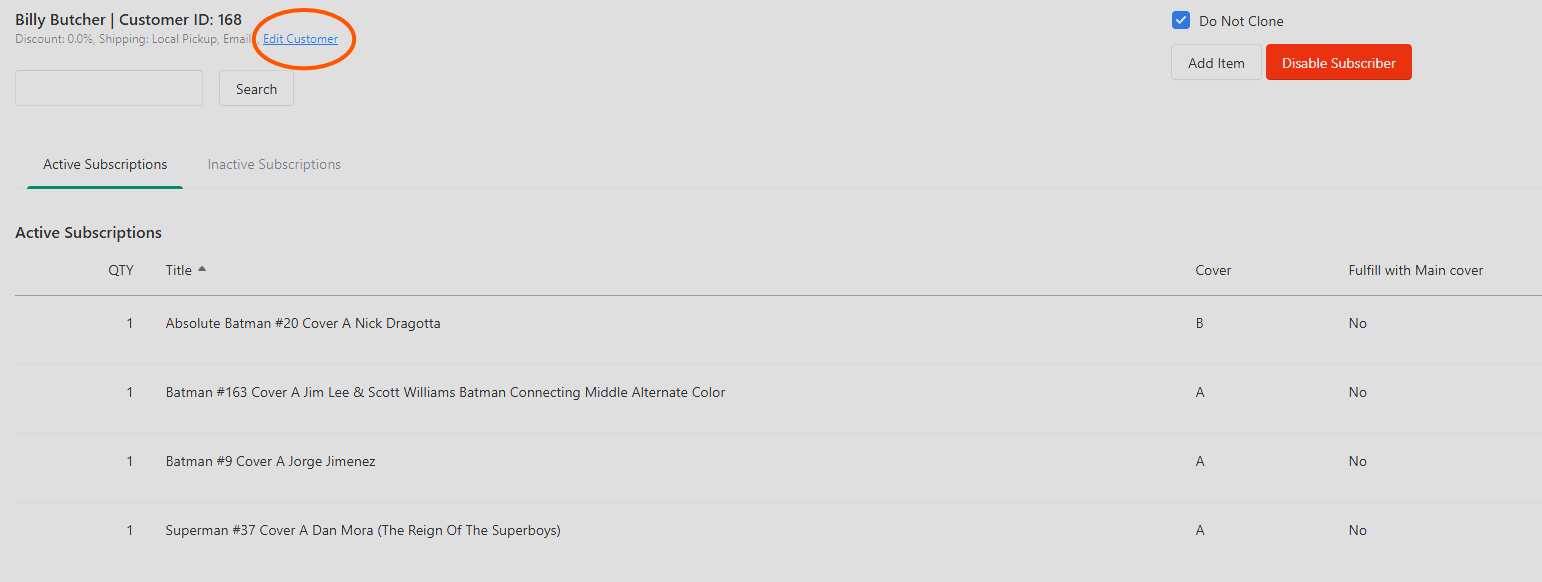
Use Edit Customer in Oryx or the Shopify ID in Ordo/Shopify when you need to update the customer's account information.
Open the customer's screen.
Click Edit Customer or the Shopify ID.
Update the customer information in the modal window.
Click Save.
This is where you can update account details without leaving the customer workflow.
The Final Pull Concept
When a customer says "drop this series after issue #12" but issue #12 has already been ordered at FOC, you can't just delete the subscription without stranding inventory. Marking #12 as the Final Pull tells Manage Comics: keep fulfilling until that issue, then stop. The system handles everything else automatically — subsequent issues won't pull for the customer, the sub moves to Inactive at the right moment, and your initial-order calculations stay honest.
Disabling a Subscriber
When a customer leaves entirely — not just dropping one series — you disable the whole subscriber. Disabling is deliberately a guarded action: it's a button that opens a confirmation modal, not a one-click checkbox, so you can't deactivate someone by accident.
To disable a subscriber:
Click Disable Subscriber. A confirmation modal opens.
Choose a reason (required) from the dropdown:
Customer Cancelled Account (Good Standing)
Customer Paused Account (Good Standing)
Difficult Customer
Ghosted / Did Not Pick Up Order
Optionally add notes for extra context (e.g., "Customer moved away and asked to pause").
Click Disable Account to confirm, or Close to back out.
What happens next:
In Manage Comics, the customer is marked Deactivated, their profile header shows the disable reason (e.g., Bruce Wayne | Customer ID: 12345 – Disabled: Customer Cancelled Account (Good Standing)), and the reason plus any notes are written to the customer's notes.
In Shopify (Ordo), the customer is tagged Manage Comics – Inactive, the Manage Comics – Active tag is removed, and the same reason and notes sync to the Shopify customer record.
Re-enabling: a disabled customer's profile shows a green Enable Subscriber button. Clicking it restores their active status and re-syncs them with Shopify.
Use accurate reasons. The two "Good Standing" reasons let you separate positive exits (a customer pausing for the summer) from problem exits (ghosting). That distinction is worth having when you look back at churn.
Troubleshooting
I can't find a customer in the list
Check the location filter first. You may be viewing the wrong store location.
My customer is not showing up in Ordo
Make sure the customer already exists in Shopify and that you are searching the correct customer type or location.
My search results are too broad
Use the Publisher Filter, Product Type, and A Covers Only filters to narrow the results.
I can't find a specific comic title
Try checking Include Past FOC or Include Old Series to expand the results.
I removed a subscription but the customer still needed one more issue
If the issue was already past FOC, you should use Final Pull instead of deleting the subscription completely.
My customer export is missing information
Make sure you are exporting from the correct location filter and confirm that the expected columns are included.