

Most check-in problems fall into one of five patterns. Work down this list before emailing support — the first two fixes resolve a surprising number of reports.
1. The upload looks stuck — refresh first
Check-ins process in the background, and the page does not always update itself. Refresh the page before anything else; invoices and items that looked missing are often already there. Large shipments can take several minutes, and products can take up to 15 minutes to appear in Shopify after check-in.
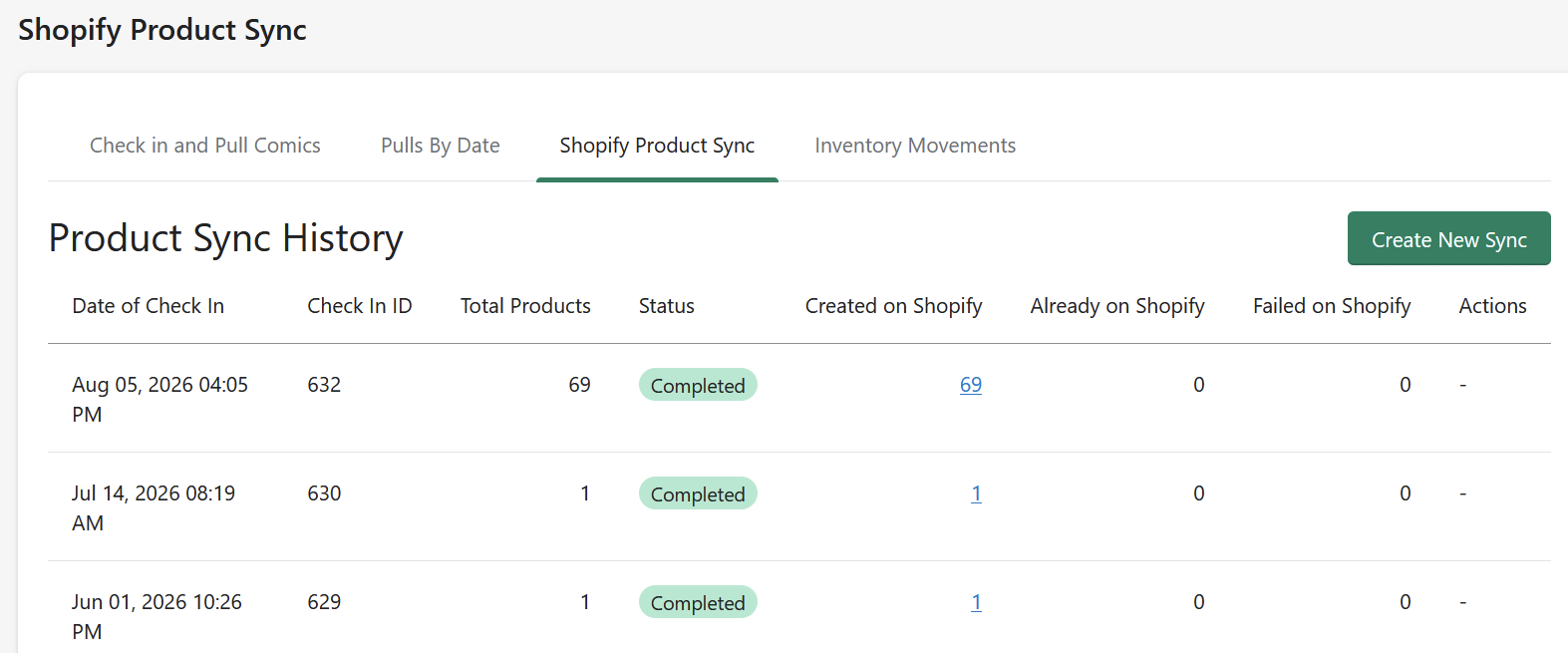
To confirm what actually happened on the Shopify side, open Check In → Shopify Product Sync. Every push is recorded there — created, merged, or failed. See Shopify Product Sync.
2. "Product not found" or a rejected file — re-download it
An error like Product not found: 0626… almost always means the file is the problem, not your store: a stale export, the wrong file type, or a file that was opened and re-saved in Excel (which silently reformats codes and dates). Download a fresh copy from the distributor and upload it without opening it first. If you need to look inside a CSV, follow How to Safely Open a CSV File in Excel.
3. "Daily variant creation limit reached" (Ordo)
Shopify only allows 1,000 new product variants per store per day, and every app you run shares that budget. On a heavy week — or if another app is also creating products — a check-in can hit the ceiling. Nothing is lost: retry the sync after the limit resets the next day. If you run other product-creating apps, schedule big check-ins away from their heavy activity.
4. Items checked in but not on your storefront
If the sync shows the product was created, the missing piece is usually on the Shopify side: the product may be Draft rather than Active, missing from a sales channel, or filtered out by a collection.
See Shopify Integration Overview for where to check.
5. Multi-location: check the location
If you run multiple locations, confirm the right location was selected during check-in — quantities land where the check-in says, not where you happen to be standing.
Still stuck? Send this to support
Email help@managecomics.com with the check-in ID, your store name, the file you uploaded (attached, unopened), and a screenshot of the error. That set lets us reproduce the problem immediately instead of asking for it in a second email.