

Every time you check in a shipment, Manage Comics pushes those products to your Shopify store in the background. Shopify Product Sync is the tab where each of those pushes is recorded, so you can confirm a sync finished and see exactly what it did on the Shopify side.
Where to Find It
In the Manage Comics app, under Check In, open the Shopify Product Sync tab. It sits alongside Check in and Pull Comics, Pulls By Date, and Inventory Movements.
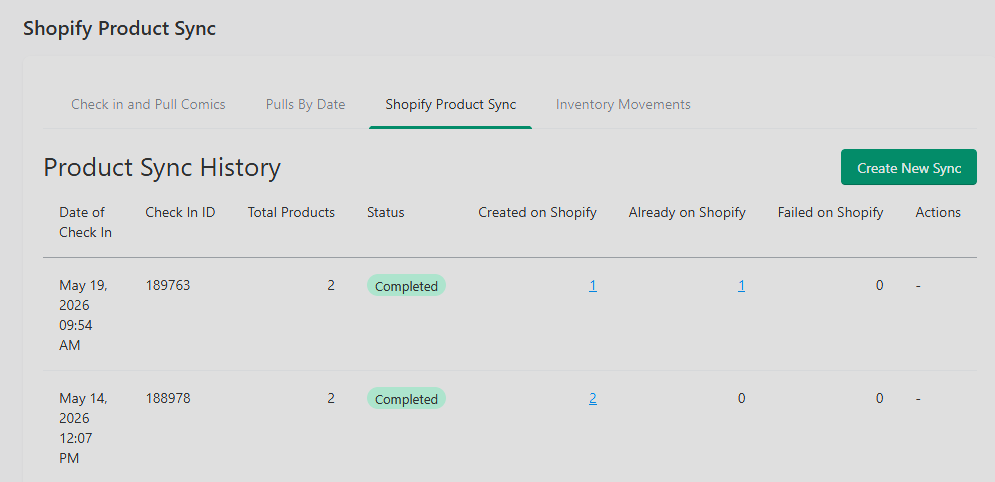
The Product Sync History Table
Each row is one sync, tied to the check-in that produced it. The columns are:
Date of Check In — when the check-in that triggered the sync took place.
Check In ID — the ID of that check-in, for your records and to communicate if you need help from the team
Total Products — how many products were included in the sync.
Status — where the sync stands, such as Completed.
Created on Shopify — how many products were newly created on your store. Click the number to see which products were created.
Already on Shopify — how many products already existed on Shopify. Rather than create a duplicate, the incoming copies were merged into the existing product. Click the number to see those products and the existing product each one was merged into.
Failed on Shopify — how many products did not sync. Click the number to see which ones, so you can follow up on them.
Actions — any action available for an individual sync.
Creating a Sync Manually
A sync runs automatically with each check-in. You can also start one yourself: click Create New Sync in the top-right of the tab and select the pull that you want to sync.
Timing
Product syncs run in the background and are not instant. Shopify creates each item, then updates its cost, then updates its quantity, and the whole process can take up to 15 minutes depending on the size of the check-in. If you open your Shopify products page before a sync finishes, items may briefly show zero quantity or not appear yet. The Status column on this tab is the reliable place to confirm a sync has completed.