

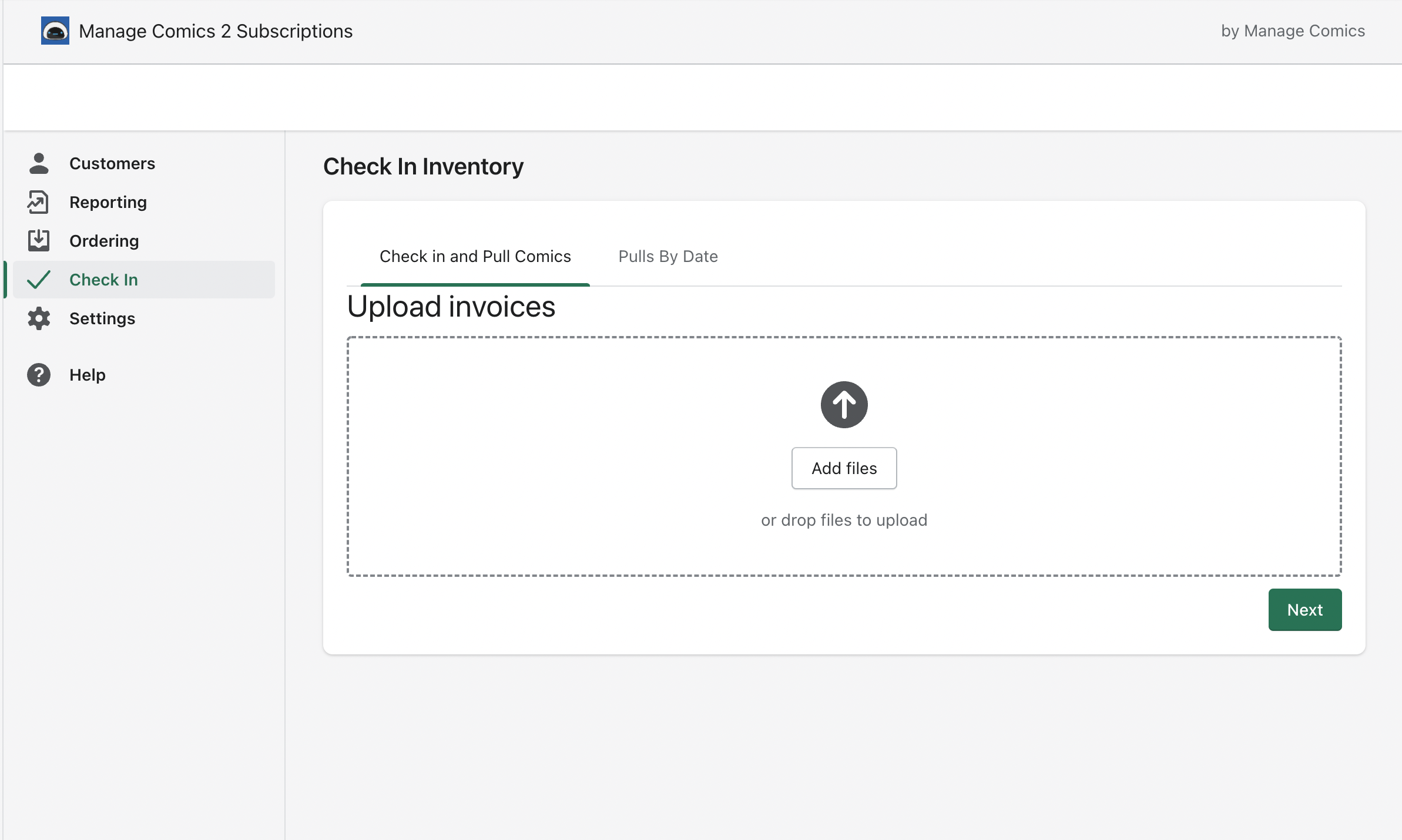
Manage Comics supports uploading a CSV of mixed product codes to add products to your database in bulk — useful when you need to bring in items that aren't on a regular distributor invoice file. This article covers the file format, the upload itself, and the post-upload step most shops miss.
Where to Upload
Go to the Pulls area in Manage Comics.
File Format
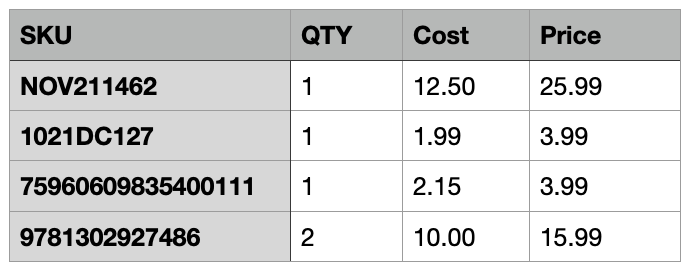
The CSV needs the following columns:
SKU — required. Can be any of the supported code types (see below).
QTY — required.
Price — required. Don't include
$characters.Cost — optional but recommended for margin tracking.
You can download a template here: Sample-CSV-Import.csv.
Don't skip Price. Without a price, the file takes too long to process.
Supported Code Types
You can mix and match these in a single file:
Diamond Codes
Lunar Codes
PRH Codes
UPC Codes
ISBN + 5 Codes
ISBN Codes
Manage Comics fills in the rest of the product details.
Batch Size and Timing
Keep individual uploads to roughly 200 items at a time — larger batches can overwhelm Shopify's processing. Give Shopify a moment between uploads to catch up. Expect 1–10 seconds per item for the Shopify side to finish processing.
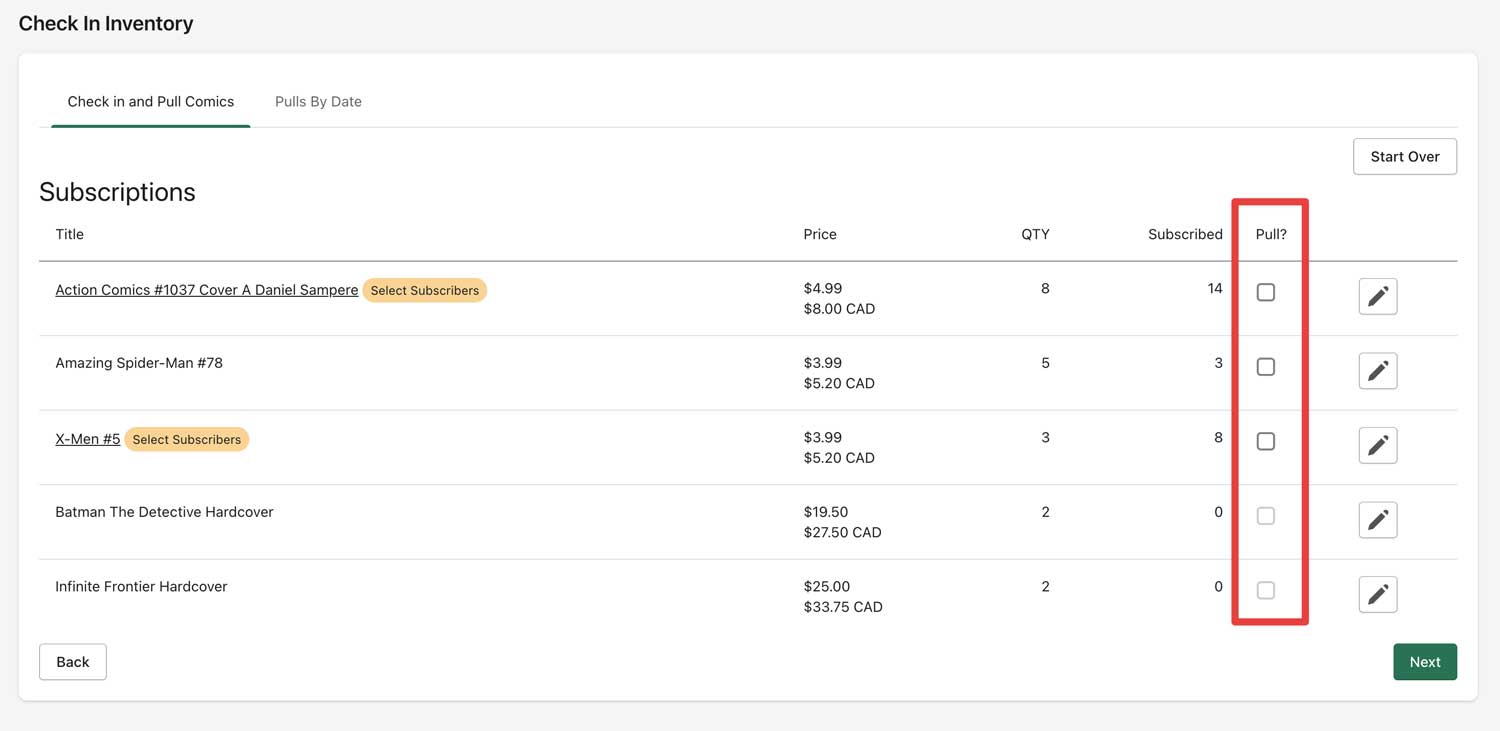
Important — Imported Items Are Not Auto-Pulled
When you import products via CSV, items are not automatically added to your subscribers' pulls. You have to manually check the checkbox next to each item you want to pull.
Preparing CSVs Safely
CSV files opened carelessly in Excel can get their leading zeros stripped from UPCs, their ISBNs reformatted as scientific notation, or their special characters mangled. See How to Safely Open a CSV in Excel before editing the file.
Related
Check In a Single Product — for adding one item without a CSV.
What Confirm Pull Does — the next article in the check-in sequence.