

Store settings control how Manage Comics handles pricing, exchange rates, ISBNs, terms of service, default inventory locations, distributor/POS assumptions, and customer-facing setup details. Review these settings during onboarding and after any operational change.
For ORDO, store settings may also affect Shopify-connected subscription pages, inventory imports, customer-facing terms, and pricing shown to customers.
For ORYX, store settings are used for standalone pull list management, POS-connected workflows, distributor setup, locations, imports, and staff-facing operations.
Before you start
Before updating store settings, confirm:
Store name/contact details, currency, exchange needs, distributor relationships, POS/ecommerce platform, default location, and subscription terms.
For ORDO, have Shopify admin access.
For ORYX, have administrator access and confirm current location context.
Use ISBN + 5
The Use ISBN + 5 setting enables the longer 18-digit ISBN format.
Manage Comics strongly recommends keeping this enabled unless your scanner cannot process the 18-digit ISBN and can only scan the shorter 13-digit ISBN.
Some ISBNs in the system may not be properly formatted for the shorter 13-digit format, so disabling this setting may reduce scanner reliability.
Recommended setting: Enabled.
Terms of Service
Manage Comics provides boilerplate Terms of Service text for customer subscriptions. Stores should review and customize this text before customers begin subscribing.
Customers are required to check a box agreeing to these terms before they set up a subscription.
Suggested items to include
how customers request subscriptions
how pre-orders or special orders are handled
whether subscriptions can be cancelled
pickup expectations
abandoned order policy
payment expectations
how customers contact the store
Edit the text to match your store’s subscription, ordering, pickup, cancellation, and payment policies.
Exchange Table/Tiered Exchange Rates
Exchange rates are tiered, and will be applied to all prices on an individual tier. Example: If you have a tier of 2.99 and a tier of 3.99, anything between 2.99 and 3.98 will have the 2.99 pricing applied to it.
This will allow you to get as granular as you need to. If something is outside of the tiers (above or below), it will be calculated at the base exchange rate.
Tiered pricing is only displayed on comics, graphic novels and non-net priced items.
All pricing within the admin is in USD and the appropriate tier will be added to the product before being displayed to the customer.
Getting Started with Pricing Tiers
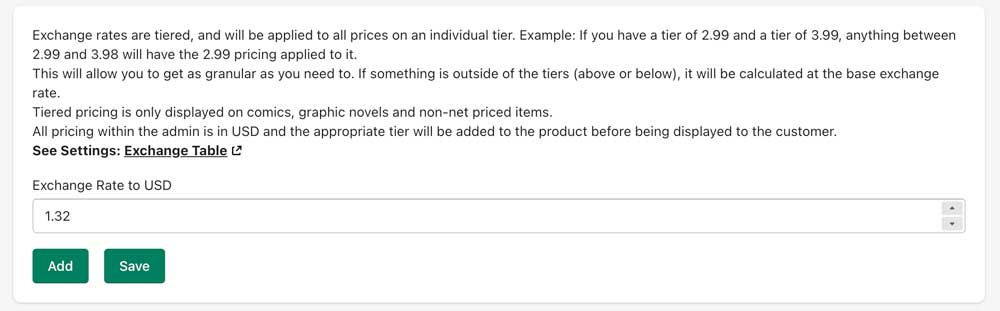
By default you'll see your exchange rate, and a button to add and save your tiers.
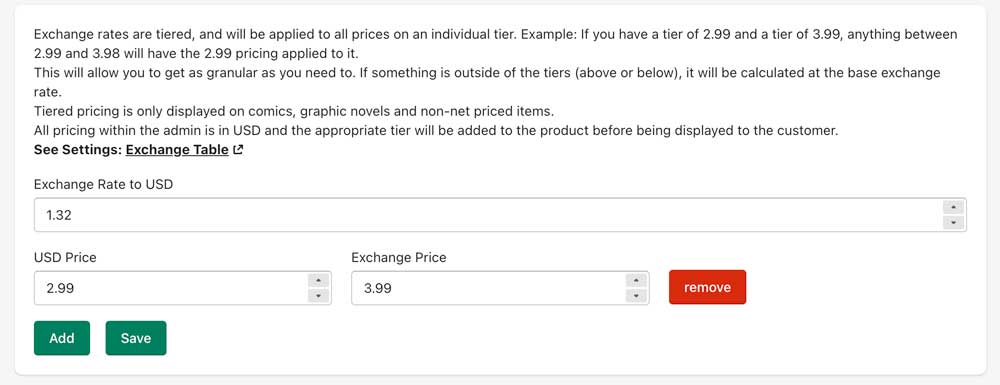
Adding your first tier will set the base level at which tiers are used (anything below a $2.99 USD check in price, will be exchanged at your Exchange Rate to USD).
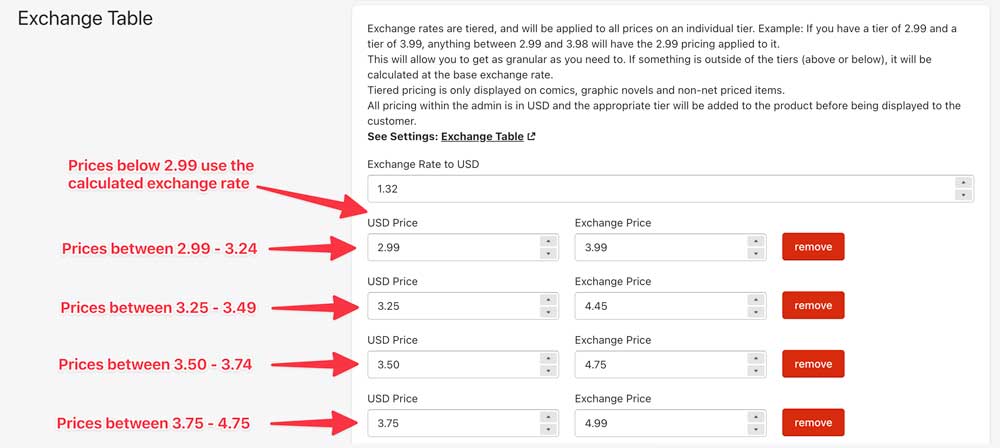
Continue filling out your tables, remember that anything not explicitly noted will use the lower tier exchange price.
Example: A $3.70 item will be priced at the $3.50 tier.
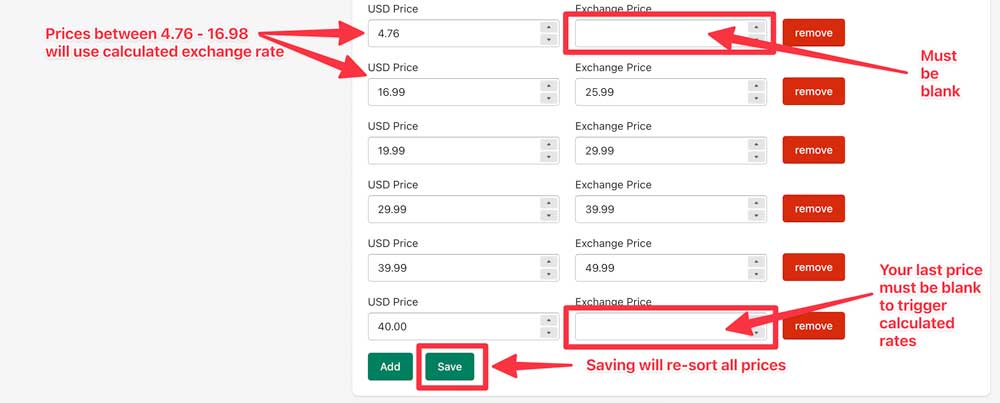
To stop using tiers, add a USD price, and in the Exchange Price, remove any numbers (it must be blank), this will trigger the calculated exchange rate.
IMPORTANT: Your last price MUST be blank to trigger the calculated exchange rate.
Saving will save your tiers, and immediately display them on the customer end (as well as apply them to all future check-ins). Clicking the Save also re-sorts the tiers by USD price.
Setting Currency Symbol

Manage Comics should detect your currency symbol. In the rare occasion where it doesn't, you can change the currency symbol here.
Discount Rates
Set your discounts by subscription tier and percentage. By default your customer discount rates are set to 0.
You can add a single discount rate or tiers. Tiers are based on how many subscriptions to ongoing series (comics or TPB series) the customer currently has. Subscriptions 1 would mean 1 or more. Subscriptions 10 means 10 or more.
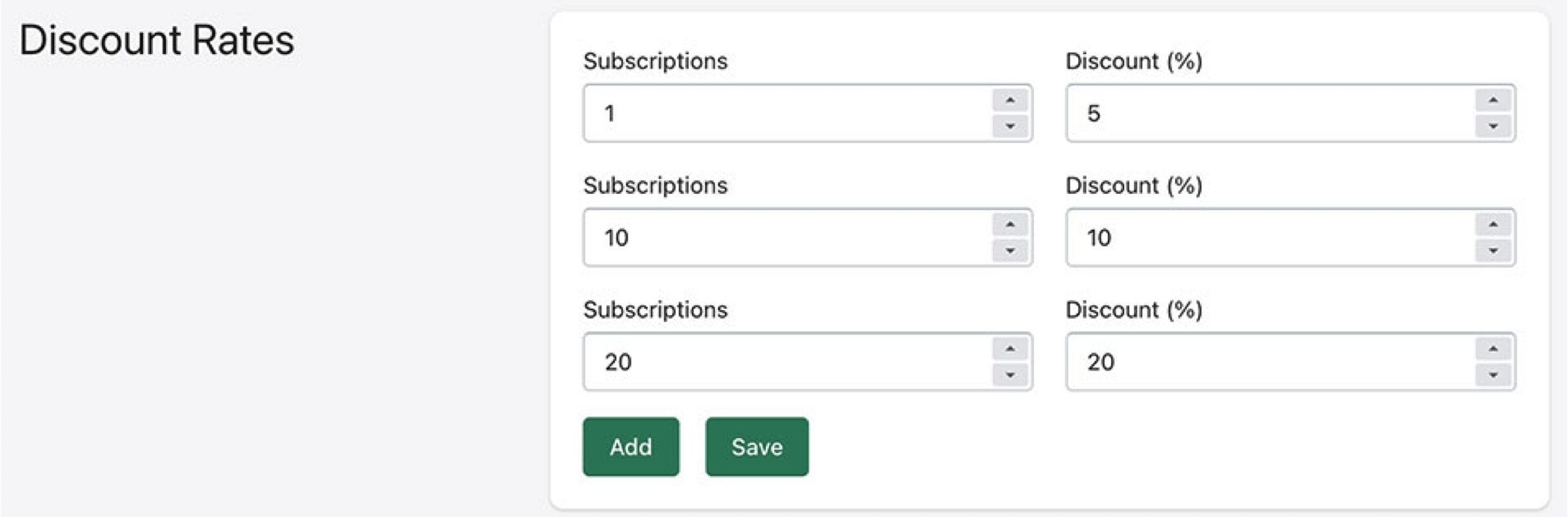
In this scenario, a customer with 9 comics would get a 5% discount, while a customer with 11 comics would get 10%
ORDO/Shopify Settings
Default Store Location in ORDO / Shopify
Shopify has its own Default Location, but that setting does not automatically transfer into Manage Comics. ORDO requires a Manage Comics default location so imported quantities are assigned correctly.
Once inventory is imported into Shopify from Manage Comics, Manage Comics treats the Shopify inventory as the source of truth.
This drop-down will populate based on your locations set in Shopify.
Important: Set your default location before importing quantities or checking in large shipments.
Related task: For inventory transfers between Shopify locations, use Shopify’s inventory transfer tools.
Tags for Shopify Imports
For ORDO stores using Shopify, use this section to decide which tags should be applied for Shopify collections, filtering, reporting, or store organization.
Keep publisher and genre tags enabled if you want stronger filtering/collection options.
ORYX settings
Default Store Location in ORYX
Once you have updated your subscription to add new locations, set the default location here. See Enabling and Managing Multi-Location for more details.
The locations in the dropdown are populated with locations set under the "Locations" tab in Settings.
Common Issues
Imported quantities going to the wrong location: check Manage Comics Default Location, not only Shopify Default Location.
Prices look wrong: check flat exchange, tiered exchange, invoice import exchange, and currency symbol.
Scanner issues: check ISBN + 5.
Customers agreeing to outdated policies: review Terms of Service.
Exchange tiers not calculating: final blank tier may be missing.