

The Manage Comics App Embed is a small piece of theme code that your Shopify storefront loads to show the customer-facing subscription interface — the "Subscribe to Series," "My Pulls," and "Browse by Dates" pages customers use. Without the Embed, Manage Comics still works on the admin side, but customers see nothing on the storefront. This article walks through turning it on.
What the App Embed Actually Does
Shopify themes are rendered by Shopify's Liquid templating engine. An "App Embed" is a block of theme code that Shopify injects into every page of your storefront on behalf of an installed app. For Manage Comics, the Embed adds the subscription-related UI that customers see when they visit their account page or a product page.
You don't have to edit any theme code yourself — Shopify handles the injection. All you do is flip a switch.
Prerequisites
The Manage Comics 2 Subscriptions app must already be installed. See Install Manage Comics 2 Subscriptions.
You need permission to edit themes in Shopify (shop owner or a staff user with the Themes permission).
Step 1 — Open the Theme Editor
In the Shopify admin, go to Online Store → Themes.
On the theme you want to edit (usually your published theme), click Edit Theme.
Step 2 — Open the App Embeds Panel
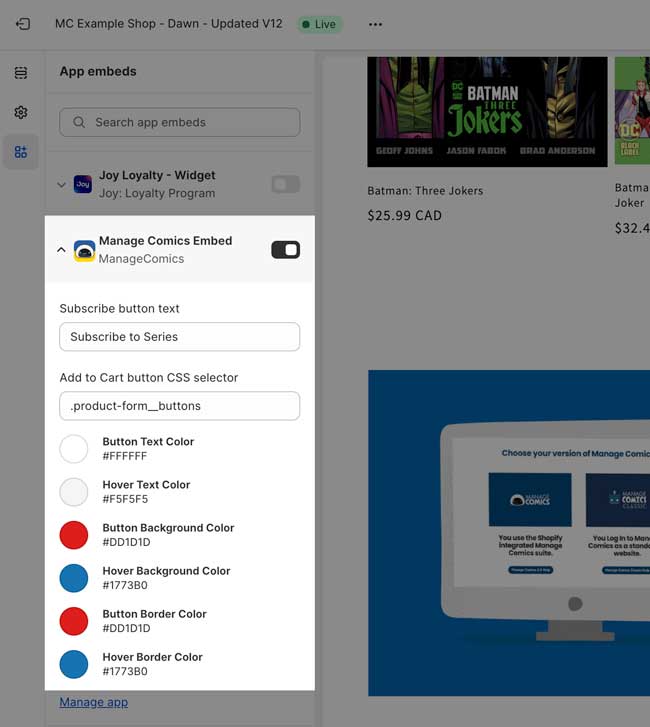
In the theme editor, click the App Embeds icon in the top left menu bar or press CTRL + 3.
Find Manage Comics in the list.
Step 3 — Turn the Embed On
Toggle the switch next to Manage Comics to the on position. The theme preview may briefly flash as the Embed loads.
Click Save in the top right of the theme editor.
Step 4 — Configure the Subscribe Button
With the Embed enabled, two configuration fields appear for the Subscribe button: the button label (text shown to customers, e.g., "Subscribe") and the CSS selector (tells Manage Comics where on the product page to inject the button).
Match the CSS selector to your Shopify theme:
Theme | CSS selector |
|---|---|
Dawn (pre-configured; also works for Crave, Ride, Refresh) |
|
Expanse |
|
Warehouse |
|
BinderPOS |
|
If you're on a theme not listed above, inspect your product page in the browser (right-click → Inspect), find the block containing the Add to Cart button, and use its class as the selector. If you're stuck, email help@managecomics.com with a link to a product page and we'll give you the selector.
You can also customize the button color/style to match your theme — either through the fields shown in the Embed, or with a Custom CSS block in your theme (see the troubleshooting snippets below).
Step 5 — Update Subscriptions Page
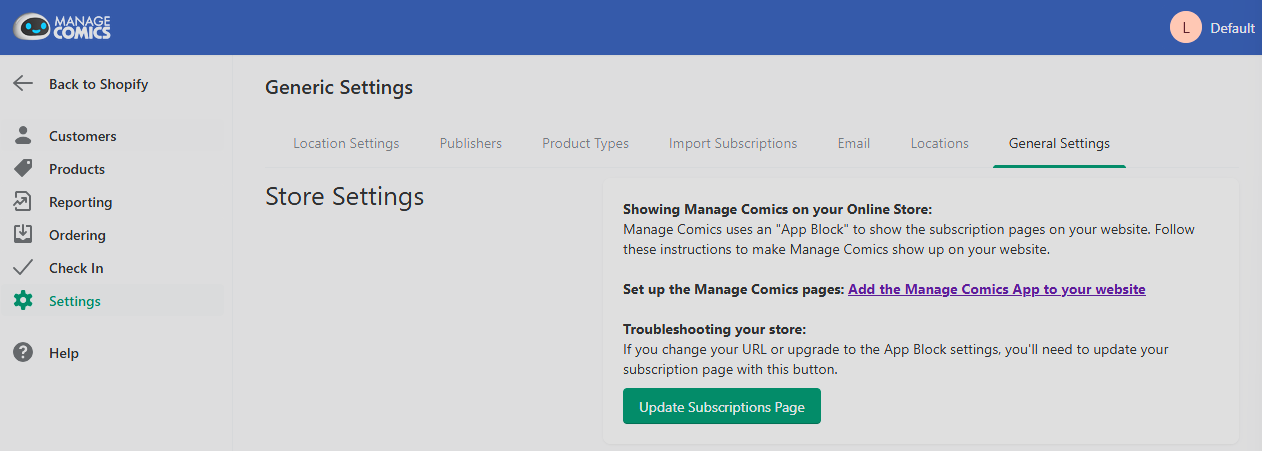
Navigate to the General Settings page in your Manage Comics app and click the Update Subscriptions Page button.
Step 6 — Verify on the Storefront
Open your storefront in a new tab (
yourstorename.com).Navigate to your Subscriptions (Or whatever you decide to call your Manage Comics page) or go to
yourstorename.com/pages/managecomics.Confirm you see the Manage Comics subscription UI.
If the UI doesn't appear, see Troubleshooting below.
Troubleshooting
Embed toggle is on but nothing appears on storefront. Hard-refresh (Ctrl-Shift-R / Cmd-Shift-R). Shopify's theme cache can lag the toggle by a minute or two.
Theme editor doesn't show Manage Comics in the App Embeds list. The Manage Comics app isn't installed on this store. Install it first.
Multiple versions of the Embed appear (duplicate content). You may have another theme with an older manual Embed snippet installed. Inspect your theme's
theme.liquidfile for any hardcoded Manage Comics references and remove them — the App Embed supersedes them.
Older Themes
Some older Shopify themes (especially Vintage themes from before 2021) don't fully support App Embeds. If you're on an older theme and the Embed doesn't appear after enabling it, you have two options:
Upgrade your theme. Moving to a modern Online Store 2.0 theme is the most reliable fix, though it involves migrating your customizations.
Manual theme snippet. For shops that need to stay on an older theme, we can provide a manual theme snippet to embed the Manage Comics UI. Email help@managecomics.com with your theme name and version.
Narrow Embed
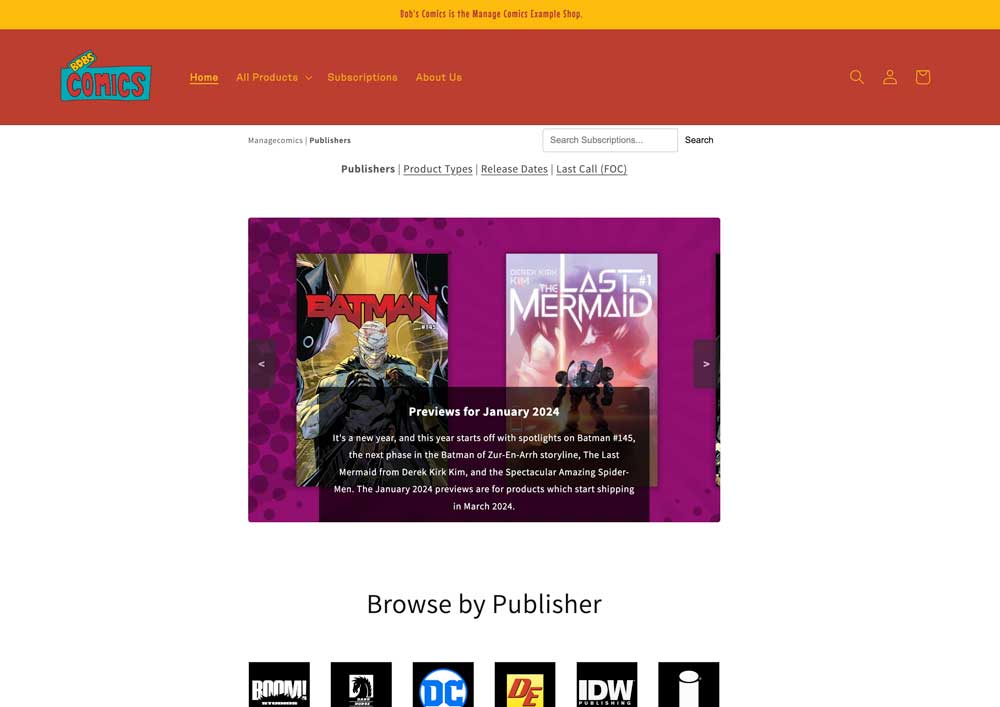
If you find the Manage Comics embed is behaving strangely and is narrow in the middle of your page, you can add a snippet of CSS code to improve the overall look of the site.
Here's an example of the super-narrow page width:
Go to Sales Channels, Online Store, click on "Themes", and click the "Customize" button.
Click on the gear icon on the customize options, and scroll to "Custom CSS", and click to open it.
In the custom CSS box, add the following code snippet:
.page-width--narrow {margin: 0 auto;max-width: 1200px;}
In the upper right hand corner of the page, you'll see the "save" button, click this, and your changes are saved!
Subscription pages not rendering
If the page is not rendering at all, you can also create your own page template for the Manage Comics pages.
This usually happens when the "Eyeball" on the default page is hidden. You may have legitimate reasons for hiding the eyeball, but this will cause issues with the Manage Comics pages rendering.
We're going to create a new template, add a "Custom Liquid" section to the new template, and add some code (watch the video for full details).
The code you will need for the Custom Liquid part of the page.
JavaScript<div id="managecomics"></div>

<style>
h1.main-page-title {display: none;}
</style>
Ensure that the "Page Eyeball" is visible.
Custom CSS Code for the theme template:
JavaScript#managecomics {
margin: 0 auto;
max-width: 1200px;
}
Watch the video for a full walkthrough.