

The dashboard is your home base. This article tours the main regions of the UI in both Ordo and Oryx so you know where to find things.
Dashboard Tour — Oryx
When you log in to Oryx, you land on the main dashboard.
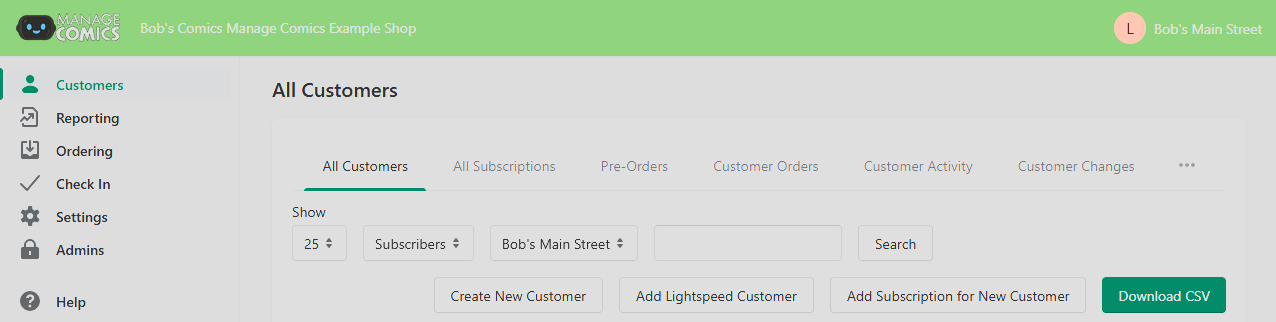
Side menu (top to bottom):
Customers — customer list, customer detail, pull lists, subscription management, pre-orders and email campaigns.
Reporting — all reporting views.
Ordering — initial orders, FOC, customer order history.
Check In — check in and pull new comics.
Settings — store settings, email defaults, distributors, multi-location, imports.
Admins — Edit existing administrators and invite new ones.
Top-right corner:
Location switcher (multi-location shops only) — change which location you're viewing.
Account menu — your profile, sign out.
Dashboard Tour — Ordo
Ordo lives inside your Shopify admin, so there's a dashboard at two levels: the Shopify admin itself, and the Manage Comics app within it.
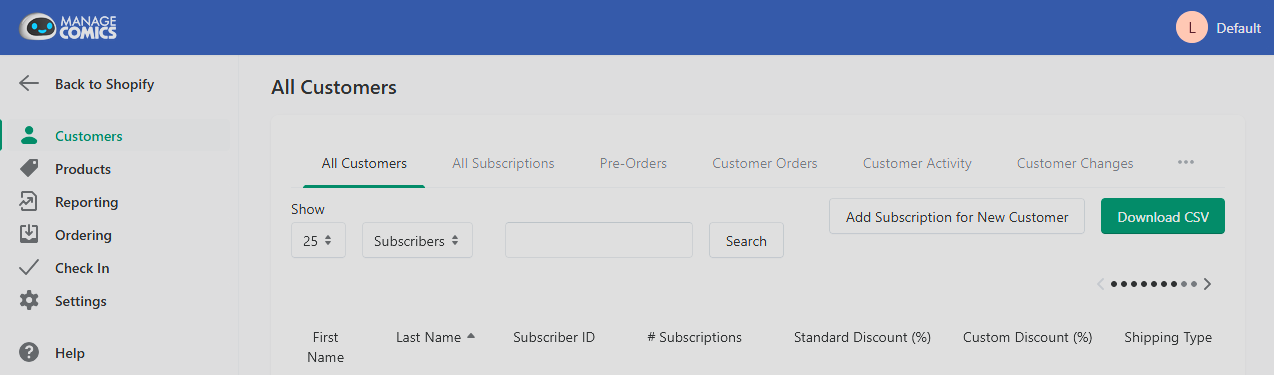
Getting to Manage Comics in Shopify:
Shopify admin → left sidebar → Apps → Manage Comics.
Inside Manage Comics (Ordo):
Customers — Shopify customers, filtered and annotated with subscription data, pre-orders, email campaigns.
Products — held back and Shopify reserved products.
Reporting — shortages, subscription totals, aged subs.
Ordering — Initial Orders, FOC, order history, ordered item search
Check In — inventory check in, pulls by date, Shopify product sync history, inventory movements
Settings — exchange, ISBN, ToS, notification preferences, importing, location settings.
What stays in Shopify (not Manage Comics):
Product catalog (products are managed in Shopify's Products area; Manage Comics reads them).
Drafts and orders (orders are Shopify orders; Manage Comics creates them).
Customer base (customers are Shopify customers; Manage Comics adds subscription data).
POS (Shopify POS is its own app).
Common Patterns Across Both Products
Lists are filterable. Every list (customers, subs, pre-orders, etc.) has a filter bar at the top. Use it aggressively — almost every "I can't find X" question turns out to be a filter that needs loosening.
Export is always near the list header. Most lists have an "Export" button that gives you a CSV of the current filtered view.
Bulk actions live above the list. Select rows with the checkboxes, then choose a bulk action from the dropdown that appears.
Settings are grouped by category. If you're looking for a setting, think about what it relates to (email? customers? distributors?) and navigate to that settings group.