

Use Disable Subscriber to stop a customer's subscription activity without deleting their account.
When you disable a subscriber, their titles immediately stop showing in order forms, and checked-in items will not be pulled for them. Orders that were already pulled are not affected — they keep their reserved status and will still be pulled.
How to disable a subscriber
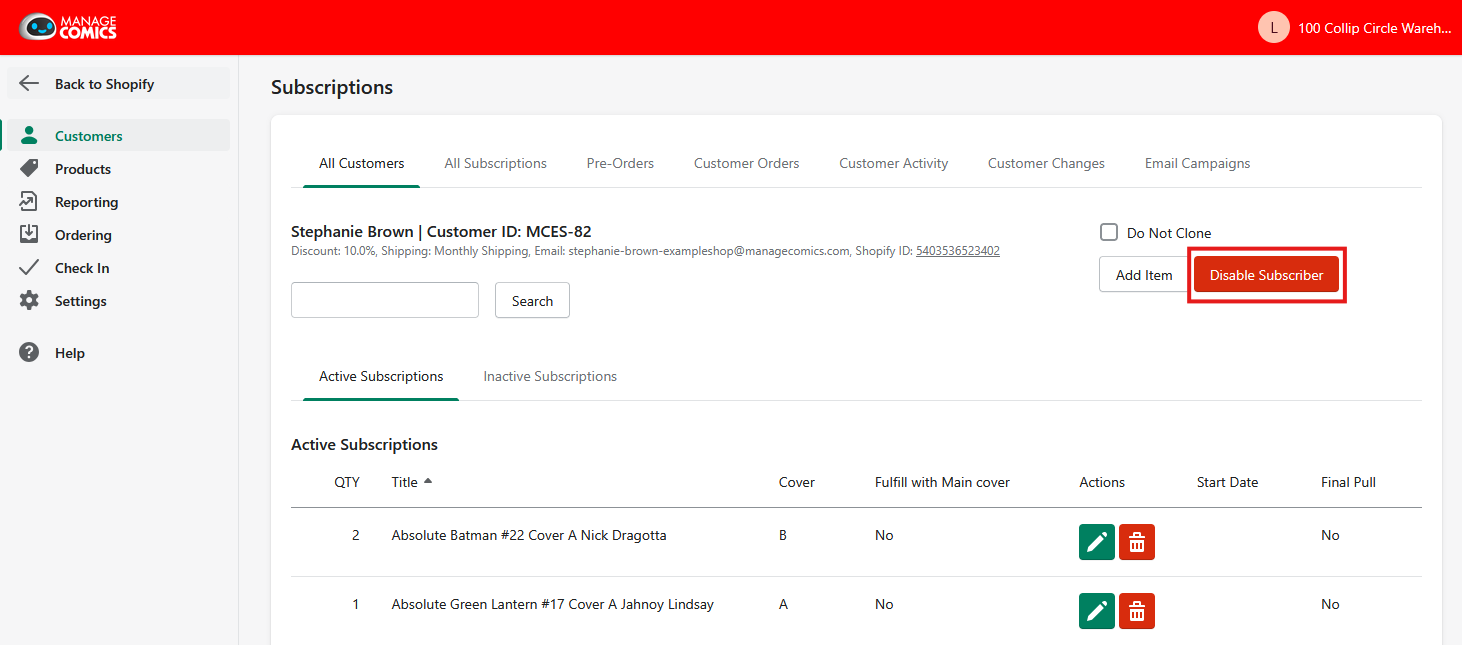
Open the customer's record.
Click Disable Subscriber.
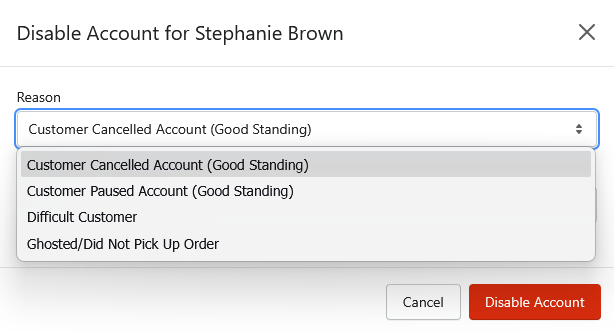
Choose a reason from the dropdown.
What happens when a subscriber is disabled
Their titles immediately stop showing in order forms.
Checked-in items will not be pulled for them.
Orders that were already pulled keep their reserved status and will still be pulled.
It is recommended that a customer's outstanding orders be closed out before disabling the account.
Finding a disabled subscriber's pulled orders
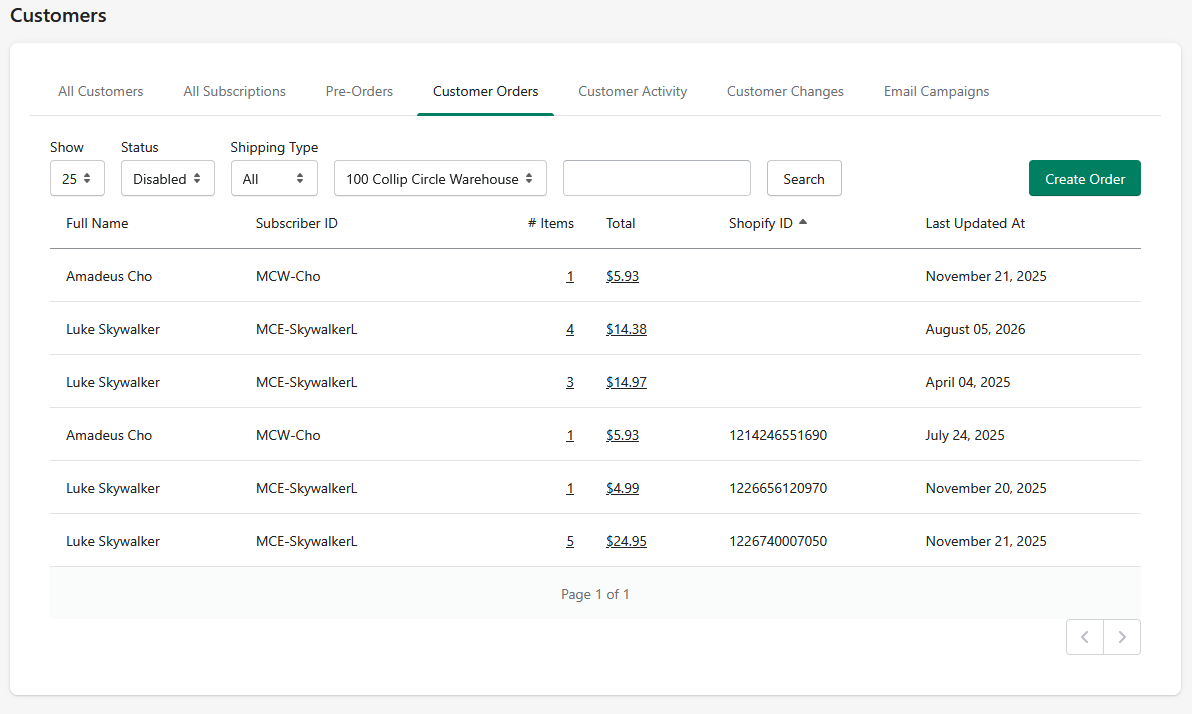
Pulled orders for disabled subscribers can be found under Customer Orders. Set the Status dropdown to Disabled.
Re-enabling a subscriber
Re-enabling a subscriber resumes any of their titles that are still ongoing. Any held orders move from the Disabled status back to Pulled.