

The Customer Activity tab is where pending pre-orders live — pre-orders customers (or staff) have placed that still need admin review before they're locked in. Where Pre-Orders shows you all active pre-orders, Customer Activity is the narrower, approval-specific slice: only the items waiting on a decision from you.
Why Approval Exists
Pre-orders are placed against future, unreleased product. That product might:
Be unavailable from the distributor (a 1-in-25 variant that gets allocated out).
Need a price change (a variant costs more than the base).
Be a duplicate of something the customer already pre-ordered.
Requiring approval gives you a chance to catch all of this before a pre-order is committed.
Customer Self-Service (Ordo)
On an Ordo storefront, a customer browsing your shop can find an issue — say, Detective Comics 1050 — click Pre-Order Issue, and select a variant (including ratio variants like 1:25). That pre-order lands in Customer Activity pending your approval.
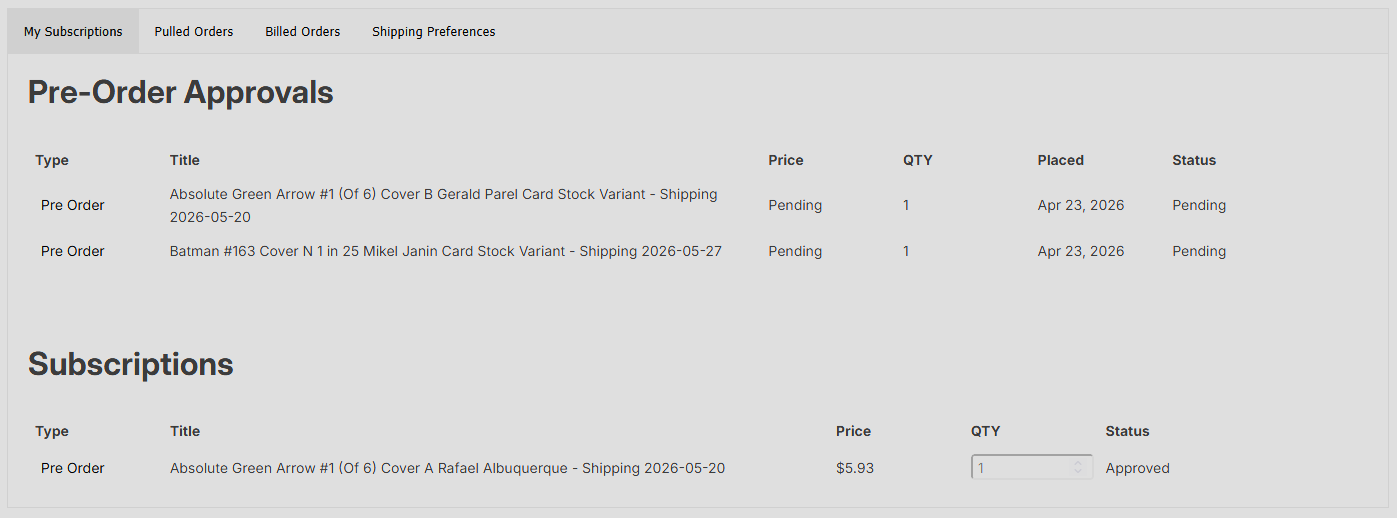
Your Actions
From Customer Activity, for each pending pre-order:
Approve — approves as-is. The pre-order moves into the customer's Subscriptions area.
Decline — adds a decline message. The pre-order appears in the customer's pre-orders area with your message.
Change and Send to Customer — edit the price, adjust the quantity, or update the variant choice, then send it back for the customer to accept or deny.
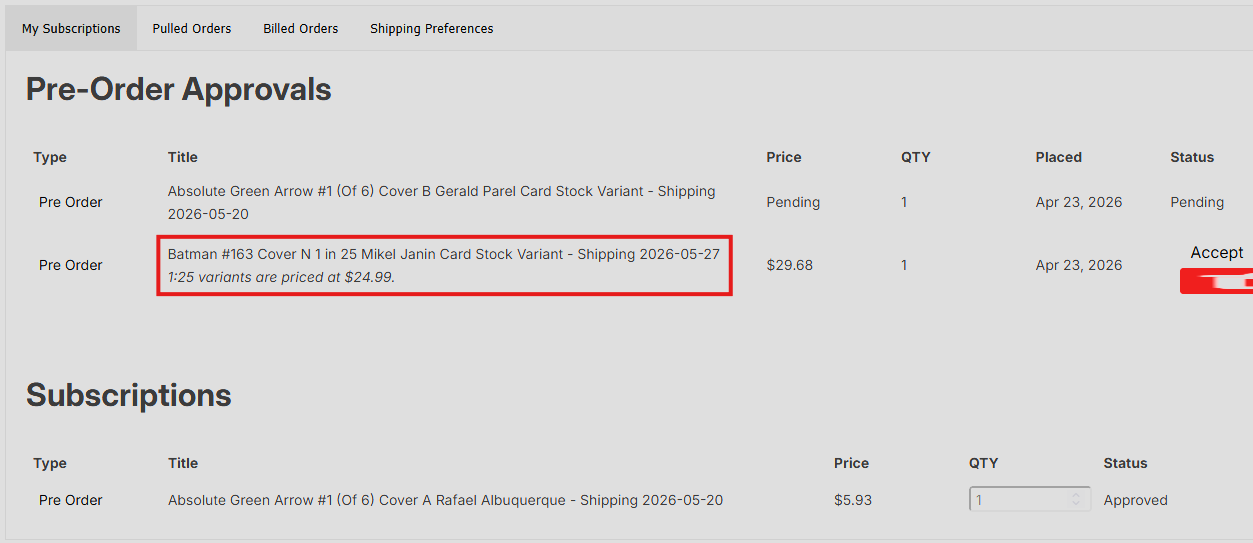
Approving With a Price Change
If a ratio variant costs more than the listed price:
Open the pre-order's edit view.
Change the price.
Enter a reason in the notes ("1:25 variant — higher cost").
Click Send to Customer.
The customer sees the proposed price change and can accept or deny. Until they respond, the pre-order isn't committed.
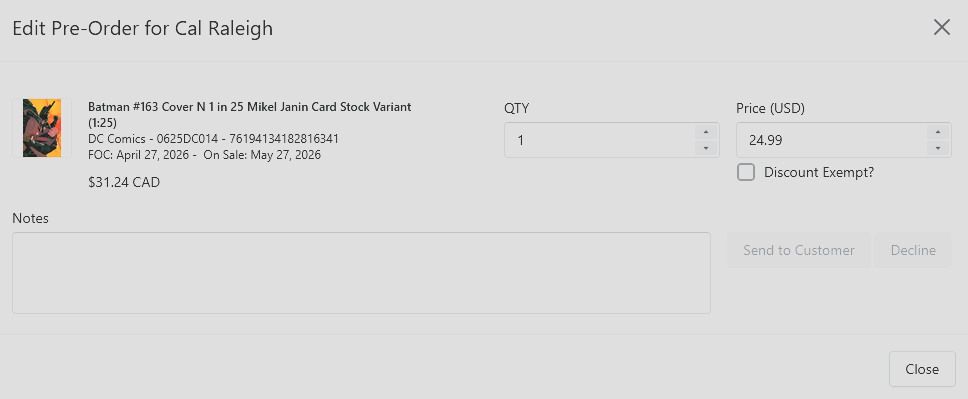
Creating a Pre-Order From the Admin Side
You can also create a pre-order from scratch — useful when a customer calls or emails:
From the customer's detail page, click Add Item and choose the pre-order path.
Set a price.
Optionally exempt this item from the customer's default discount.
This creates an admin-originated pre-order that's already approved.
Oryx Note
Oryx doesn't have customer self-service today, so all pre-orders are admin-entered. The approval step is still useful when staff enter pre-orders that need a manager's sign-off, but it's optional depending on your workflow.