

Email Campaigns is the built-in email system for talking to your subscribers directly. You create a campaign — either a one-off general email or a recurring weekly pulls email — preview it, and send it to your list. It's the reference article behind both the Previews Email and Send Subscriber Emails workflows.
Where to Find It
Customers → Email Campaigns.
You'll see previously sent campaigns and any drafts in progress.
Creating a New Campaign
Click New Campaign. You choose between three types.
Campaign Type 1 — General Email
A free-form email to all your subscribers. Useful for Previews announcements, store news, holiday hours, contest promotions.
Enter a subject line.
Write the body in the WYSIWYG editor — text, headings, bold/italic, lists, links.
Watch the preview panel on the left.
Click Create when done.
See Previews Email for a detailed walkthrough of a typical general-email use case.
Campaign Type 2 — Pulls Email
A per-customer weekly email telling each subscriber what was pulled for them. Selecting Pulls auto-populates:
Start Date (defaults to 7 days ago)
End Date (defaults to today)
Subject — "Your pulls for [Start Date] to [End Date]"
Body — a default message using date variables.
You can edit any of it. A preview is generated on the left.
See Send Subscriber Emails for the send workflow.
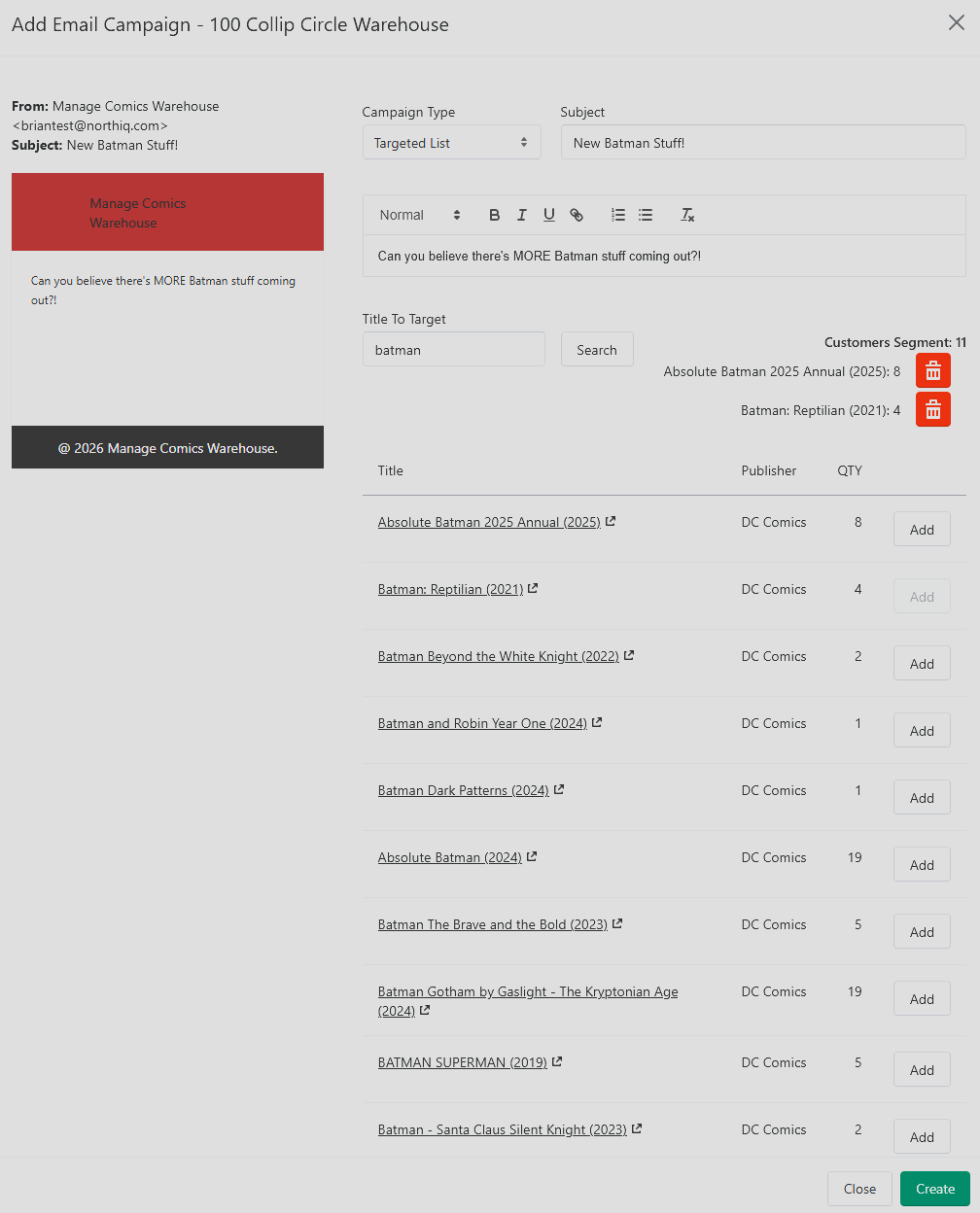
Campaign Type 3 — Targeted List
An email to subscribers of specific titles. Similar to General Email campaigns, but this function lets to send emails to specific groups. Often used when advertising to specific fanbases. Additional titles can be added to increase the customer segment. Only additional customers will be added to the email list, no need to worry about duplicate emails for those customers that subscribe to every Batman title!
Date Variables — How They Work
Pulls emails (and any email you choose) support two live placeholders:
[Start Date][End Date]
Wherever you drop these in the subject or body, Manage Comics replaces them with the actual selected dates when the email is sent.
What you see: Your pulls for [Start Date] to [End Date] What the customer sees: Your pulls for 2026-04-15 to 2026-04-22
How to Use Date Variables
Select your date range.
Write your email using
[Start Date]and[End Date]as placeholders.Preview — the preview shows the actual dates as they'll be sent.
Send with confidence.
Overriding Placeholders
You can manually type dates over the placeholders. Once you replace them with regular text, they won't update if you later change the date range. Use this only when you have a specific reason — otherwise, keep the placeholders.
After Creating
You return to the Email Campaigns list. For each campaign, you can:
Send Now.
Continue editing.
Delete.
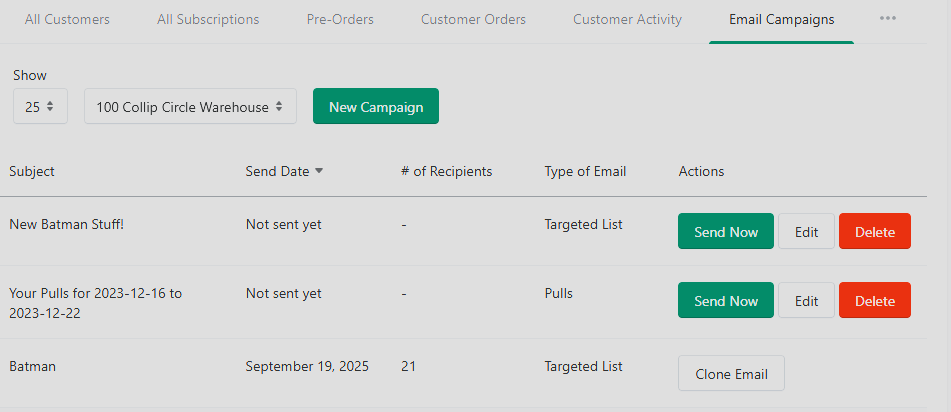
There's no scheduler today — every send is manual.
What You See After a Send
Number of recipients the email was sent to.
The type (General / Pulls/Targeted List).
A Clone button to create a duplicate campaign — useful for recurring emails (next month's Previews, next week's Pulls).
Related
Email Notifications from Manage Comics — the automatic system emails (not campaigns) Manage Comics sends.
Email Settings — where you configure your sender address and reply-to.