

Adding an item to an existing order is the mechanism for the daily "a customer wants something that isn't in their pull yet" requests — walk-ins who grab something off the shelf, phone-ins who ask you to set a variant aside, replacement copies for a damaged sub. The action reserves a copy for the customer using the same underlying logic as weekly check-in, so everything downstream (invoicing, fulfillment, restock, reports) behaves normally.
Add Item only works with items Manage Comics knows about — i.e., items added to your system through Manage Comics (via check-in or FOC). Items entered directly in Shopify or your POS outside Manage Comics won't appear in the search.
Step-by-Step
In Customer Orders, open the customer's order.
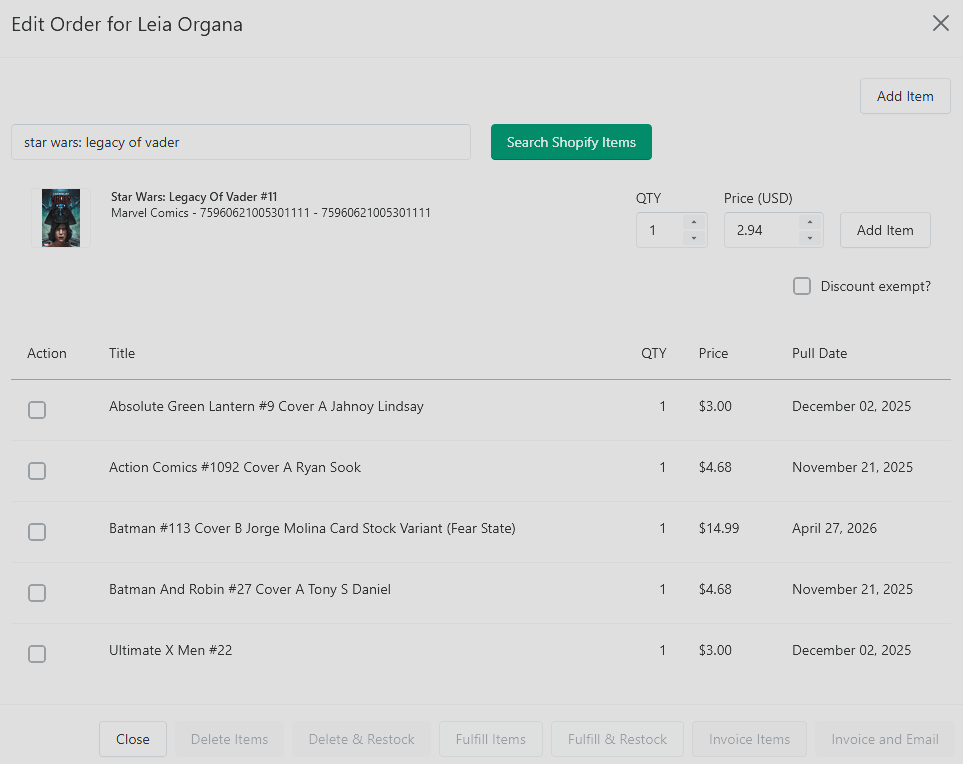
Click Add Item in the upper right.
In the search box, enter the title or the UPC code.
Press Enter or click the search button.
The matching item appears below.
Confirm it's the right item.
Set:
QTY — how many copies.
Price — defaults to the current price; edit if needed.
Discount Exempt — check this if the customer's default discount shouldn't apply.
Click Add Item.
What Happens Behind the Scenes
Manage Comics reserves a copy exactly as it does during weekly check-in. All standard behavior applies — you can remove, check out, invoice, restock, and so on.
Common Uses
Walk-in pickups. Customer browses the shelf and wants to hold a book for later.
Phone-in requests. Customer calls asking you to add something to their pull for the week.
Replacing a damaged sub. Pull the damaged copy, Delete & Restock it, then Add Item the replacement off the shelf.