

Overview & When to Use
What this feature does
The RMH Import Utility Wizard provides a guided interface for importing and updating product data in bulk. You can import new items, update existing item properties, or add item aliases from a CSV, XLS, or XLSX file. The wizard includes mapping capabilities to match your file's columns with the appropriate RMH database fields.
When to use it
When importing your weekly new releases, FOC files, or Initial Orders with new products from distributor catalogs
When updating product information across multiple items at once
When adding item aliases for better product search and identification
When migrating product data from other systems
When performing bulk updates to pricing, descriptions, or other item properties
What the wizard cannot do
It cannot change the Item Lookup Code on an existing item.
It cannot change item quantities. Adjust quantities in RMH directly.
It cannot create new Supplier, Department, Category, Item Tax, Parent Item, or Item Message Codes. If a code in your import file does not already exist in the database, the wizard leaves that field blank on the item record — the import still completes. Create any missing codes in RMH before importing, then spot-check imported items if you suspect a code was missing.
Prerequisites
RMH Store Manager must be installed and running
Import file must be in CSV, XLS, or XLSX format
Supplier, Department, Category, and other codes you reference must already exist in the database (see above — missing codes produce blank fields, not errors)
Import file should not contain merged cells
Key terms
Import Utility Wizard – The guided interface for bulk data import operations
Mapping Template – Saved configuration file for column-to-field mappings
Item Lookup Code – Unique identifier for items that cannot be changed via import
Update Existing Record – Option to modify existing items during import
Item Alias – Alternative names or identifiers for products
How to Import Items or Aliases
Step-by-step
In RMH Store Manager, click Tools.
Click Import Utility.
Select the import file containing the items you want to add or the item properties you want to update.
What you should see
Import Utility Wizard interface with file selection options
Field mapping interface showing your import file columns and database fields
Import preview with duplicate items highlighted in red
Import completion log showing successful imports and any errors
Log files saved to C:\ProgramData\RetailHero\RMH Store Import Utility
Importing Items or Aliases
To import items or aliases using the Import Utility Wizard:
Click Tools.
Click Import Utility.
Select the import file containing the items you want to add or the item properties you want to update.
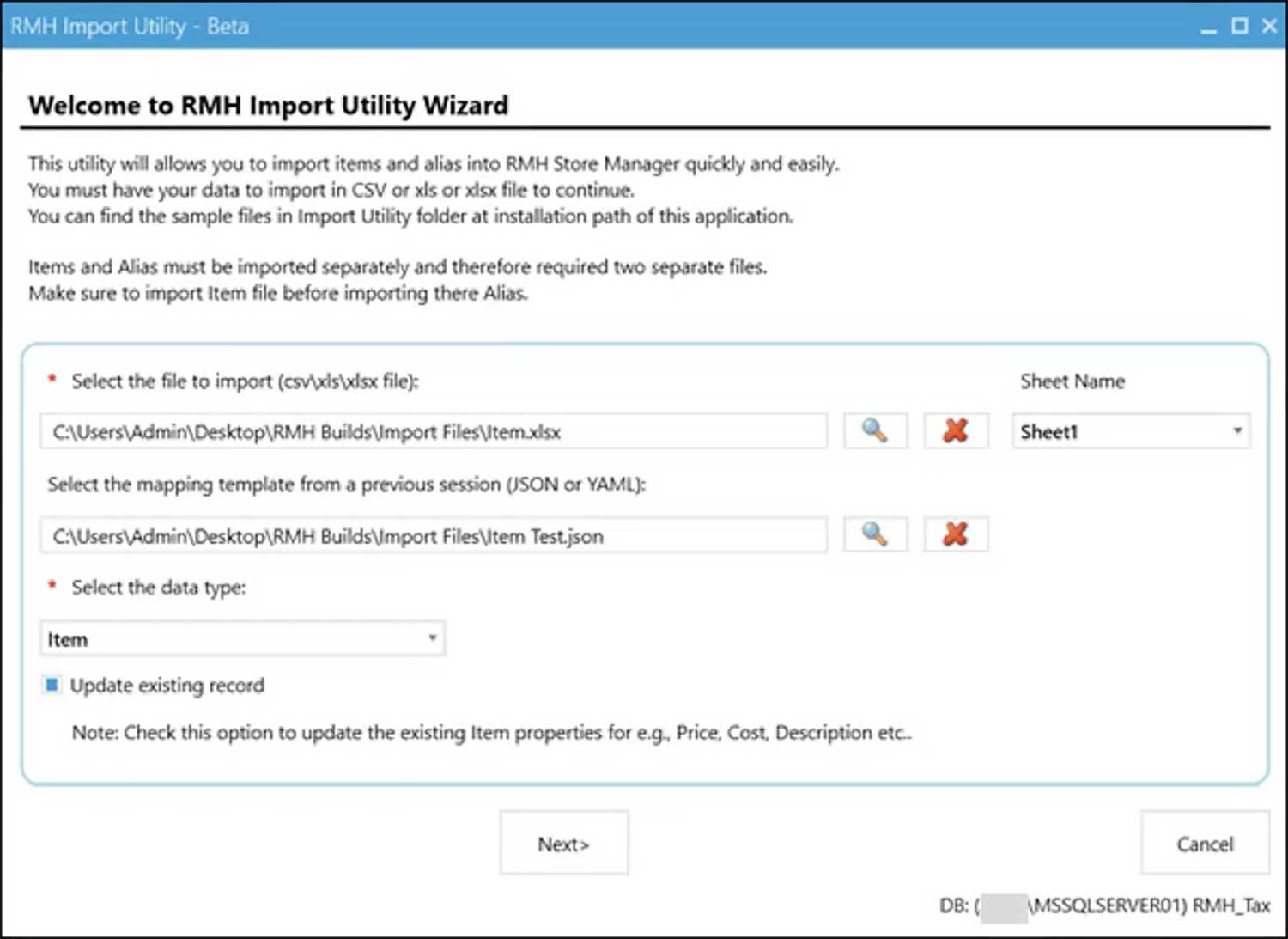
Sample import files are available under C:\Program Files (x86)\Retail Hero\RMH Store Manager\Import Utility. There are six to choose from (Item Import.xlsx, Item Import.xls, Item Import.csv, Alias Import.xlsx, Alias Import.xls, Alias Import.csv). Use them as the starting point for your own files, and refer to Item Import.txt and Alias Import.txt in the same folder for the list of supported columns.
See Mapping rules for the import utility for mapping requirements. Do not merge cells in the import file.
If you are importing an Excel file with multiple sheets, click Sheet Name and select the worksheet you want. If you do not select one, the wizard uses the first worksheet by default.
Optionally, select a mapping template file from a previous import. You will need to enter the mappings manually the first time — after that, Save Mapping creates a template file (JSON or YAML) you can reuse.
For the data type, select one of the following:
Item — importing items or updating existing item properties (excluding the Item Lookup Code).
Alias — importing item aliases.
Select Update existing record if you want existing items to have their properties updated. New items are imported either way — if the box is not selected, only new items are imported and existing items are left unchanged.
Click Next.
If you did not select a mapping template, enter the mappings manually. In the Map Fields row, select the item property for each column you want to import.
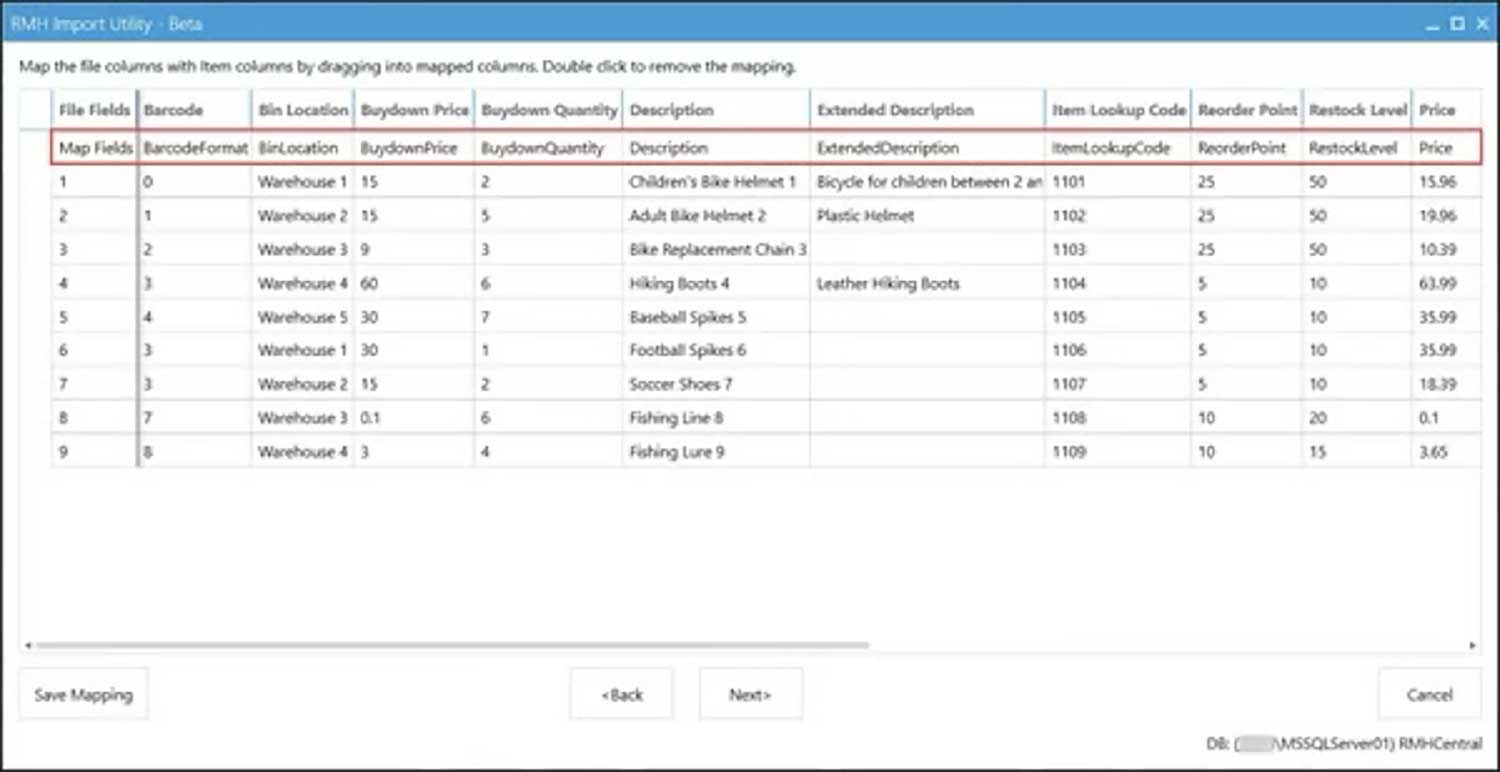
The File Fields row shows the column headings from your import file. The Map Fields row is where you map each column to an item property. Refer to Item Import.txt and Alias Import.txt for supported columns, and Mapping rules for the import utility for mapping requirements.
Optionally, click Save Mapping to save the mappings as a template for future imports.
Click Next.
Review the mappings. If the import file contains duplicate items or aliases, they are highlighted in red. Remove or fix duplicates before starting the import.
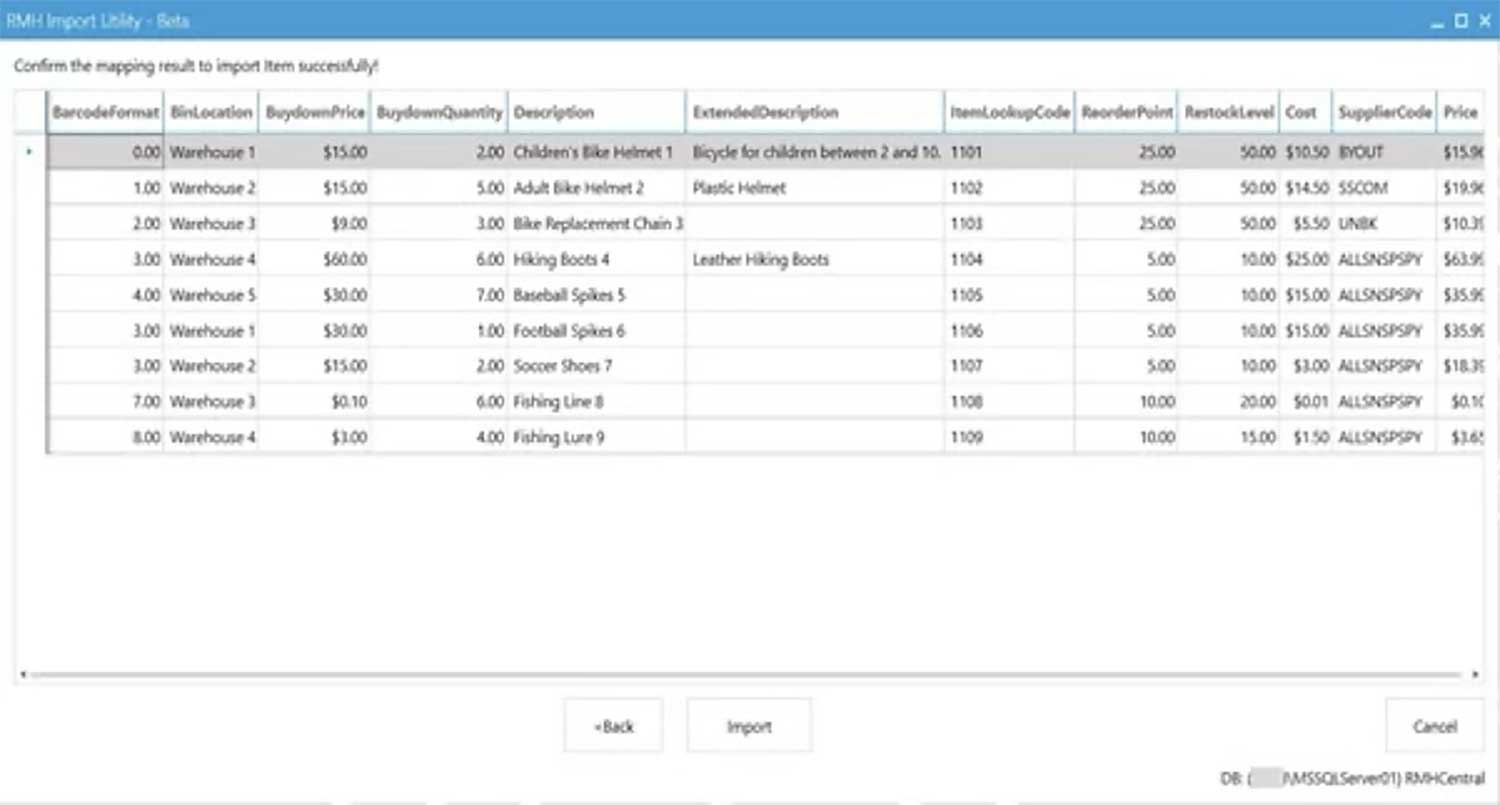
Click Import then Ok.
After the import completes, a log file displays so you can check for issues. This log file, and previous ones, are stored under C:\ProgramData\RetailHero\RMH Store Import Utility.
If there were issues, correct the affected records in your import file and run the wizard again.
Tips
Use the sample import files at C:\Program Files (x86)\Retail Hero\RMH Store Manager\Import Utility as templates.
Save mapping templates for recurring import formats to speed up future imports.
Review the import preview to catch duplicates before importing.
Check the log file after each import.
Create Supplier, Department, Category, and other codes in RMH before importing — the wizard will not create them, and missing codes are left blank on the imported items.
Do not merge cells in your import files.
Troubleshooting
Import file not recognized — confirm the file is CSV, XLS, or XLSX and not corrupted.
Mapping errors — check that column headers match the supported columns in Item Import.txt / Alias Import.txt.
Duplicate items highlighted in red — remove or fix duplicates in the import file before proceeding.
Imported items have blank Supplier / Department / Category / Tax fields — the code referenced in your file did not exist in the database, so the wizard left the field blank. Create the code in RMH, then re-import with Update existing record selected (or fix the items manually).
Item Lookup Code did not change — Lookup Codes cannot be modified via import. Update them manually in RMH.
Quantities did not change — the wizard cannot change item quantities. Adjust quantities in RMH directly.
Existing items were not updated — Update existing record was not selected. Re-run the import with it selected.
Merged cells causing issues — unmerge all cells in the import file.
Mapping template not loading — confirm the template file is valid JSON or YAML.